> ## Documentation Index
> Fetch the complete documentation index at: https://docs.dataerai.com/llms.txt
> Use this file to discover all available pages before exploring further.
# Organization administration
> What organization and system administrators manage in Settings: members and roles, how people join, groups, storage, and researcher-identity reviews.
Use this page if you manage an organization.
Admins use **Settings** to manage:
* Members and roles.
* How people join.
* Groups.
* Storage.
* Researcher-identity reviews.
If you are not an admin, see [Organizations & members](/account/organizations)
instead.
## Members and roles
Each member of an organization has one of two roles:
| Role | Can do |
| ---------- | ---------------------------------------------------------------------------- |
| **Member** | Belong to the organization and work in the projects they're given access to. |
| **Admin** | Everything a member can, plus manage the organization's members and roles. |
As an admin you can **invite** people, **change** a member's role, and **remove** members. Role here governs the organization itself; access to specific data is always controlled separately through [permissions](/sharing/permissions).
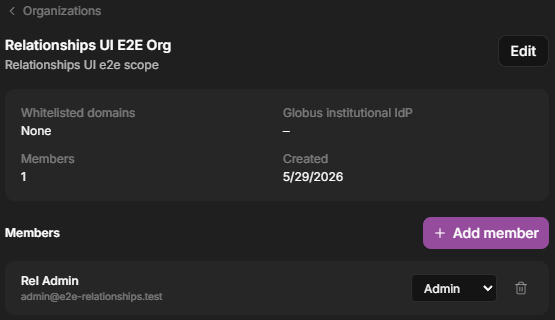
Open the user account menu, choose **Settings**, then open the **Organizations** section and select your organization.
 The organization detail shows its whitelisted domains, Globus IdP, member count, and each member with a role dropdown — plus **Add member**.
 ## How people join
People become members of an organization in three ways:
* **Invitation** — an admin adds them directly.
* **Email domain** — anyone who signs up with a whitelisted email domain (for example `university.edu`) is auto-joined.
* **Globus institutional IdP** — users signing in through your institution's Globus identity provider are auto-joined.
Email-domain and Globus-IdP auto-join are configured by a **system administrator** when the organization is set up. Org admins manage day-to-day membership; the auto-join rules are set at the system level.
## Groups
Use [groups](/account/groups) to grant access to many people at once. Instead of sharing with individuals one by one, share with a group and manage its membership in one place — handy for a lab, a course, or a working team.
## Storage
Repositories and allocations decide where your organization's data lives and how much space each project or person has. See [Storage: repositories & allocations](/account/storage) for what admins can review and set as defaults.
## Researcher-identity reviews
Some researcher-identity links need human review.
Reviews are needed when:
* The email or ORCID does not automatically match.
* Two accounts claim the same identity.
* A claim needs a system administrator's decision.
Members start a claim from their [profile](/account/profile).
## Next steps
The member's-eye view of belonging to an organization.
Grant access to many people at once.
Manage where data lives and how much space there is.
Control access to specific projects and data.
## How people join
People become members of an organization in three ways:
* **Invitation** — an admin adds them directly.
* **Email domain** — anyone who signs up with a whitelisted email domain (for example `university.edu`) is auto-joined.
* **Globus institutional IdP** — users signing in through your institution's Globus identity provider are auto-joined.
Email-domain and Globus-IdP auto-join are configured by a **system administrator** when the organization is set up. Org admins manage day-to-day membership; the auto-join rules are set at the system level.
## Groups
Use [groups](/account/groups) to grant access to many people at once. Instead of sharing with individuals one by one, share with a group and manage its membership in one place — handy for a lab, a course, or a working team.
## Storage
Repositories and allocations decide where your organization's data lives and how much space each project or person has. See [Storage: repositories & allocations](/account/storage) for what admins can review and set as defaults.
## Researcher-identity reviews
Some researcher-identity links need human review.
Reviews are needed when:
* The email or ORCID does not automatically match.
* Two accounts claim the same identity.
* A claim needs a system administrator's decision.
Members start a claim from their [profile](/account/profile).
## Next steps
The member's-eye view of belonging to an organization.
Grant access to many people at once.
Manage where data lives and how much space there is.
Control access to specific projects and data.