> ## Documentation Index
> Fetch the complete documentation index at: https://docs.dataerai.com/llms.txt
> Use this file to discover all available pages before exploring further.
# Identities & credentials
> Link verified scientific identities (ORCID, Globus, Google, GitHub, Scopus) to one account, sign in through any of them, and keep identity-gated access current.
Dataerai lets you link several **verified identities** to a single account. Sign
in through any one of them and you land in the same account, with the same data.
Linking also lets Dataerai recognise you across the scholarly record (e.g. by
ORCID) and keep access that you hold *because of an identity* properly gated.
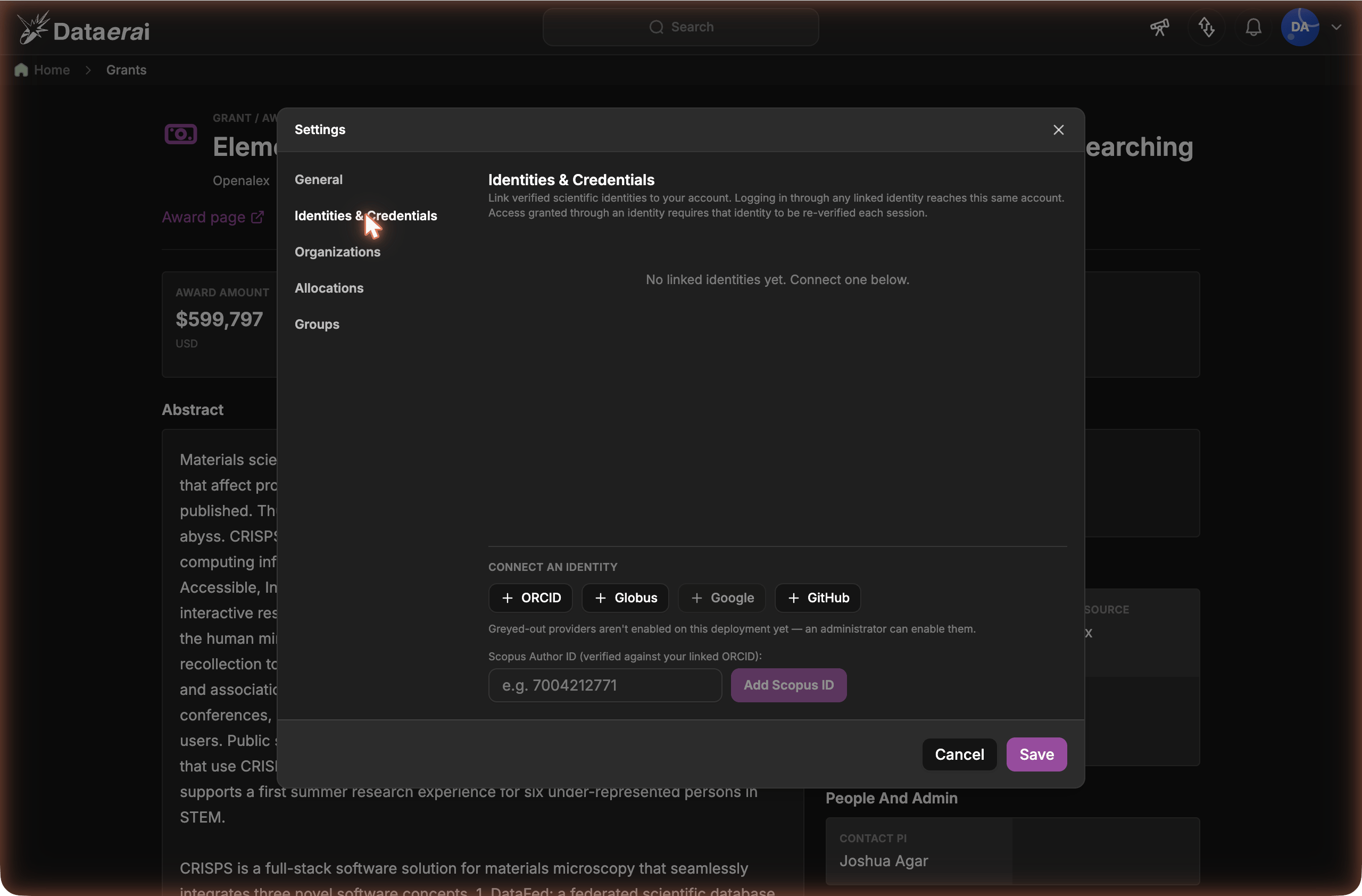
Manage everything from **Settings → Identities & Credentials**.
## Supported identities
| Identity | How it's verified |
| -------------------- | --------------------------------------------------------------------------------------------------------------------------------------------------------------- |
| **ORCID** | Sign in at ORCID (`/read-public`). |
| **Globus** | Sign in through Globus — including your institution, Google, or GitHub federated *via* Globus. |
| **Google** | Sign in with Google. |
| **GitHub** | Sign in with GitHub. |
| **Scopus Author ID** | Not a login — you enter your Scopus Author ID and Dataerai confirms it by matching the Scopus record's ORCID against your **verified ORCID**. Link ORCID first. |
Connecting ORCID, Google, GitHub, or Globus uses a one-time redirect to that
provider. A provider your administrator hasn't enabled on this deployment shows
**greyed-out** under **Connect an identity** — you can see it, but it can't be
connected until an administrator enables it.
Linking **ORCID** or **GitHub** also fills the matching field on your
[profile](/discover/person-detail#edit-your-profile) — your **ORCID iD** and
**GitHub** username — and marks it **verified**. A verified field is locked on
your profile; to change it, unlink the provider here.
## Link an identity
Open **Settings → Identities & Credentials**.
Under **Connect an identity**, choose ORCID, Globus, Google, or GitHub. You'll
be redirected to sign in there, then returned to Dataerai with the identity
linked and marked verified.
With a verified ORCID linked, enter your **Scopus Author ID**. Dataerai checks
that the Scopus record lists the same ORCID and marks it verified on a match.
 ## Unified sign-in
Once linked, you can sign in through **any** of your linked identities and reach
the same account. You don't need to remember which one you used last time.
## Verification freshness & access
Each identity shows when it was **last verified**. Access that you hold *because
of an identity* — for example, membership of an institution you joined through
Globus single sign-on — requires that identity to be **re-verified in your
current session**.
If you sign in this session by a route that doesn't re-verify such an identity
(for example, with email and password), Dataerai shows a one-time **warning
banner** listing the identities that aren't verified this session, and any files
you can only reach through them stay hidden until you re-verify.
A banner at the top names the identities that need re-verifying this session.
Click **Re-verify** in the banner (or in the pane). You're redirected to that
provider; on return, the access it grants is restored and the banner clears.
A "stale" badge in the pane means a linked identity grants access but hasn't been
verified this session. Verified identities you don't rely on for access never
trigger a warning.
If a provider you linked is later removed from this deployment, its stale
identity shows **Unavailable** instead of **Re-verify** — there's nothing to
re-verify against until your administrator re-enables that provider. (Scopus is
always re-verifiable, since it's checked against your ORCID rather than a login.)
## Disconnect an identity
Use **Disconnect** on any identity. You'll no longer be able to sign in through
it, and any access it granted is withheld until you link it again.
## Unified sign-in
Once linked, you can sign in through **any** of your linked identities and reach
the same account. You don't need to remember which one you used last time.
## Verification freshness & access
Each identity shows when it was **last verified**. Access that you hold *because
of an identity* — for example, membership of an institution you joined through
Globus single sign-on — requires that identity to be **re-verified in your
current session**.
If you sign in this session by a route that doesn't re-verify such an identity
(for example, with email and password), Dataerai shows a one-time **warning
banner** listing the identities that aren't verified this session, and any files
you can only reach through them stay hidden until you re-verify.
A banner at the top names the identities that need re-verifying this session.
Click **Re-verify** in the banner (or in the pane). You're redirected to that
provider; on return, the access it grants is restored and the banner clears.
A "stale" badge in the pane means a linked identity grants access but hasn't been
verified this session. Verified identities you don't rely on for access never
trigger a warning.
If a provider you linked is later removed from this deployment, its stale
identity shows **Unavailable** instead of **Re-verify** — there's nothing to
re-verify against until your administrator re-enables that provider. (Scopus is
always re-verifiable, since it's checked against your ORCID rather than a login.)
## Disconnect an identity
Use **Disconnect** on any identity. You'll no longer be able to sign in through
it, and any access it granted is withheld until you link it again.