> ## Documentation Index
> Fetch the complete documentation index at: https://docs.dataerai.com/llms.txt
> Use this file to discover all available pages before exploring further.
# Notifications
> Stay on top of mentions and account events with the in-app Notifications panel — updated in real time, filterable, and easy to clear.
Use **Notifications** to keep up with activity that needs your attention.
You will see:
* A badge for unread notifications.
* New notifications as they arrive.
* A panel where you can review and clear items.
## Open the panel
Open **Notifications** from the top of the app. Items are split into **New** (unread) and **Earlier**, and opening the panel clears the unread badge.
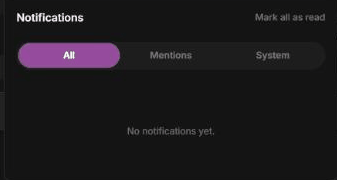 Filter with the tabs:
| Tab | Shows |
| ------------ | ------------------------------------------- |
| **All** | Everything, including watched-item updates. |
| **Mentions** | Only comment @mentions. |
| **System** | Storage allocation-threshold alerts. |
## What you'll be notified about
* **Mentions** — someone @mentioned you in a [comment](/organize/notes-and-comments). The notification links straight to that comment.
* **Allocation thresholds** — one of your [storage allocations](/account/storage) has crossed a usage threshold, so you have time to act before you run out of space.
* **Watched-item updates** — an asset, collection, or project you're **watching** has changed. You'll see updates such as new or removed items, a new file version, or a metadata change. The notification links to the item.
### Watch an item
To follow an item, **star** it — click the star icon on an asset, collection, or project. From then on you're notified when it changes. Watching isn't inherited: starring a collection doesn't automatically watch the assets inside it. To stop watching, remove the star.
## Clearing notifications
Click a notification to mark it read (and to jump to whatever it points at), or use **Mark all as read** to clear them in one go. Use **Load more** to page back through older items.
## Next steps
How @mentions are created.
What allocation-threshold alerts are warning you about.
Filter with the tabs:
| Tab | Shows |
| ------------ | ------------------------------------------- |
| **All** | Everything, including watched-item updates. |
| **Mentions** | Only comment @mentions. |
| **System** | Storage allocation-threshold alerts. |
## What you'll be notified about
* **Mentions** — someone @mentioned you in a [comment](/organize/notes-and-comments). The notification links straight to that comment.
* **Allocation thresholds** — one of your [storage allocations](/account/storage) has crossed a usage threshold, so you have time to act before you run out of space.
* **Watched-item updates** — an asset, collection, or project you're **watching** has changed. You'll see updates such as new or removed items, a new file version, or a metadata change. The notification links to the item.
### Watch an item
To follow an item, **star** it — click the star icon on an asset, collection, or project. From then on you're notified when it changes. Watching isn't inherited: starring a collection doesn't automatically watch the assets inside it. To stop watching, remove the star.
## Clearing notifications
Click a notification to mark it read (and to jump to whatever it points at), or use **Mark all as read** to clear them in one go. Use **Load more** to page back through older items.
## Next steps
How @mentions are created.
What allocation-threshold alerts are warning you about.