> ## Documentation Index
> Fetch the complete documentation index at: https://docs.dataerai.com/llms.txt
> Use this file to discover all available pages before exploring further.
# Organizations & members
> An organization is your institution or lab's home in Dataerai. Manage members and roles, and let people join through institutional sign-in.
An **organization** is the top-level home for your institution, lab, or company. It holds your [projects](/account/projects), members, [groups](/account/groups), and [storage](/account/storage).
## Members and roles
Every member of an organization has a role:
| Role | What it allows |
| ---------- | ------------------------------------------------------------------------------------------ |
| **Member** | Belong to the organization and work in its projects according to the access they're given. |
| **Admin** | Manage the organization and its members. |
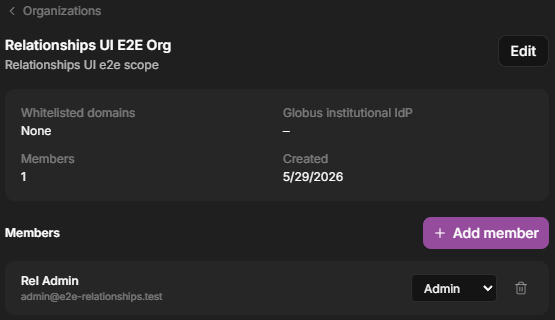
Open your organization from the user account menu → **Settings** → **Organizations**.
Open the user account menu and choose **Settings**, then open the **Organizations** section.
 The organization detail lists its members and each member's role.
 ## How people join
* **Added by an admin** — an organization Admin adds members directly.
* **Institutional sign-in (Globus)** — if your organization configures a **Globus** identity provider, people who sign in through that institutional identity join the organization automatically.
* **Email domain** — an organization can allow specific email domains so people with matching addresses join automatically.
Signing in with **Globus** lets researchers use their existing institutional identity instead of a separate password.
## Next steps
Set up workspaces and assign project roles.
Grant access to many people at once.
Repositories and allocations.
## How people join
* **Added by an admin** — an organization Admin adds members directly.
* **Institutional sign-in (Globus)** — if your organization configures a **Globus** identity provider, people who sign in through that institutional identity join the organization automatically.
* **Email domain** — an organization can allow specific email domains so people with matching addresses join automatically.
Signing in with **Globus** lets researchers use their existing institutional identity instead of a separate password.
## Next steps
Set up workspaces and assign project roles.
Grant access to many people at once.
Repositories and allocations.