> ## Documentation Index
> Fetch the complete documentation index at: https://docs.dataerai.com/llms.txt
> Use this file to discover all available pages before exploring further.
# Account & profile
> Create an account with email or institutional sign-in, verify your email, manage your profile and avatar, and reset your password.
## Create an account
You can sign up two ways:
* **Email and password** — provide your name, email, and a password.
* **Continue with Globus** — sign in through a trusted identity provider, such as your university or Google. If your organization uses Globus, this is the quickest way in, and it can join you to your organization automatically.
After a Dataerai email/password sign-up, Dataerai sends a **verification link** to your email. Open it to activate your account, then sign in. Email verification is only required for Dataerai email/password accounts, not Globus sign-in.
## Sign in and reset your password
Sign in with your email and password, or with Globus. If you forget your password, use **Forgot password** to receive a reset link by email.
If you signed up with an email and password, you can change it any time from your profile: choose **Change password**, enter your current password, then set and confirm a new one (minimum 8 characters). The option doesn't appear for Globus sign-in, which doesn't use a Dataerai password.
## Your profile
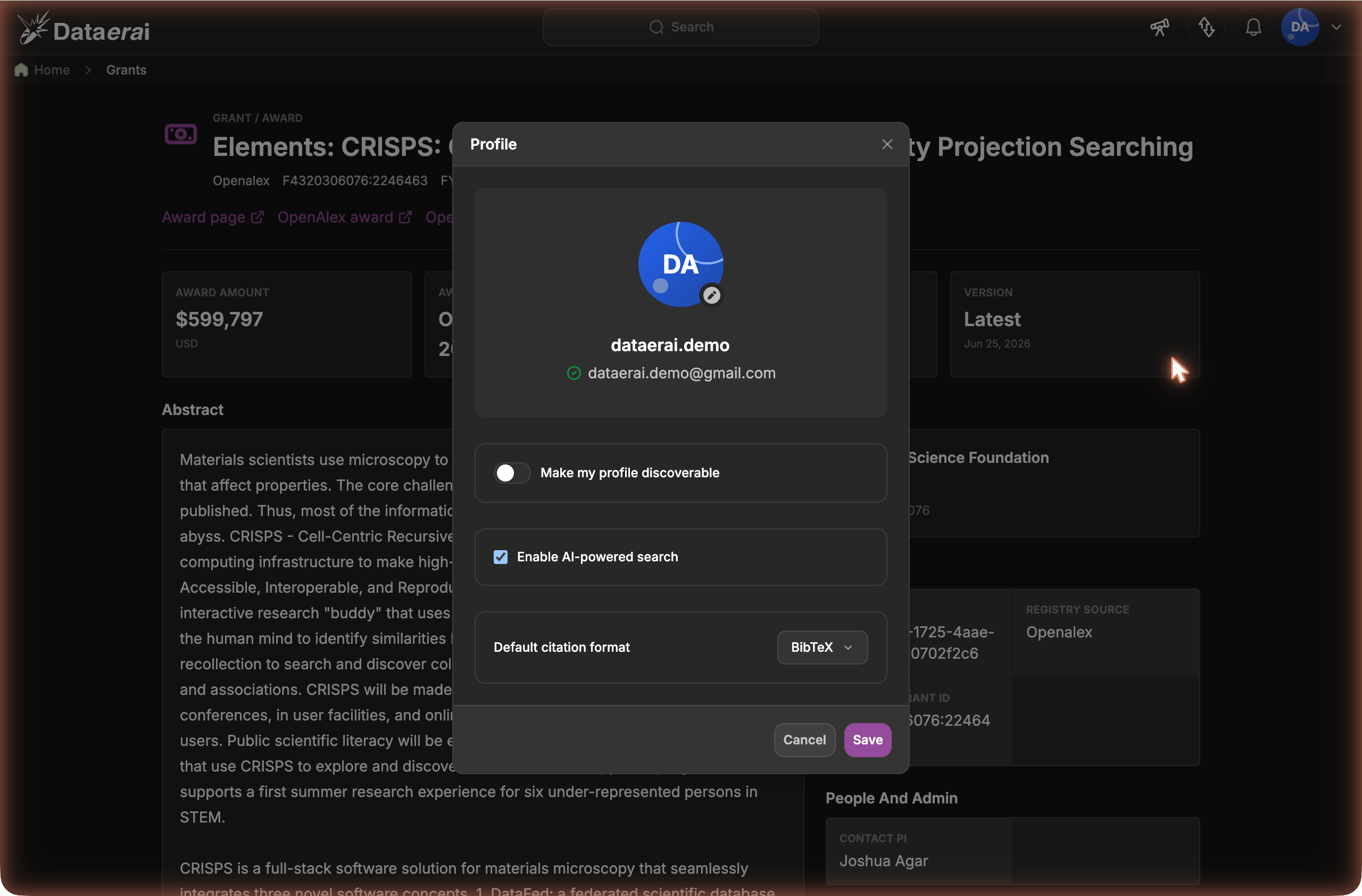
From your profile you can update your **name**, choose a generated **avatar** style and color, or upload an **avatar** photo with a crop step so it looks right. If you do not upload a photo, Dataerai shows a branded generated avatar using your first and last initials. Your name and avatar are how teammates recognize you across projects and shared data.
Open the user account menu in the top-right corner of the app.
 Choose **Profile**, then update your name and email, choose an avatar style and color, upload an avatar photo if you want one, and adjust your settings.
 Uploaded photos take precedence over generated avatars. If you delete your uploaded photo, Dataerai shows the generated avatar style and color you selected.
## Profile settings
The same dialog has a few settings:
| Setting | What it does |
| -------------------------------- | ---------------------------------------------------------------------------------------------------------------------------------------------------------------------------------------------------------------------------- |
| **Make my profile discoverable** | Lets people outside your organization find your profile — for example, in a [people search](/discover/people-search) across the platform. Leave it off to keep your profile visible only within your own organization. |
| **Enable AI-powered search** | Turns AI-assisted search on or off for your account. It's on by default; turn it off to opt out and use ordinary search only. |
| **Default citation format** | Sets the format the [citation](/identity/cite-a-record) panel uses by default when you copy or download a citation. Choose **BibTeX**, **RIS**, **APA**, **MLA**, or **Chicago**. You can still switch formats per citation. |
Changes take effect when you click **Save**.
Uploaded photos take precedence over generated avatars. If you delete your uploaded photo, Dataerai shows the generated avatar style and color you selected.
## Profile settings
The same dialog has a few settings:
| Setting | What it does |
| -------------------------------- | ---------------------------------------------------------------------------------------------------------------------------------------------------------------------------------------------------------------------------- |
| **Make my profile discoverable** | Lets people outside your organization find your profile — for example, in a [people search](/discover/people-search) across the platform. Leave it off to keep your profile visible only within your own organization. |
| **Enable AI-powered search** | Turns AI-assisted search on or off for your account. It's on by default; turn it off to opt out and use ordinary search only. |
| **Default citation format** | Sets the format the [citation](/identity/cite-a-record) panel uses by default when you copy or download a citation. Choose **BibTeX**, **RIS**, **APA**, **MLA**, or **Chicago**. You can still switch formats per citation. |
Changes take effect when you click **Save**.
 **Profile** here manages your **account** — name, avatar, email, and settings.
To edit your **researcher profile** — affiliation, ORCID iD, phone, and your
Scopus / ResearcherID / Google Scholar / PubMed ids — choose **Edit profile**
from the user menu to open your
[person page](/discover/person-detail#edit-your-profile).
## Link your researcher identity
Dataerai can connect your account to your **researcher identity**.
That identity can include:
* ORCID and other identifiers.
* Publications.
* Grants.
* Co-authors.
* Data contributions.
From your profile, you can request to link or claim that identity.
* If the identity matches by **email or ORCID**, the link is **approved automatically**.
* Otherwise, the request goes to a **system administrator** to review — including resolving cases where two accounts claim the same identity.
Linking your identity means authorship and credit travel with your data, and your contributions connect to the broader scholarly graph.
## Next steps
Create a project and upload your first dataset.
How you join and belong to an organization.
**Profile** here manages your **account** — name, avatar, email, and settings.
To edit your **researcher profile** — affiliation, ORCID iD, phone, and your
Scopus / ResearcherID / Google Scholar / PubMed ids — choose **Edit profile**
from the user menu to open your
[person page](/discover/person-detail#edit-your-profile).
## Link your researcher identity
Dataerai can connect your account to your **researcher identity**.
That identity can include:
* ORCID and other identifiers.
* Publications.
* Grants.
* Co-authors.
* Data contributions.
From your profile, you can request to link or claim that identity.
* If the identity matches by **email or ORCID**, the link is **approved automatically**.
* Otherwise, the request goes to a **system administrator** to review — including resolving cases where two accounts claim the same identity.
Linking your identity means authorship and credit travel with your data, and your contributions connect to the broader scholarly graph.
## Next steps
Create a project and upload your first dataset.
How you join and belong to an organization.