> ## Documentation Index
> Fetch the complete documentation index at: https://docs.dataerai.com/llms.txt
> Use this file to discover all available pages before exploring further.
# Storage: repositories & allocations
> Understand where your data lives — repositories provide storage, and allocations are the space assigned to you or your projects. See how to check usage, pick where data goes, and set a default.
Use this page to understand where new data goes and how much space is available.
Two terms matter:
* **Repositories** are storage locations.
* **Allocations** are the storage space assigned to you or a project.
Most storage setup is handled for you. You will mainly notice it when uploading
data, choosing a destination, or checking usage.
## Repositories
A **repository** is a storage location available to your organization. You don't manage its internals — you just see which repositories your organization has and store data in them through allocations.
## Allocations
An **allocation** is storage space assigned to you or to a project.
Each allocation shows:
* How much space you can use.
* How many records you can store.
* Whether it is the default place for new data.
* A friendly name, when one is set.
Allocations can also sit under a larger parent allocation, so project usage can
roll up into an organization-wide pool.
Admins who manage storage also see owner tags in **Allocations** and
**Repositories**. These blue tags show which person, project, organization, or
unassigned pool owns the allocation, so admins can scan quota ownership without
opening each row.
## Check how much space you've used
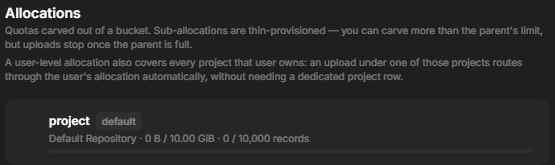
In **Settings**, each allocation shows usage against its limits. Dataerai also
sends an [allocation-threshold notification](/account/notifications) as you
approach a limit.
Open the user account menu, choose **Settings**, then open the **Allocations** section.
 Each allocation shows its repository, usage against the space and record limits, and the default flag.
 ## Choose where new data goes
When you create a [collection](/organize/collections), you can pick which allocation its data uses, or leave it on the owner's **default**. Sub-collections and assets inherit that choice, so you usually set it once at the top.
If someone has **Write** access to a project, they can use the allocations
assigned to that project when they add project data. They do not need separate
access to the organization-wide storage pool, and they cannot move or manage
allocations unless they also have the appropriate admin access.
## Set a default allocation
Mark an allocation as the **default** for yourself or a project to make it the automatic destination for new data. You can change the default at any time; it only affects where *new* data is placed.
Running low on space? Remove data you no longer need, place new data in a different allocation, or ask an [organization admin](/account/administration) to raise your quota.
## Next steps
Choose where a collection's data is stored.
How admins manage repositories and allocations.
## Choose where new data goes
When you create a [collection](/organize/collections), you can pick which allocation its data uses, or leave it on the owner's **default**. Sub-collections and assets inherit that choice, so you usually set it once at the top.
If someone has **Write** access to a project, they can use the allocations
assigned to that project when they add project data. They do not need separate
access to the organization-wide storage pool, and they cannot move or manage
allocations unless they also have the appropriate admin access.
## Set a default allocation
Mark an allocation as the **default** for yourself or a project to make it the automatic destination for new data. You can change the default at any time; it only affects where *new* data is placed.
Running low on space? Remove data you no longer need, place new data in a different allocation, or ask an [organization admin](/account/administration) to raise your quota.
## Next steps
Choose where a collection's data is stored.
How admins manage repositories and allocations.