> ## Documentation Index
> Fetch the complete documentation index at: https://docs.dataerai.com/llms.txt
> Use this file to discover all available pages before exploring further.
# Import from DataCite
> Search the DataCite DOI registry across many repositories and import datasets into a project as metadata-only assets. Each imported asset links out to the dataset's landing page.
[DataCite](https://datacite.org) is a cross-repository registry of DOIs — tens of millions of them, several million describing datasets. Dataerai can search DataCite, scoped to datasets, and import results into one of your projects as **metadata-first assets**: the title, DOI, type, authors, and publication date are copied into Dataerai so they're searchable and shareable alongside your own data.
DataCite is a discovery index, not a file store, so a DataCite import works differently from a single-repository import like [Zenodo](/data/import-zenodo):
DataCite holds **no files**. Each DOI describes a dataset published somewhere else — Zenodo, Dryad, Figshare, an institutional archive — and records that dataset's landing page. So each imported asset is a single **link-out to the landing page**, not a set of downloadable files. Nothing is stored in your Dataerai allocation, so importing doesn't consume your quota.
## Search DataCite
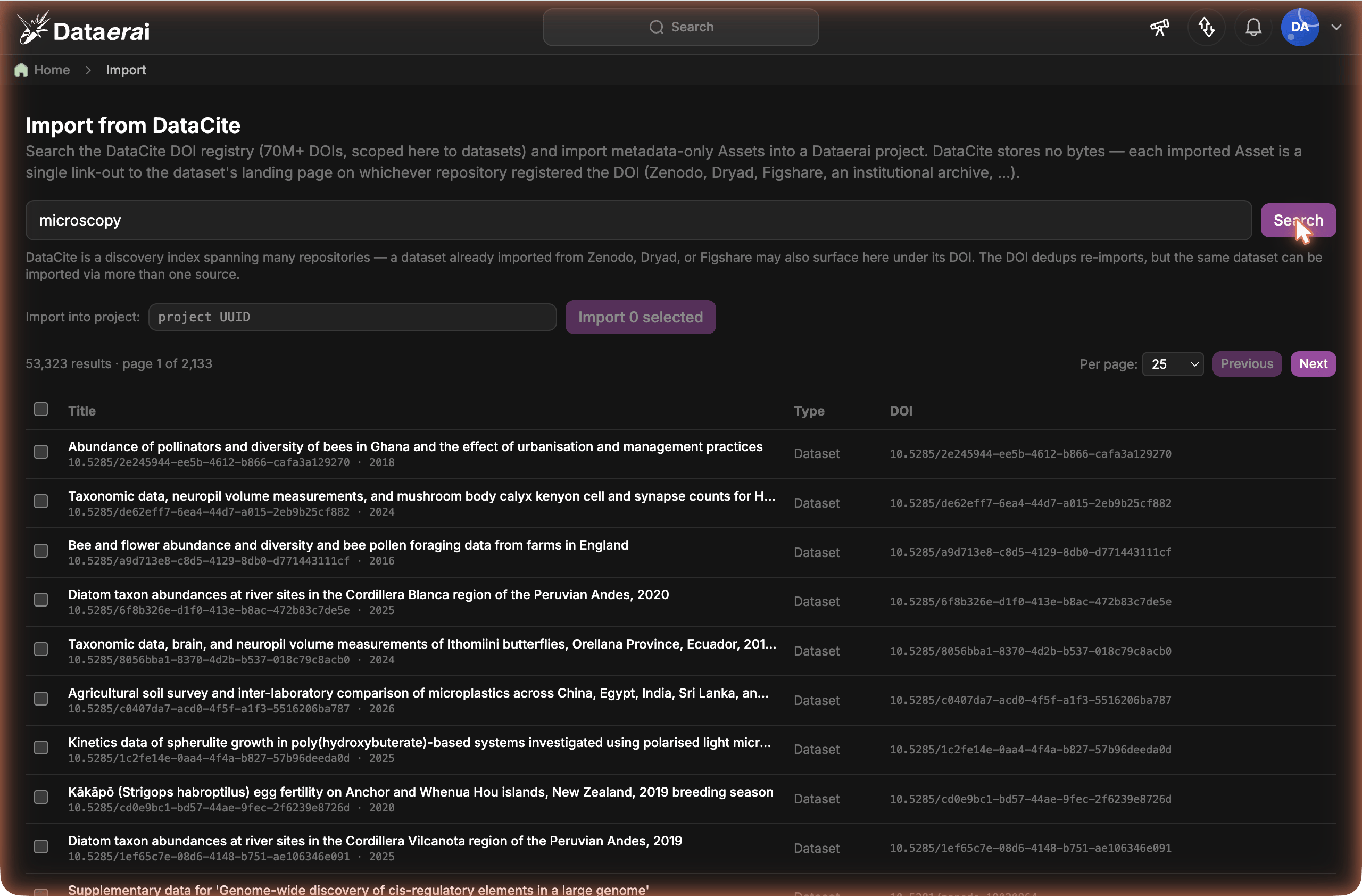
Open the **Import from DataCite** page, type a query, and click **Search**.
* The search is **scoped to datasets**. Enter free text (for example `microscopy`, `climate`, or `genome assembly`); there's no default query, so nothing runs until you search.
* Results show **Title**, **Type**, and **DOI**, with the DOI and publication date under each title.
* Use **Per page** (25, 100, 500, or 1000) to trade clicks for latency. DataCite's public API is rate-limited, so larger page sizes take longer.
* The result count and **page X of Y** are shown above the table, with **Previous** / **Next** to move between pages.
 ## Select and import
Tick the rows you want — click a row, or press Space or Enter on it, to toggle its checkbox. The header checkbox selects or clears everything on the current page; your selection is kept as you page through results.
Paste the UUID of the project that should own the new assets into the **Import into project** field.
Click **Import**. Large selections are sent in batches automatically, and a single **Import result** panel summarizes how many datasets were imported (and how many new assets were created), plus any that failed and why.
## The same dataset can appear under more than one source
Because DataCite spans many repositories, a dataset you could also import from Zenodo, Dryad, or Figshare **also surfaces here under its DOI** — those repositories register their DOIs with DataCite.
* **Within DataCite, re-importing the same DOI into a project is deduplicated** — you won't get a duplicate asset.
* **Across sources, the same dataset imported two ways stays two assets.** Importing a DOI from the DataCite page gives you a landing-page link-out; importing the same dataset from its native Zenodo or Dryad page gives you that repository's view of the files. They aren't merged. DataCite's value is **discovery breadth** — finding the DOI no matter who hosts it — so use it to find datasets across repositories, and import from a dataset's native source when you want that repository's file-level view.
Because imported assets point at the dataset's landing page rather than your own storage, they're only useful while that landing page resolves. If you need a durable copy under your control, follow the DOI to the source, download the files, and [upload them](/data/upload) as a regular asset instead.
## Next steps
How assets that describe data elsewhere work in Dataerai.
Import a single repository's records with their files.
Find imported datasets by title, type, creator, and metadata.
Decide who can see the datasets you import.
## Select and import
Tick the rows you want — click a row, or press Space or Enter on it, to toggle its checkbox. The header checkbox selects or clears everything on the current page; your selection is kept as you page through results.
Paste the UUID of the project that should own the new assets into the **Import into project** field.
Click **Import**. Large selections are sent in batches automatically, and a single **Import result** panel summarizes how many datasets were imported (and how many new assets were created), plus any that failed and why.
## The same dataset can appear under more than one source
Because DataCite spans many repositories, a dataset you could also import from Zenodo, Dryad, or Figshare **also surfaces here under its DOI** — those repositories register their DOIs with DataCite.
* **Within DataCite, re-importing the same DOI into a project is deduplicated** — you won't get a duplicate asset.
* **Across sources, the same dataset imported two ways stays two assets.** Importing a DOI from the DataCite page gives you a landing-page link-out; importing the same dataset from its native Zenodo or Dryad page gives you that repository's view of the files. They aren't merged. DataCite's value is **discovery breadth** — finding the DOI no matter who hosts it — so use it to find datasets across repositories, and import from a dataset's native source when you want that repository's file-level view.
Because imported assets point at the dataset's landing page rather than your own storage, they're only useful while that landing page resolves. If you need a durable copy under your control, follow the DOI to the source, download the files, and [upload them](/data/upload) as a regular asset instead.
## Next steps
How assets that describe data elsewhere work in Dataerai.
Import a single repository's records with their files.
Find imported datasets by title, type, creator, and metadata.
Decide who can see the datasets you import.