> ## Documentation Index
> Fetch the complete documentation index at: https://docs.dataerai.com/llms.txt
> Use this file to discover all available pages before exploring further.
# Import from Zenodo
> Search Zenodo's public records and import them into a project as metadata-first assets — without copying the bytes into Dataerai. Downloads stream straight from Zenodo's CDN.
Dataerai can pull public records from [Zenodo](https://zenodo.org) into one of your projects as **metadata-first assets**. The record's metadata — title, DOI, type, authors, publication date — is copied into Dataerai so it's searchable and shareable alongside your own data. The **files are not copied**: clicking **Download** on an imported asset streams directly from Zenodo's CDN.
Imported assets are [metadata-first](/data/metadata-first-assets): they describe and link to data that lives on Zenodo. Nothing is stored in your Dataerai allocation, so importing doesn't consume your quota.
## Search Zenodo
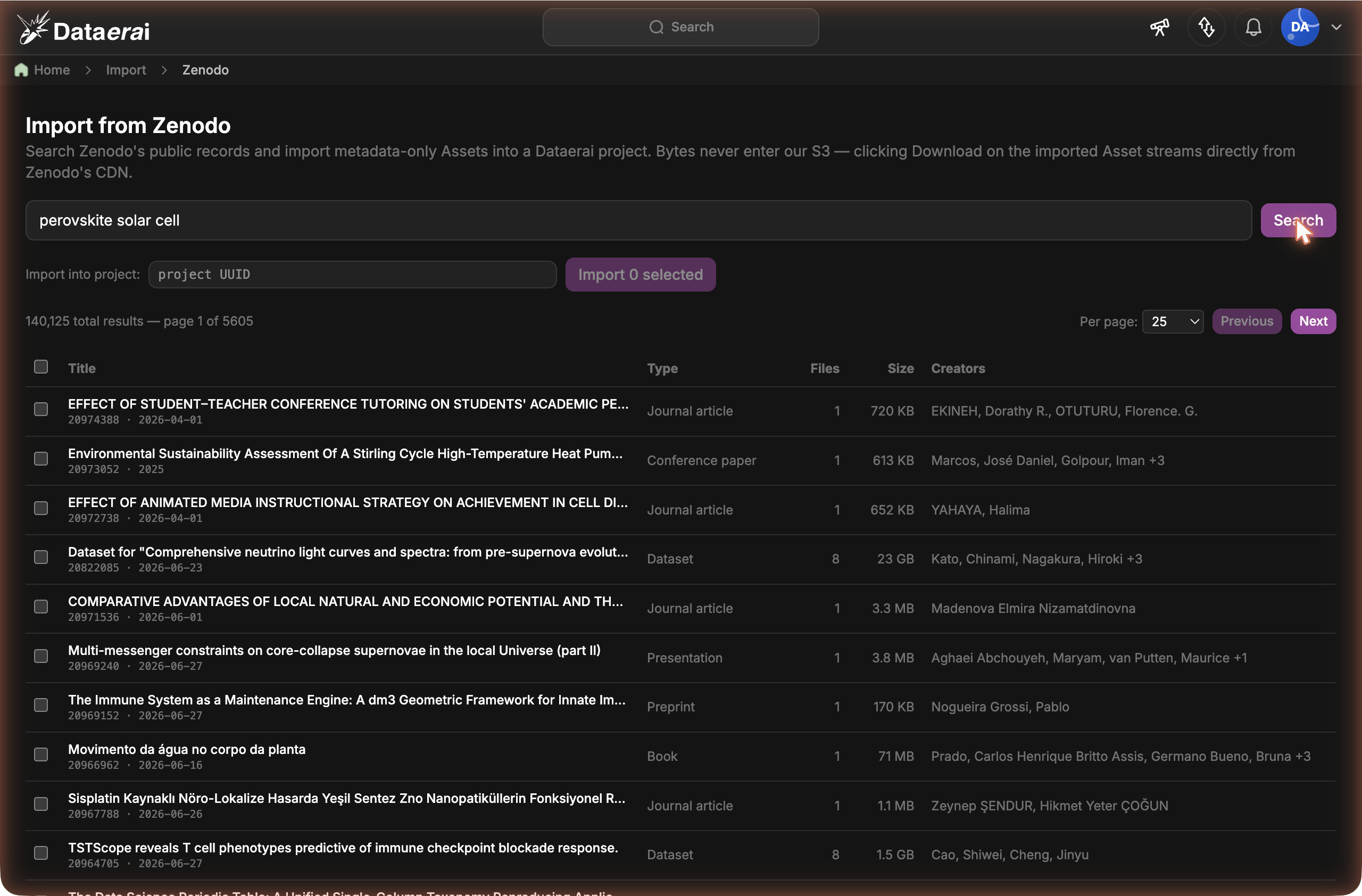
Open the **Import from Zenodo** page and enter a Zenodo query, then **Search**.
* The query uses Zenodo's own search syntax, e.g. `type:dataset`, `climate model`, or a DOI.
* Results show **Title**, **Type**, **Files**, **Size**, and **Creators**, with the record ID and publication date under each title.
* Use **Per page** (25, 100, 500, or 1000) to trade clicks for latency. Zenodo's public API is rate-limited, so the larger page sizes can take from 30 seconds up to a few minutes.
## Select and import
Tick the records you want. The header checkbox selects or clears everything on the current page; your selection is kept as you page through results.
Paste the UUID of the project that should own the new assets into the **Import into project** field.
Click **Import**. Large selections are sent in batches automatically, and a single **Import result** panel summarizes how many records were imported (and how many new assets were created), plus any that failed and why.
 Because imported assets point at Zenodo rather than your own storage, their files are only available while the Zenodo record is. If you need a durable copy under your control, download the files and [upload them](/data/upload) as a regular asset instead.
## Next steps
How records that describe data elsewhere work in Dataerai.
Group imported records alongside your own data.
Find imported records by title, type, creator, and metadata.
Decide who can see the records you import.
Because imported assets point at Zenodo rather than your own storage, their files are only available while the Zenodo record is. If you need a durable copy under your control, download the files and [upload them](/data/upload) as a regular asset instead.
## Next steps
How records that describe data elsewhere work in Dataerai.
Group imported records alongside your own data.
Find imported records by title, type, creator, and metadata.
Decide who can see the records you import.