> ## Documentation Index
> Fetch the complete documentation index at: https://docs.dataerai.com/llms.txt
> Use this file to discover all available pages before exploring further.
# Automatic metadata extraction
> Dataerai reads scientific instrument files and extracts structured metadata, so you can find data by what's inside it.
When you add a recognized scientific file, Dataerai reads it and extracts **structured metadata** — the settings and parameters recorded by the instrument. That metadata becomes searchable, so you can later find an asset by what's inside it instead of remembering where you put it.
## Supported formats
Dataerai currently extracts metadata from these formats:
| Format | Extension | Typical source |
| ----------------- | -------------- | --------------------------------------- |
| HDF5 | `.h5`, `.hdf5` | General scientific data and model files |
| Panalytical XRDML | `.xrdml` | X-ray diffraction (XRD) |
| Gatan DM4 | `.dm4` | Electron microscopy |
| WaveMetrics IBW | `.ibw` | Igor Pro waveforms |
Other file types upload normally; they just don't have extracted metadata. Support for more formats is added over time.
## Review before you upload
When you add a recognized file in the [upload panel](/data/upload), Dataerai shows a **metadata preview** before the upload starts:
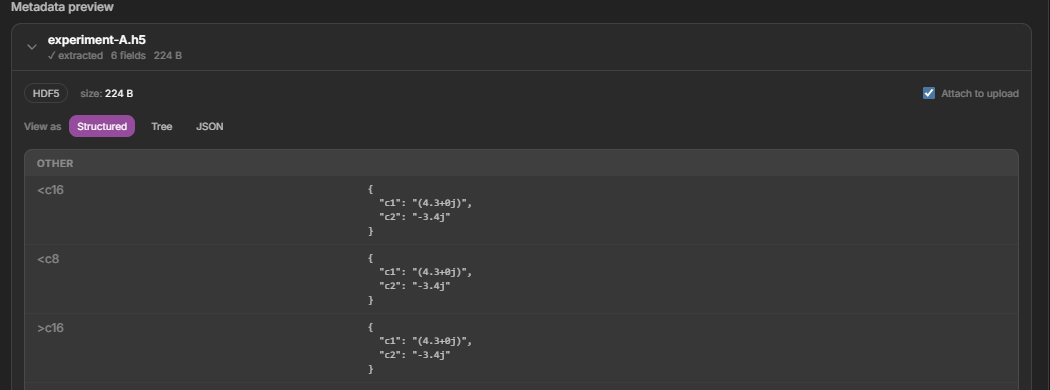 * See the extracted fields, grouped to match the instrument (for example, XRD shows **X-ray source**, **Geometry**, and **Scan**).
* Switch between **Structured**, **Tree**, and **JSON** views of the same metadata.
* **Edit** any value inline, or edit the raw JSON directly.
* Use the **Attach to upload** toggle to decide whether the extracted metadata is saved with the asset.
Dataerai also classifies the **data type** of the file (for example, a tapping-mode AFM scan or an XRD rocking curve) to help with organization and search. The detected data type appears on the asset's **Metadata** tab once the upload finishes.
Very large files (over about 100 MB) skip the in-dialog preview, but their metadata is still extracted automatically after the upload finishes.
## Run extraction later
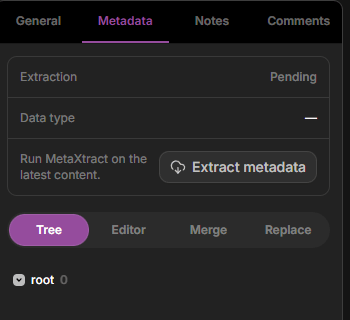
If a file uploaded before extraction was available, or a previous attempt failed, open the asset's **Metadata** tab. It shows the current **Extraction** status and the detected **Data type**, and offers an **Extract metadata** action to run extraction on the latest content.
* See the extracted fields, grouped to match the instrument (for example, XRD shows **X-ray source**, **Geometry**, and **Scan**).
* Switch between **Structured**, **Tree**, and **JSON** views of the same metadata.
* **Edit** any value inline, or edit the raw JSON directly.
* Use the **Attach to upload** toggle to decide whether the extracted metadata is saved with the asset.
Dataerai also classifies the **data type** of the file (for example, a tapping-mode AFM scan or an XRD rocking curve) to help with organization and search. The detected data type appears on the asset's **Metadata** tab once the upload finishes.
Very large files (over about 100 MB) skip the in-dialog preview, but their metadata is still extracted automatically after the upload finishes.
## Run extraction later
If a file uploaded before extraction was available, or a previous attempt failed, open the asset's **Metadata** tab. It shows the current **Extraction** status and the detected **Data type**, and offers an **Extract metadata** action to run extraction on the latest content.
 ## Validation issues
For some formats, the preview checks the extracted values and lists any **validation issues** so you can catch a bad file early. Each issue is marked as an error, a warning, or info — for example, an XRD scan with an unusually low tube voltage, zero current, or a missing anode material.
## It's searchable
Extracted metadata is available to [search](/discover/search) alongside the metadata you add yourself, so you can filter assets by instrument settings and other captured fields.
## Next steps
Add files and review their extracted metadata.
Find assets by metadata, tags, and more.
Run the same extraction in Python with `dataerai-sdk[metaextract]`.
## Validation issues
For some formats, the preview checks the extracted values and lists any **validation issues** so you can catch a bad file early. Each issue is marked as an error, a warning, or info — for example, an XRD scan with an unusually low tube voltage, zero current, or a missing anode material.
## It's searchable
Extracted metadata is available to [search](/discover/search) alongside the metadata you add yourself, so you can filter assets by instrument settings and other captured fields.
## Next steps
Add files and review their extracted metadata.
Find assets by metadata, tags, and more.
Run the same extraction in Python with `dataerai-sdk[metaextract]`.