> ## Documentation Index
> Fetch the complete documentation index at: https://docs.dataerai.com/llms.txt
> Use this file to discover all available pages before exploring further.
# Track uploads & downloads
> Follow your transfers in the Transfer tracker: live progress, status filtering, and history for browser, desktop, and CLI uploads and downloads.
Every upload and download in Dataerai is a **transfer**. The **Transfer tracker** gives you one place to watch transfers in flight and review what's already finished — whether they came from the browser, the [desktop app, or the CLI](/data/desktop-and-cli).
## Open the Transfer tracker
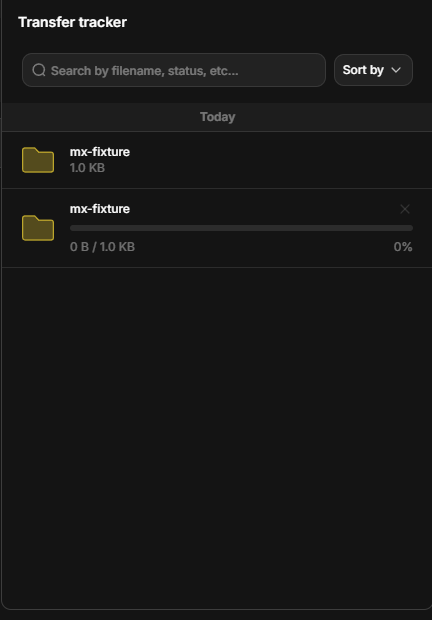
Open the **Transfer tracker** from the top of the app. It lists your transfers newest-first, grouped by day, and updates **live** as transfers progress — no refresh needed.
Click the **Transfer tracker** icon in the top navigation bar.
 The panel lists transfers newest-first, grouped by day, with search and sort.
 ## Transfer status
Both **uploads** and **downloads** appear in the tracker. Downloading an asset's content or a whole collection (assembled into a zip) shows up as a transfer row with live progress, right alongside your uploads.
Each transfer is in one of three states:
| Status | Meaning |
| -------------- | ----------------------------------------------------------------- |
| **In process** | Queued or actively transferring. |
| **Completed** | All bytes transferred and verified. |
| **Failed** | The transfer errored or its credentials expired before finishing. |
## Transfer status
Both **uploads** and **downloads** appear in the tracker. Downloading an asset's content or a whole collection (assembled into a zip) shows up as a transfer row with live progress, right alongside your uploads.
Each transfer is in one of three states:
| Status | Meaning |
| -------------- | ----------------------------------------------------------------- |
| **In process** | Queued or actively transferring. |
| **Completed** | All bytes transferred and verified. |
| **Failed** | The transfer errored or its credentials expired before finishing. |
 Browser uploads resume **automatically** and are integrity-checked as they go — an interrupted upload continues rather than starting over. The browser has no manual pause control; you can cancel an in-progress transfer with the **×** button. For pause, resume, and the highest throughput on large or bulk transfers, use the [desktop app and CLI](/data/desktop-and-cli).
## Find a transfer
When the list gets long, narrow it down:
* **Search** by name.
* **Filter** by status (In process / Completed / Failed), **project**, or **repository**.
* **Sort** by date or other fields.
Active **storage migrations** also appear in the tracker. A migration is Dataerai copying or moving an asset's content between [repositories or allocations](/account/storage) — for example, when an admin changes where a project's data is stored. The row shows the source and destination and its progress, so you can see your data is being relocated without any action on your part.
## Next steps
Drag-and-drop uploads with live progress.
High-throughput, resumable transfers with pause and resume.
Where your transferred data lives.
Get told when things finish or need attention.
Browser uploads resume **automatically** and are integrity-checked as they go — an interrupted upload continues rather than starting over. The browser has no manual pause control; you can cancel an in-progress transfer with the **×** button. For pause, resume, and the highest throughput on large or bulk transfers, use the [desktop app and CLI](/data/desktop-and-cli).
## Find a transfer
When the list gets long, narrow it down:
* **Search** by name.
* **Filter** by status (In process / Completed / Failed), **project**, or **repository**.
* **Sort** by date or other fields.
Active **storage migrations** also appear in the tracker. A migration is Dataerai copying or moving an asset's content between [repositories or allocations](/account/storage) — for example, when an admin changes where a project's data is stored. The row shows the source and destination and its progress, so you can see your data is being relocated without any action on your part.
## Next steps
Drag-and-drop uploads with live progress.
High-throughput, resumable transfers with pause and resume.
Where your transferred data lives.
Get told when things finish or need attention.