> ## Documentation Index
> Fetch the complete documentation index at: https://docs.dataerai.com/llms.txt
> Use this file to discover all available pages before exploring further.
# Upload in the browser
> Add data to Dataerai from your browser: drag and drop files or folders, review extracted metadata, and upload as separate assets or a single bundle.
Uploading in the browser is the fastest way to add data to a project. For very large datasets or bulk and automated transfers, use the [desktop app and CLI](/data/desktop-and-cli) instead.
## Open the upload panel
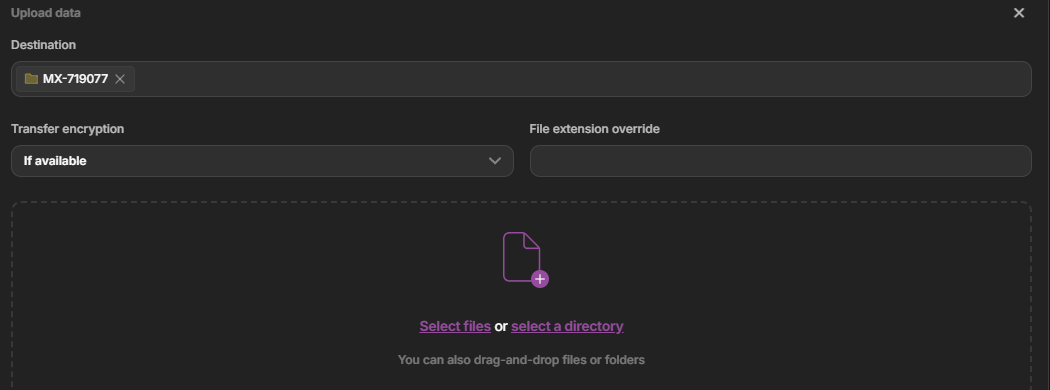
Inside a project or collection, start an upload — or simply **drag files or folders onto the page**. The upload panel opens with your current collection shown as the **Destination**.
From a project or collection's toolbar, click **Upload**.
 The panel opens with your collection as the **Destination**. Pick files or a directory, or drag them onto the panel.
 ## Add your files
In the upload panel you can:
* **Select files** to pick one or more files.
* **Select a directory** to upload a whole folder.
* **Drag and drop** files or folders directly onto the panel.
Each file you add appears in the **Data** list, where you can remove any you didn't mean to include.
## Add your files
In the upload panel you can:
* **Select files** to pick one or more files.
* **Select a directory** to upload a whole folder.
* **Drag and drop** files or folders directly onto the panel.
Each file you add appears in the **Data** list, where you can remove any you didn't mean to include.
 ## Choose upload options
Whether to encrypt data in transit. Leave it on **If available** unless you have a specific reason to change it.
Set the file extension manually if it wasn't detected correctly.
## Choose upload options
Whether to encrypt data in transit. Leave it on **If available** unless you have a specific reason to change it.
Set the file extension manually if it wasn't detected correctly.
 ## One asset or a bundle
When you add more than one file, you choose how they're stored:
* **Separate assets** (default) — each file becomes its own asset.
* **Upload as bundle** — all the files become a **single asset** with multiple files. Enable **Upload as bundle** and give the asset a title.
## One asset or a bundle
When you add more than one file, you choose how they're stored:
* **Separate assets** (default) — each file becomes its own asset.
* **Upload as bundle** — all the files become a **single asset** with multiple files. Enable **Upload as bundle** and give the asset a title.
 In bundle mode, the [extracted metadata](/data/metadata-extraction) preview attaches the metadata from the **first file** only. Upload separate assets if each file needs its own extracted metadata.
## Review extracted metadata
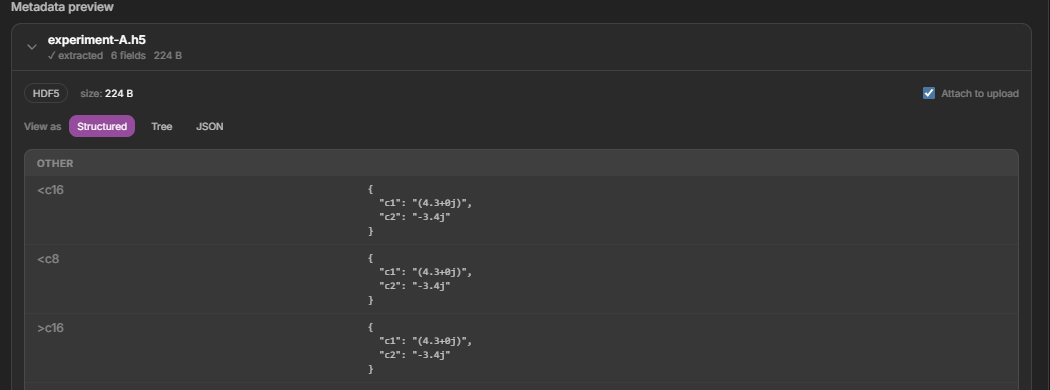
If Dataerai recognizes a file's format, it shows a **metadata preview** with fields read from the file. Expand each file's card to see the extracted fields in **Structured**, **Tree**, or **JSON** views, edit the values inline, and use the **Attach to upload** toggle to choose whether the metadata is saved with the asset. See [Automatic metadata extraction](/data/metadata-extraction).
In bundle mode, the [extracted metadata](/data/metadata-extraction) preview attaches the metadata from the **first file** only. Upload separate assets if each file needs its own extracted metadata.
## Review extracted metadata
If Dataerai recognizes a file's format, it shows a **metadata preview** with fields read from the file. Expand each file's card to see the extracted fields in **Structured**, **Tree**, or **JSON** views, edit the values inline, and use the **Attach to upload** toggle to choose whether the metadata is saved with the asset. See [Automatic metadata extraction](/data/metadata-extraction).
 ## Add tags and upload
Add any **tags** to apply to the upload, then click **Upload**. Progress is shown live for each file, and content is integrity-checked as it transfers. Browser uploads resume automatically — if a transfer is interrupted, it continues from where it stopped instead of starting over. The browser has no manual pause control; for pause and resume, use the [desktop app or CLI](/data/desktop-and-cli). You can cancel an in-progress upload from the [Transfer tracker](/data/transfers).
## Add tags and upload
Add any **tags** to apply to the upload, then click **Upload**. Progress is shown live for each file, and content is integrity-checked as it transfers. Browser uploads resume automatically — if a transfer is interrupted, it continues from where it stopped instead of starting over. The browser has no manual pause control; for pause and resume, use the [desktop app or CLI](/data/desktop-and-cli). You can cancel an in-progress upload from the [Transfer tracker](/data/transfers).
 ## Next steps
How Dataerai reads structured metadata from instrument files.
High-throughput, resumable transfers with the desktop app and CLI.
Group your uploads and keep them findable.
Make a record now and attach files later.
## Next steps
How Dataerai reads structured metadata from instrument files.
High-throughput, resumable transfers with the desktop app and CLI.
Group your uploads and keep them findable.
Make a record now and attach files later.