> ## Documentation Index
> Fetch the complete documentation index at: https://docs.dataerai.com/llms.txt
> Use this file to discover all available pages before exploring further.
# Watch a folder for automatic uploads
> Point the Dataerai desktop app at a folder on your computer and have matching new files upload to a collection automatically as they appear.
When an instrument, an export job, or a pipeline drops files into a folder over
time, you don't want to re-open an upload dialog every time. A **watched folder**
monitors a folder on your computer and uploads matching files to a collection
automatically as they appear — no clicks per file.
Watched folders are part of the [desktop app](/data/desktop-and-cli). The app
keeps watching while it's open.
 ## Add a watched folder
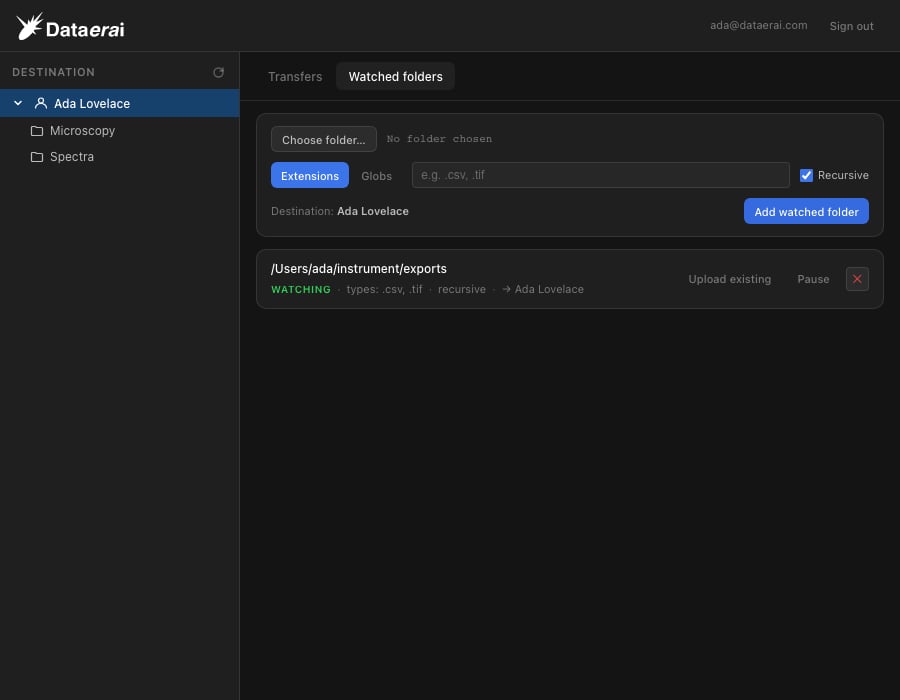
In the desktop app, switch from **Transfers** to **Watched folders**.
Click **Choose folder…** and pick the folder on your computer to monitor.
Choose **Extensions** and list the extensions to match — for example
`.csv, .tif` — or switch to **Globs** for path-aware patterns like
`**/*.csv`. Leave **Recursive** on to include subfolders, or turn it off to
watch only the top level.
Select the collection to upload into from the sidebar. It shows as the
**Destination** in the add form. Then click **Add watched folder**.
The folder appears in the list as **watching**, with its file-type filter and
destination shown.
## What gets uploaded
By default, a watched folder uploads only files that are **added or changed
after** you add the watch — pointing it at a folder full of existing files does
not trigger a surprise bulk upload. Each file is uploaded as a new asset to the
destination collection, keeping its path relative to the watched folder.
* **Existing files** — to upload files that were already in the folder, click
**Upload existing** on that folder. Only files not already uploaded are sent.
* **No duplicates** — a file that already uploaded is not sent again, even after
you restart the app. Editing a file uploads the new version.
* **In-progress writes** — a file still being written or copied isn't uploaded
until it finishes, so you never get a truncated asset.
## Match by extension or glob
A comma-separated list of extensions, such as `.csv, .tif, .json`. The
simplest option for "upload these file types".
Path-aware patterns, such as `**/*.csv` (any depth) or `data/*.tif` (a
specific subfolder). Use these when the location matters, not just the type.
A folder with no patterns matches nothing — to upload everything, use a `*` or
`**` glob.
## Manage watched folders
Each folder in the list has actions:
* **Pause** / **Resume** — stop or restart automatic uploading. A paused folder
shows as **paused** and uploads nothing until you resume it.
* **Upload existing** — upload matching files already in the folder (see above).
* **Remove** (**✕**) — stop watching the folder and remove it from the list.
To change a folder's destination or file types, remove it and add it again.
A folder can only be watched once. You can't add a folder that's already
watched, or one that's inside (or contains) another watched folder.
## Where uploads appear
Files uploaded by a watched folder show up in the **Transfers** tab alongside
your manual uploads, with the same live progress, pause/resume, and
integrity checks described in
[Move large data with the desktop app](/data/desktop-and-cli).
## Add a watched folder
In the desktop app, switch from **Transfers** to **Watched folders**.
Click **Choose folder…** and pick the folder on your computer to monitor.
Choose **Extensions** and list the extensions to match — for example
`.csv, .tif` — or switch to **Globs** for path-aware patterns like
`**/*.csv`. Leave **Recursive** on to include subfolders, or turn it off to
watch only the top level.
Select the collection to upload into from the sidebar. It shows as the
**Destination** in the add form. Then click **Add watched folder**.
The folder appears in the list as **watching**, with its file-type filter and
destination shown.
## What gets uploaded
By default, a watched folder uploads only files that are **added or changed
after** you add the watch — pointing it at a folder full of existing files does
not trigger a surprise bulk upload. Each file is uploaded as a new asset to the
destination collection, keeping its path relative to the watched folder.
* **Existing files** — to upload files that were already in the folder, click
**Upload existing** on that folder. Only files not already uploaded are sent.
* **No duplicates** — a file that already uploaded is not sent again, even after
you restart the app. Editing a file uploads the new version.
* **In-progress writes** — a file still being written or copied isn't uploaded
until it finishes, so you never get a truncated asset.
## Match by extension or glob
A comma-separated list of extensions, such as `.csv, .tif, .json`. The
simplest option for "upload these file types".
Path-aware patterns, such as `**/*.csv` (any depth) or `data/*.tif` (a
specific subfolder). Use these when the location matters, not just the type.
A folder with no patterns matches nothing — to upload everything, use a `*` or
`**` glob.
## Manage watched folders
Each folder in the list has actions:
* **Pause** / **Resume** — stop or restart automatic uploading. A paused folder
shows as **paused** and uploads nothing until you resume it.
* **Upload existing** — upload matching files already in the folder (see above).
* **Remove** (**✕**) — stop watching the folder and remove it from the list.
To change a folder's destination or file types, remove it and add it again.
A folder can only be watched once. You can't add a folder that's already
watched, or one that's inside (or contains) another watched folder.
## Where uploads appear
Files uploaded by a watched folder show up in the **Transfers** tab alongside
your manual uploads, with the same live progress, pause/resume, and
integrity checks described in
[Move large data with the desktop app](/data/desktop-and-cli).