> ## Documentation Index
> Fetch the complete documentation index at: https://docs.dataerai.com/llms.txt
> Use this file to discover all available pages before exploring further.
# Ask AI in Advanced Search
> Describe what you're looking for in plain English — DataErai plans an executable graph traversal and populates the Advanced Search form for you to inspect and refine.
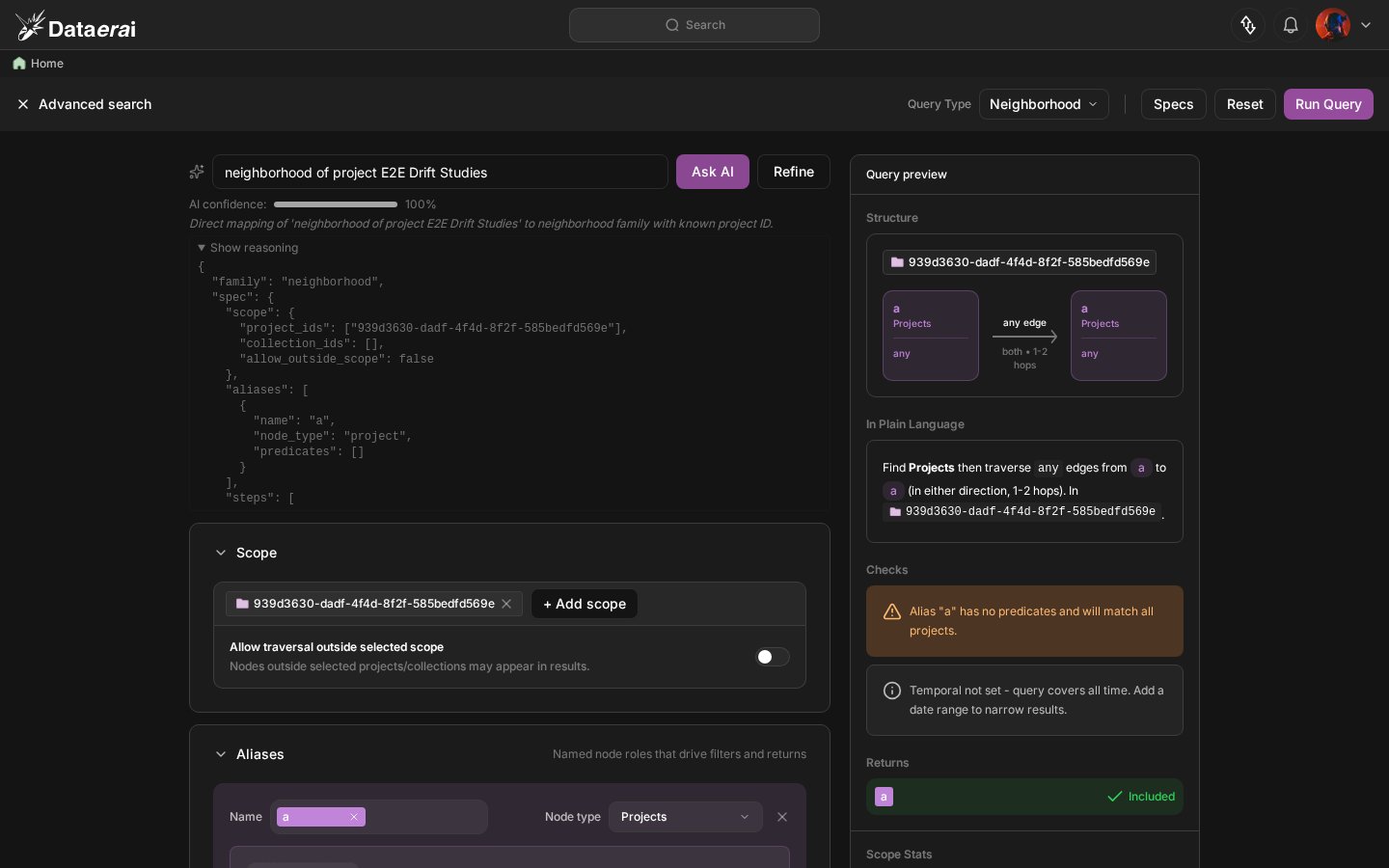
The **Ask AI bar** at the top of Advanced Search lets you start from plain English instead of a blank form. Type a sentence — *"show me records related to asset X"*, *"find datasets shared with my team"*, *"neighbors of this collection by share edges"* — and DataErai's planner fills in an executable graph traversal: scope, aliases, path steps, return options, and limits. You can inspect and tweak the form before running it.
Ask AI in Advanced Search is **different from AI search in the global Search box**. The global bar (see [Search & discover](/discover/search)) translates your question into a flat metadata filter — equal, contains, exists. Ask AI in Advanced Search pre-populates a graph traversal — paths, hops, edge types, returns. Same NL, different output shape. Use this one for relationship-shaped questions, the global one for attribute-shaped ones.
## Use it
Click **Advanced Search** in the sidebar. The Ask AI bar sits at the top of the page, above the form.
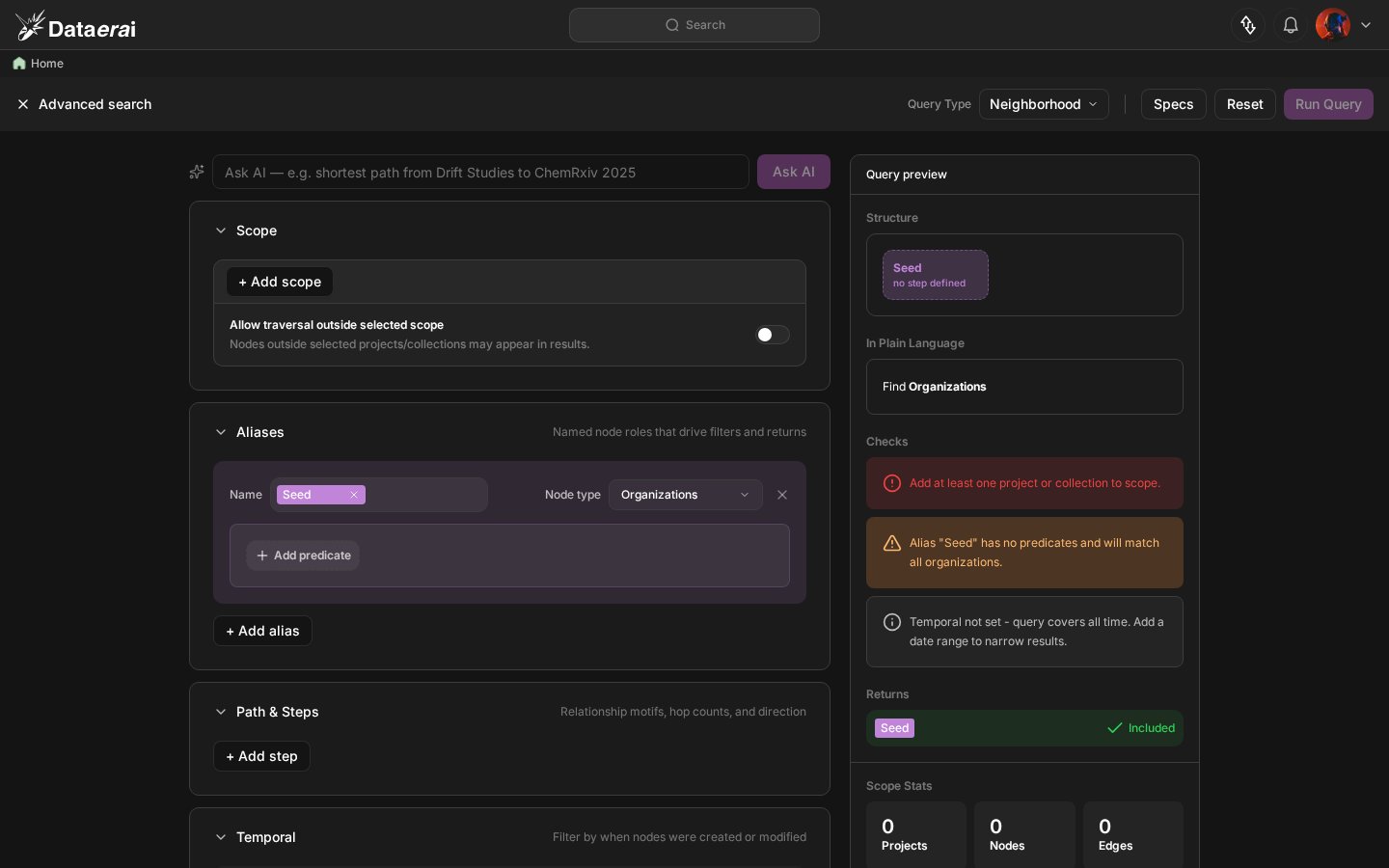 Type what you want. The planner understands the graph-query vocabulary behind Advanced Search and currently emits an executable neighborhood-style traversal. It can approximate relationship-shaped requests with aliases, path steps, edge types, and limits. Press Enter to submit.
Examples that work well:
* *"two-hop neighbors of this project by share edges"*
* *"datasets connected to this collection, max 50 results"*
* *"assets related to sample SP-12"*
When the planner returns, the Advanced Search form fills in below the bar — scope, aliases, path steps, and return options all reflect the Spec the planner produced. You can immediately click **Search** or edit any field first.
Type what you want. The planner understands the graph-query vocabulary behind Advanced Search and currently emits an executable neighborhood-style traversal. It can approximate relationship-shaped requests with aliases, path steps, edge types, and limits. Press Enter to submit.
Examples that work well:
* *"two-hop neighbors of this project by share edges"*
* *"datasets connected to this collection, max 50 results"*
* *"assets related to sample SP-12"*
When the planner returns, the Advanced Search form fills in below the bar — scope, aliases, path steps, and return options all reflect the Spec the planner produced. You can immediately click **Search** or edit any field first.
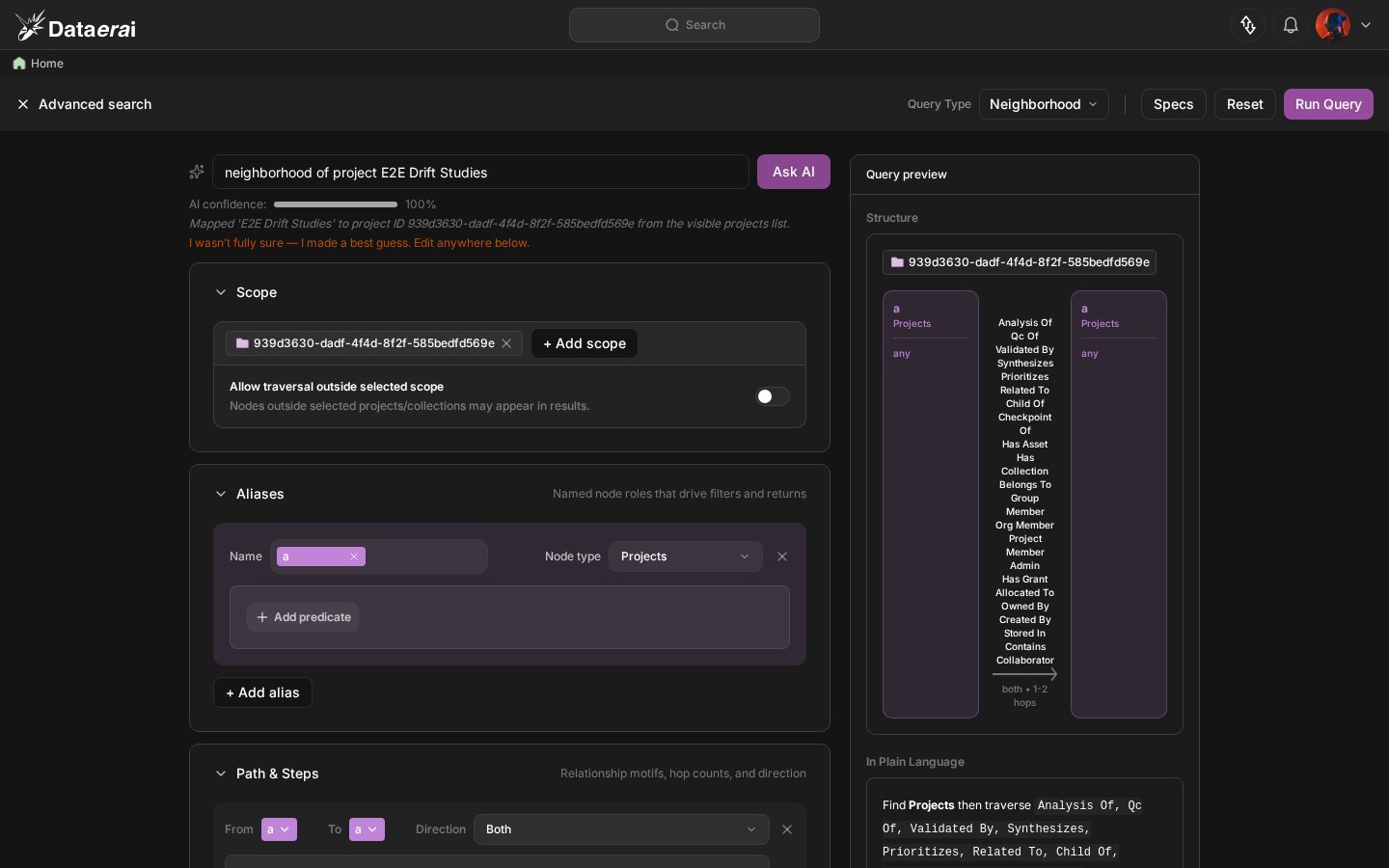 Not quite right? Click **Refine** next to the bar to re-run the planner with your edited NL while keeping the form's current state as context. The Spec updates in place; fields you'd already touched stay touched.
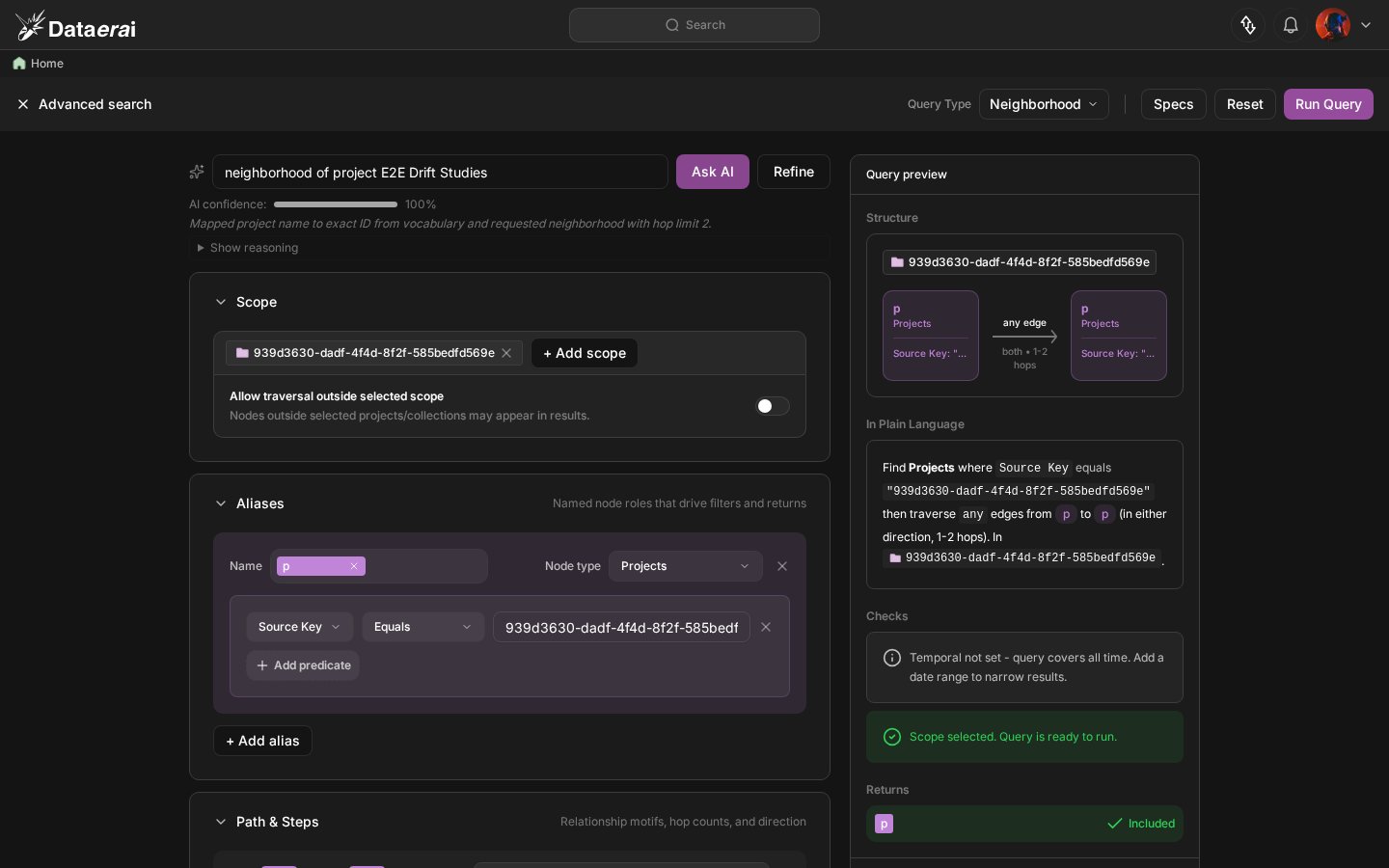
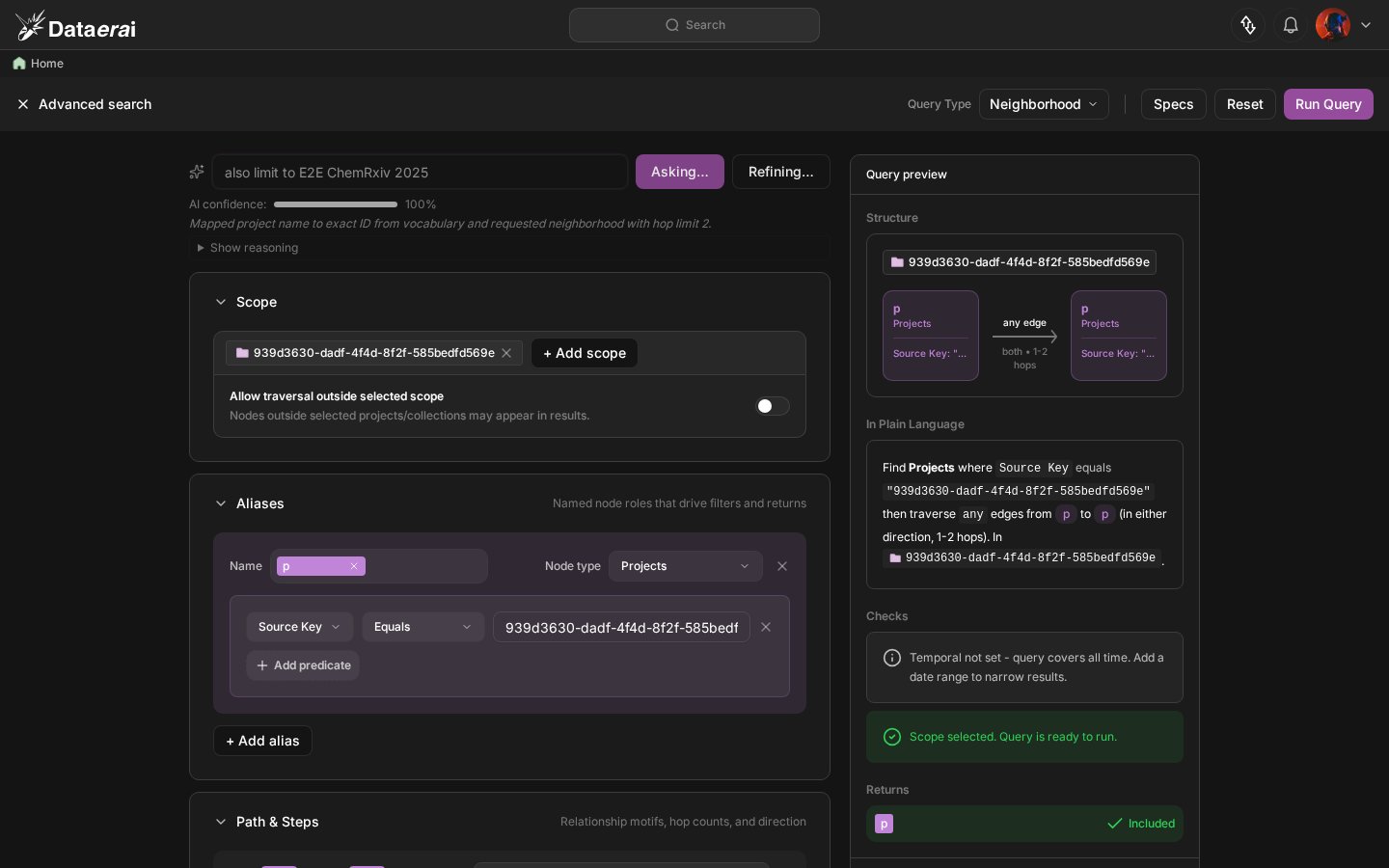 Click **Show reasoning** to expand the explanation panel. The planner reports the confidence level and the raw model output it used before producing the form — useful when the result surprises you or you want to understand which words steered the traversal.
 ## What the planner handles well
*"neighbors of …"*, *"shared with …"*, *"connected to …"* — relationship prompts that can be represented as an executable neighborhood traversal.
*"two hops from …"*, *"max 50 results"*, *"include graph evidence"* — traversal limits and return options are good fits.
*"within this project"*, *"top 50 results"* — scope items and limits are honored without you naming them in the form.
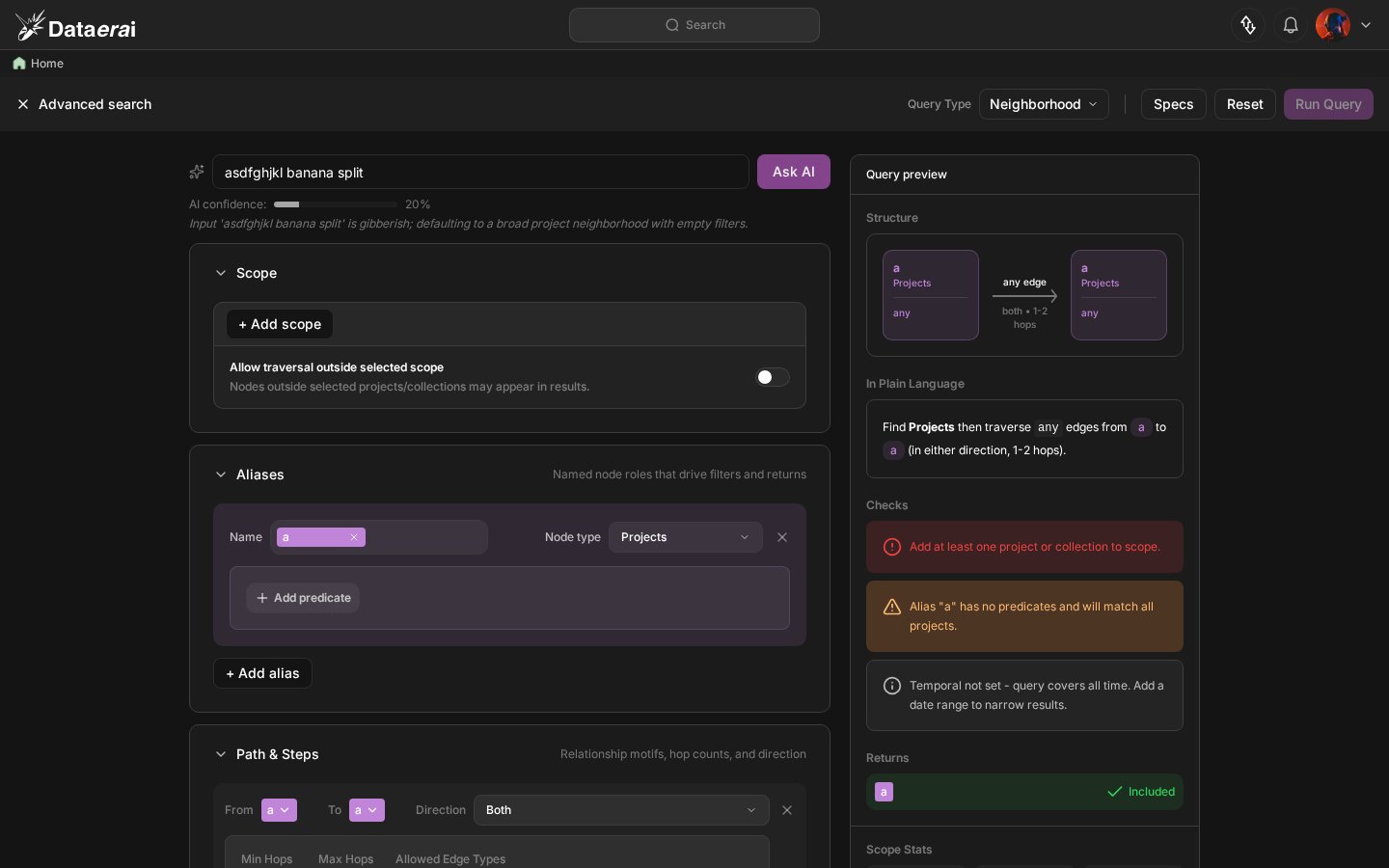
Typos, missing capitalization, half-finished thoughts — the planner is tolerant and will still produce a plausible Spec rather than refusing.
## What the planner handles well
*"neighbors of …"*, *"shared with …"*, *"connected to …"* — relationship prompts that can be represented as an executable neighborhood traversal.
*"two hops from …"*, *"max 50 results"*, *"include graph evidence"* — traversal limits and return options are good fits.
*"within this project"*, *"top 50 results"* — scope items and limits are honored without you naming them in the form.
Typos, missing capitalization, half-finished thoughts — the planner is tolerant and will still produce a plausible Spec rather than refusing.
 ## What works less well
The planner is best at **executable neighborhood traversal** questions. For the cases below, it returns an approximation rather than a specialized graph family — rephrase instead of editing for too long:
* **Pure attribute filters** — *"PDFs over 10 MB"* — better expressed via the global [Search & discover](/discover/search).
* **Specialized graph algorithms** — shortest path, lineage, aggregation, centrality, and community detection are recognized by the planner vocabulary, but the executable endpoint currently emits a neighborhood-style Spec so the search can run.
* **Open-ended exploration** — *"show me anything interesting"* — the planner needs a concrete relationship or attribute to map to.
* **Concepts the form can't express** — e.g. natural-language *content* search across asset bodies — the form supports structured graph traversal and metadata filters, not freeform full-text rank.
## Availability
The Ask AI bar appears in Advanced Search when your organization has opted in to AI features. If you don't see the bar, ask an organization admin to enable it — see [AI policy & access](/ai/policy-and-access).
## Next steps
Want full control? Use the Advanced Search form's clauses, AND/OR/NOT, and metadata operators directly.
The other AI lane — attribute filters from natural language, in the top-of-page Search box.
## What works less well
The planner is best at **executable neighborhood traversal** questions. For the cases below, it returns an approximation rather than a specialized graph family — rephrase instead of editing for too long:
* **Pure attribute filters** — *"PDFs over 10 MB"* — better expressed via the global [Search & discover](/discover/search).
* **Specialized graph algorithms** — shortest path, lineage, aggregation, centrality, and community detection are recognized by the planner vocabulary, but the executable endpoint currently emits a neighborhood-style Spec so the search can run.
* **Open-ended exploration** — *"show me anything interesting"* — the planner needs a concrete relationship or attribute to map to.
* **Concepts the form can't express** — e.g. natural-language *content* search across asset bodies — the form supports structured graph traversal and metadata filters, not freeform full-text rank.
## Availability
The Ask AI bar appears in Advanced Search when your organization has opted in to AI features. If you don't see the bar, ask an organization admin to enable it — see [AI policy & access](/ai/policy-and-access).
## Next steps
Want full control? Use the Advanced Search form's clauses, AND/OR/NOT, and metadata operators directly.
The other AI lane — attribute filters from natural language, in the top-of-page Search box.