> ## Documentation Index
> Fetch the complete documentation index at: https://docs.dataerai.com/llms.txt
> Use this file to discover all available pages before exploring further.
# Search & discover
> Search across your workspace and the scholarly web — assets, collections, projects, people, publications, and grants — from one query bar, combining clauses with AND, OR, and NOT.
Dataerai's search lets you find assets by combining simple conditions into a precise query. You build a query from **clauses**, and combine them with **AND**, **OR**, and **NOT**.
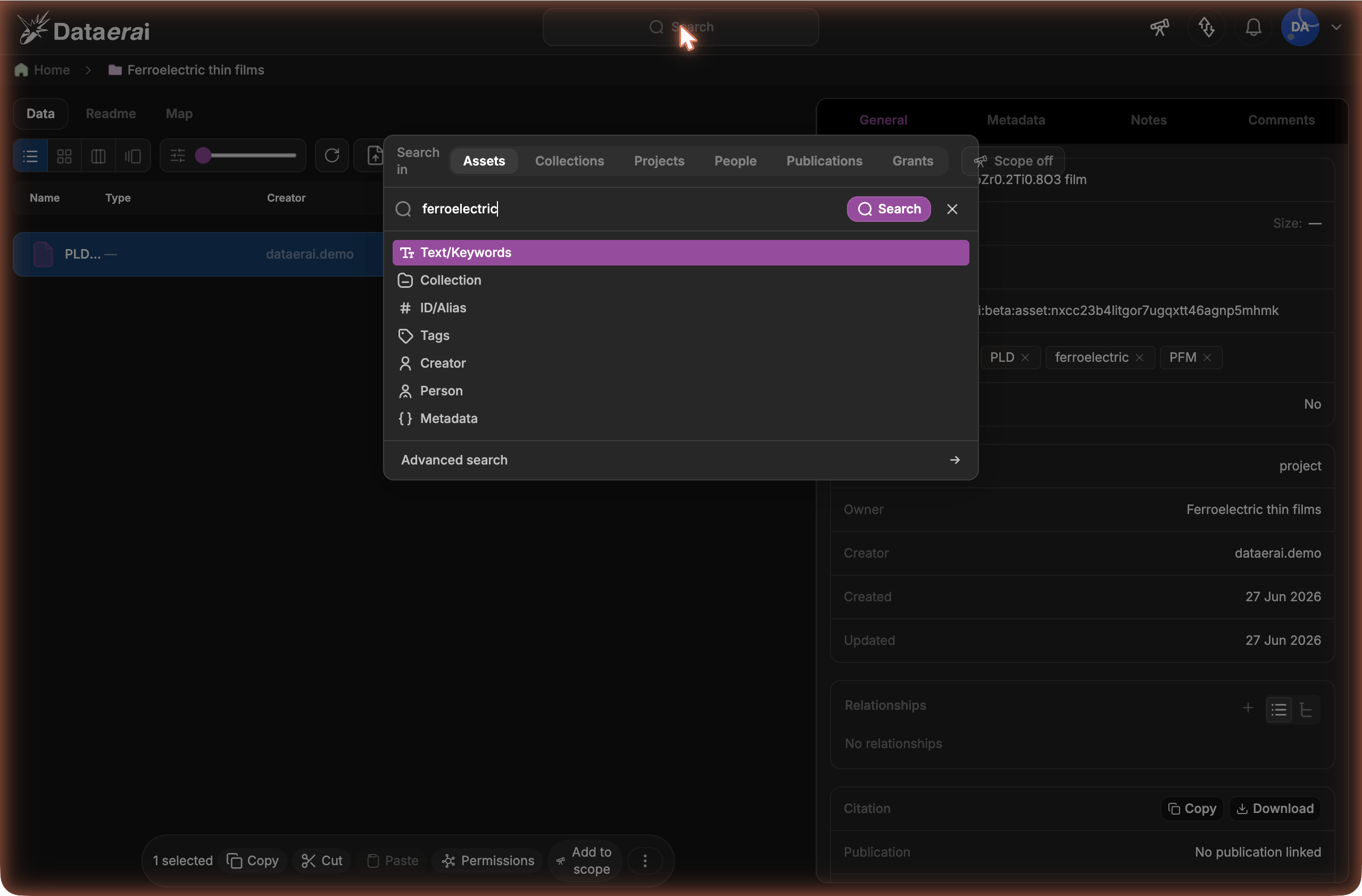
Click the **Search** box in the top bar.
 The query bar expands — type to search, or run it as a natural-language **Ask AI** query.
 As you type, Dataerai offers the clause types — **Text/Keywords**, **Collection**, **ID/Alias**, **Tags**, **Creator**, **Person**, and **Metadata** — plus **Add Boolean Group** for nesting AND/OR/NOT.
 ## Clause types
| Clause | Finds assets by |
| -------------- | ---------------------------------------------------------------------------------------------------------- |
| **Text** | A free-text search across the asset. |
| **Tag** | A tag applied to the asset. |
| **Creator** | Who created the asset. |
| **Person** | A specific researcher recorded on the asset (the canonical person, not just the account that uploaded it). |
| **Collection** | Membership in a specific collection. |
| **ID** | A specific asset identifier. |
| **Metadata** | A structured metadata field, using an operator and value. |
Use **Add Boolean Group** to nest clauses inside their own **AND** / **OR** / **NOT** group — handy when one part of your query needs different logic from the rest. The **Person** clause appears when your workspace has people search enabled.
## Metadata conditions
Metadata clauses match on a **field path** with an **operator** and (for most operators) a **value**. The operators available depend on the field's type:
As you type a metadata field, Dataerai suggests keys from metadata in the assets
you can search, including nested paths such as `sample.depth`. When you choose a
suggested key, the data-type picker prioritizes the types observed for that key,
for example **Numerical (2)** before **String (1)**. If the visible metadata
sample proves a key or operator cannot match, the chip is marked so you can edit
it before running the search.
| Operator | Meaning | Types |
| ----------------------------------------- | ------------------------------------ | -------------------------- |
| `=` / `≠` | Equals / does not equal | Numerical, string, boolean |
| `>` `≥` `<` `≤` | Numeric comparisons | Numerical |
| `contains` | Text contains a substring | String |
| `exists` / `not exists` | The field is present / absent | All |
| `contains item` / `does not contain item` | An array includes / excludes a value | Array |
[Extracted metadata](/data/metadata-extraction) and the metadata you add yourself are both searchable this way — for example, find every XRD scan with a specific anode material, or every asset missing a required field.
## Combine conditions
Add multiple clauses and join them with **AND** (all must match), **OR** (any may match), or **NOT** (exclude matches) to express exactly what you're looking for.
## Clause types
| Clause | Finds assets by |
| -------------- | ---------------------------------------------------------------------------------------------------------- |
| **Text** | A free-text search across the asset. |
| **Tag** | A tag applied to the asset. |
| **Creator** | Who created the asset. |
| **Person** | A specific researcher recorded on the asset (the canonical person, not just the account that uploaded it). |
| **Collection** | Membership in a specific collection. |
| **ID** | A specific asset identifier. |
| **Metadata** | A structured metadata field, using an operator and value. |
Use **Add Boolean Group** to nest clauses inside their own **AND** / **OR** / **NOT** group — handy when one part of your query needs different logic from the rest. The **Person** clause appears when your workspace has people search enabled.
## Metadata conditions
Metadata clauses match on a **field path** with an **operator** and (for most operators) a **value**. The operators available depend on the field's type:
As you type a metadata field, Dataerai suggests keys from metadata in the assets
you can search, including nested paths such as `sample.depth`. When you choose a
suggested key, the data-type picker prioritizes the types observed for that key,
for example **Numerical (2)** before **String (1)**. If the visible metadata
sample proves a key or operator cannot match, the chip is marked so you can edit
it before running the search.
| Operator | Meaning | Types |
| ----------------------------------------- | ------------------------------------ | -------------------------- |
| `=` / `≠` | Equals / does not equal | Numerical, string, boolean |
| `>` `≥` `<` `≤` | Numeric comparisons | Numerical |
| `contains` | Text contains a substring | String |
| `exists` / `not exists` | The field is present / absent | All |
| `contains item` / `does not contain item` | An array includes / excludes a value | Array |
[Extracted metadata](/data/metadata-extraction) and the metadata you add yourself are both searchable this way — for example, find every XRD scan with a specific anode material, or every asset missing a required field.
## Combine conditions
Add multiple clauses and join them with **AND** (all must match), **OR** (any may match), or **NOT** (exclude matches) to express exactly what you're looking for.
 ## Save and reuse a query
Once you've added one or more clauses, click **Save query** to keep the query for later. Dataerai suggests a name from the clauses; edit it and save. Your saved queries appear in the search box — pick one to re-run it, or open it to refine and re-save. Delete a saved query you no longer need with **Delete query**.
## Choose what to search
A **Search in** selector above the query bar picks which kind of thing you're searching for. The same query bar drives each scope:
## Save and reuse a query
Once you've added one or more clauses, click **Save query** to keep the query for later. Dataerai suggests a name from the clauses; edit it and save. Your saved queries appear in the search box — pick one to re-run it, or open it to refine and re-save. Delete a saved query you no longer need with **Delete query**.
## Choose what to search
A **Search in** selector above the query bar picks which kind of thing you're searching for. The same query bar drives each scope:
 | Scope | Finds |
| ---------------- | ---------------------------------------------------------------------------------------------- |
| **Assets** | Files and records in your workspace (the default). |
| **Collections** | Collections by name, description, or tags — and collections that **contain** a matching asset. |
| **Projects** | Projects you can access, by name. |
| **People** | Researchers — from your workspace and from OpenAlex. |
| **Publications** | Scholarly works — from your workspace and from OpenAlex. |
| **Grants** | Funding awards — from your workspace and from OpenAlex. |
Which scopes appear depends on what your workspace has enabled; **Assets** and **Collections** are always available.
### Find a person's publications
In the **Publications** scope, add a **Person** clause (pick a researcher from the People results or the search box) to list that person's publications. A publication matches whether the person is recorded on it as a **creator** or an **author** — different sources label the same authorship list either way, so you don't miss work that happens to use the other term.
## Show assets, collections, or both
Within the **Assets** scope, the **Show** toggle controls what your results include:
| Show | Results |
| -------------------- | -------------------------------------------------------------------------------------------------------------------------------------------------------------------------------------------- |
| **Assets** | Only the matching assets. |
| **Collections** | Only collections — every collection that **contains** an asset matching your query (anywhere in its sub-collections), plus collections whose own name, description, or tags match your text. |
| **Both** *(default)* | An **Assets** section and a **Collections** section together. |
So when a single asset deep inside a collection matches your query, that collection shows up under **Collections** — a quick way to find *which collections hold the data you're looking for*, without opening each one. Selecting a collection result opens it.
## Limit search with a session scope
Use a session search scope when you want repeated searches to stay inside a set
of assets you are already reviewing.
1. In the main data pane, select one or more assets.
2. Click **Add to scope** in the floating toolbar.
3. Open **Search**.
4. Turn **Scope on** before you run the search.
When **Scope on** is active, metadata search results are limited to the assets
in your current scope. Turn **Scope off** to search everything you can access;
the scope stays saved in the session so you can turn it back on.
Use the telescope button in the top-right header to review what is currently in
scope, clear it, remove individual entries, save it, or load a saved scope.
## Next steps
Where searchable metadata comes from.
What you'll find and work with.
| Scope | Finds |
| ---------------- | ---------------------------------------------------------------------------------------------- |
| **Assets** | Files and records in your workspace (the default). |
| **Collections** | Collections by name, description, or tags — and collections that **contain** a matching asset. |
| **Projects** | Projects you can access, by name. |
| **People** | Researchers — from your workspace and from OpenAlex. |
| **Publications** | Scholarly works — from your workspace and from OpenAlex. |
| **Grants** | Funding awards — from your workspace and from OpenAlex. |
Which scopes appear depends on what your workspace has enabled; **Assets** and **Collections** are always available.
### Find a person's publications
In the **Publications** scope, add a **Person** clause (pick a researcher from the People results or the search box) to list that person's publications. A publication matches whether the person is recorded on it as a **creator** or an **author** — different sources label the same authorship list either way, so you don't miss work that happens to use the other term.
## Show assets, collections, or both
Within the **Assets** scope, the **Show** toggle controls what your results include:
| Show | Results |
| -------------------- | -------------------------------------------------------------------------------------------------------------------------------------------------------------------------------------------- |
| **Assets** | Only the matching assets. |
| **Collections** | Only collections — every collection that **contains** an asset matching your query (anywhere in its sub-collections), plus collections whose own name, description, or tags match your text. |
| **Both** *(default)* | An **Assets** section and a **Collections** section together. |
So when a single asset deep inside a collection matches your query, that collection shows up under **Collections** — a quick way to find *which collections hold the data you're looking for*, without opening each one. Selecting a collection result opens it.
## Limit search with a session scope
Use a session search scope when you want repeated searches to stay inside a set
of assets you are already reviewing.
1. In the main data pane, select one or more assets.
2. Click **Add to scope** in the floating toolbar.
3. Open **Search**.
4. Turn **Scope on** before you run the search.
When **Scope on** is active, metadata search results are limited to the assets
in your current scope. Turn **Scope off** to search everything you can access;
the scope stays saved in the session so you can turn it back on.
Use the telescope button in the top-right header to review what is currently in
scope, clear it, remove individual entries, save it, or load a saved scope.
## Next steps
Where searchable metadata comes from.
What you'll find and work with.