> ## Documentation Index
> Fetch the complete documentation index at: https://docs.dataerai.com/llms.txt
> Use this file to discover all available pages before exploring further.
# Cite a record
> Copy or download a formatted reference for any record — BibTeX, RIS, APA, MLA, or Chicago — always carrying the record's DID, plus the DOI when you link a publication.
Every record can be cited. From the record's sidebar, the **Citation** panel
gives you a ready-to-paste reference in five formats, so you can drop a curated
record into a paper, a reference manager, or a data-availability statement.
Two things are always true of the reference it produces:
* it carries the record's **DID** — the stable identifier you can [publish and
resolve](/identity/publish-and-cite);
* it includes a **DOI** only when you've linked a publication. Dataerai never
invents one.
## The Citation panel
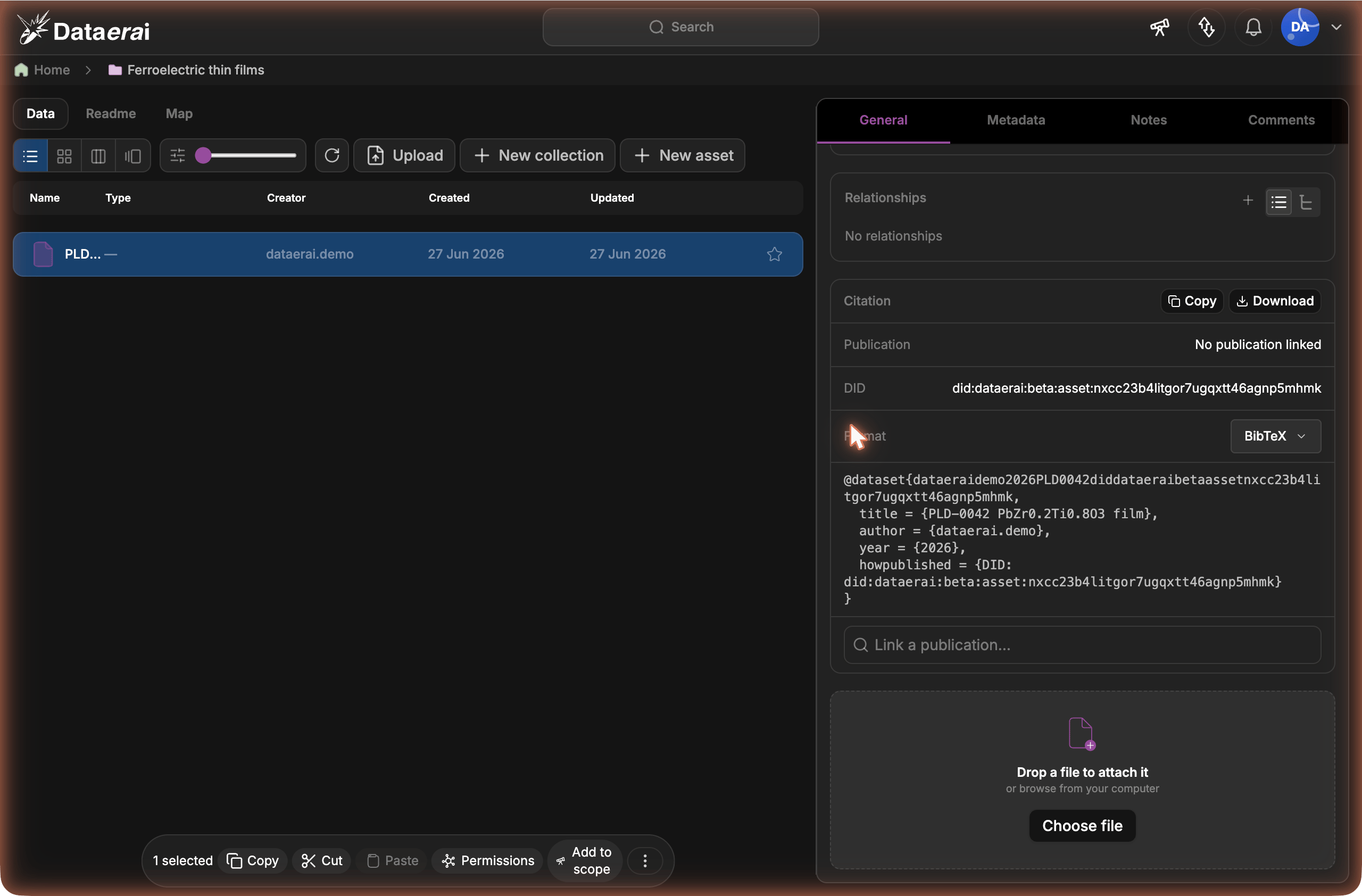
Open a record and find the **Citation** panel in the sidebar. It shows:
* a **format** selector — **BibTeX**, **RIS**, **APA**, **MLA**, or **Chicago**;
* the rendered citation, with **Copy** and a download button;
* the linked **Publication** (or **No publication linked**), its **DOI** when
present, and the record's **DID**.
 ### Copy or download
Pick a format, then:
* **Copy** puts the formatted citation on your clipboard (the button briefly
reads **Copied**).
* The download button saves it as a file — `.bib` for BibTeX,
`.ris` for RIS, or `.txt` for APA / MLA / Chicago.
BibTeX and RIS are for reference managers (Zotero, Mendeley, EndNote, BibLaTeX);
APA, MLA, and Chicago are formatted text for pasting straight into a manuscript.
## Link a publication
If a record corresponds to a published work, link it so the citation gains the
work's authors, venue, year, and **DOI**.
1. In the Citation panel, use **Link a publication…** to search.
2. Pick the matching result. Results come from Dataerai's combined works search —
both works already in your library and works from OpenAlex. Linking an
OpenAlex-only work imports just that work (not its references) and attaches it.
3. The panel now shows the linked **Publication** and its **DOI**, and every
format includes the DOI.
To change the link, use **Change linked publication…**; to remove it, use
**Unlink publication**. With no publication linked, the record still cites
cleanly as a dataset — DID included, no DOI.
### Where the authors come from
When a publication is linked, the citation uses the **work's authors**, venue,
and year. With no publication linked, the record's **creator** is used as the
author, so an asset-only citation still names someone. The record's DID is
included either way.
Linking a publication edits the record, so you need **Write** access to it (the
same access that lets you edit metadata). Reading a citation needs only **Read**
access. A locked record can't be linked or unlinked until it's unlocked.
## Set your default format
So the panel opens in the format you use most, set a default once:
1. Open your **profile** settings.
2. Set **Default citation format** to BibTeX, RIS, APA, MLA, or Chicago.
3. Save.
New Citation panels start in that format; you can still switch format per record
without changing the default.
## Related
* [Publish & cite a record](/identity/publish-and-cite) — make a record's DID
public and resolvable so others can cite and verify it.
### Copy or download
Pick a format, then:
* **Copy** puts the formatted citation on your clipboard (the button briefly
reads **Copied**).
* The download button saves it as a file — `.bib` for BibTeX,
`.ris` for RIS, or `.txt` for APA / MLA / Chicago.
BibTeX and RIS are for reference managers (Zotero, Mendeley, EndNote, BibLaTeX);
APA, MLA, and Chicago are formatted text for pasting straight into a manuscript.
## Link a publication
If a record corresponds to a published work, link it so the citation gains the
work's authors, venue, year, and **DOI**.
1. In the Citation panel, use **Link a publication…** to search.
2. Pick the matching result. Results come from Dataerai's combined works search —
both works already in your library and works from OpenAlex. Linking an
OpenAlex-only work imports just that work (not its references) and attaches it.
3. The panel now shows the linked **Publication** and its **DOI**, and every
format includes the DOI.
To change the link, use **Change linked publication…**; to remove it, use
**Unlink publication**. With no publication linked, the record still cites
cleanly as a dataset — DID included, no DOI.
### Where the authors come from
When a publication is linked, the citation uses the **work's authors**, venue,
and year. With no publication linked, the record's **creator** is used as the
author, so an asset-only citation still names someone. The record's DID is
included either way.
Linking a publication edits the record, so you need **Write** access to it (the
same access that lets you edit metadata). Reading a citation needs only **Read**
access. A locked record can't be linked or unlinked until it's unlocked.
## Set your default format
So the panel opens in the format you use most, set a default once:
1. Open your **profile** settings.
2. Set **Default citation format** to BibTeX, RIS, APA, MLA, or Chicago.
3. Save.
New Citation panels start in that format; you can still switch format per record
without changing the default.
## Related
* [Publish & cite a record](/identity/publish-and-cite) — make a record's DID
public and resolvable so others can cite and verify it.