> ## Documentation Index
> Fetch the complete documentation index at: https://docs.dataerai.com/llms.txt
> Use this file to discover all available pages before exploring further.
# Assets & content
> An asset combines metadata, file content, notes, and relationships. Learn how the pieces fit together and how to describe your data.
An **asset** is the core unit of data in Dataerai. It brings together everything about one piece of data:
* **Metadata** — title, description, tags, and structured fields.
* **Content** — the actual file or files.
* **Notes** — a Markdown description for context.
* **Relationships** — links to other assets that capture [provenance](/organize/provenance).
* **Identity** — a citable [DID](/identity/overview) and a ready-to-copy citation.
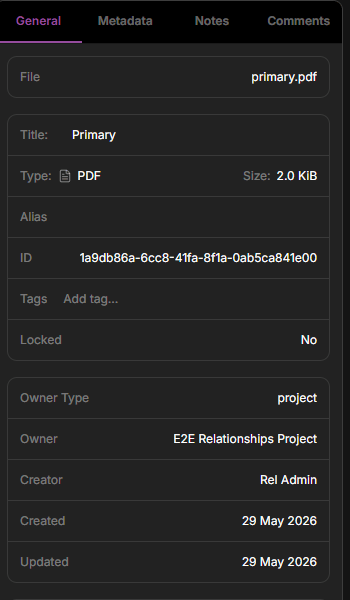
Open any asset to see its detail panel, organized into **General**, **Metadata**, **Notes**, and **Comments** tabs. The **General** tab gives you the asset at a glance: its type, size, owner, and storage, plus its DID, tags, relationships, and citation.
 ## Metadata
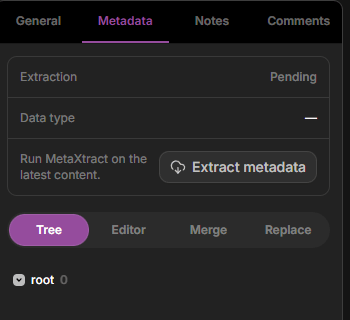
Every asset has metadata you can edit — its title, description, and tags — plus structured fields. Structured fields can be [extracted automatically](/data/metadata-extraction) from recognized instrument files, and you can add or edit your own. Metadata is what makes assets findable in [search](/discover/search).
## Metadata
Every asset has metadata you can edit — its title, description, and tags — plus structured fields. Structured fields can be [extracted automatically](/data/metadata-extraction) from recognized instrument files, and you can add or edit your own. Metadata is what makes assets findable in [search](/discover/search).
 ## Asset type
Use **Asset type** to describe the broad class of work an asset represents. Pick the general category, such as **Dataset**, **Sample / Specimen**, **Synthesis**, **Fabrication**, **Imaging**, **Spectroscopy**, **Quality Control**, **Simulation**, or **Analysis**.
Keep method-specific details in tags or metadata. For example, choose **Imaging** for microscopy data and add tags such as `AFM` or `SEM` when those details help you search later.
You can choose **Asset type** when you create an asset. If you have **Write** access to an existing asset, you can also update it from the **General** information panel.
## Content
**Content** is the file or files attached to an asset. You add content by [uploading in the browser](/data/upload) or with the [desktop app and CLI](/data/desktop-and-cli).
An asset can also exist with **no content yet** — create it from its metadata first and attach files later. This is useful when you want to describe and register data before it's measured, or stand up the structure of a study ahead of time. See [Create an asset before uploading](/data/metadata-first-assets).
## Preview PDFs
When an asset's available content is a PDF, the **General** tab shows a preview card above the file details. Use the preview to inspect the first page directly from the asset sidebar. At **100%**, the page fits the preview width.
Use **Zoom in PDF preview**, **Zoom out PDF preview**, and **Fit PDF preview to width** to adjust the page view. Click **Expand PDF preview** to open the PDF in a full-screen viewer. Use **Collapse PDF preview**, **Close PDF preview**, or press `Esc` to return to the asset detail panel.
Click **Download** from either the preview card or the full-screen viewer to save the PDF. The download uses the same permissions and content path as the standard asset download action.
## Identity and citation
Every asset gets a stable, citable identifier — a **DID** — minted automatically when it's created. You'll find it on the **General** tab, where you can copy it for use in a paper or dataset record. See [Persistent identifiers](/identity/overview) for what a DID is and how to publish and verify one.
The General tab also has a **Citation** panel. Pick a **Format** — BibTeX, RIS, APA, MLA, or Chicago — and **Copy** or **Download** a ready-made citation. If you've linked a [publication](/attribution/grants) to the asset, the citation includes it; otherwise the citation renders from the asset's DID. See [Cite a record](/identity/cite-a-record).
## Relationships
The General tab shows the asset's **relationships** — directed links to the other assets it was derived from or feeds into. Add, browse, and remove these links here to record how your data came to be. See [Provenance & relationships](/organize/provenance).
## Notes and comments
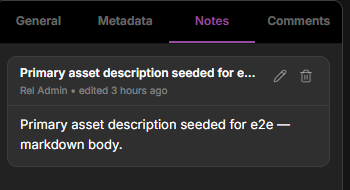
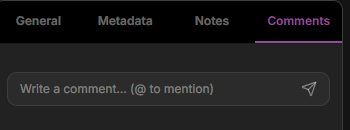
Each asset can have a **Markdown note** — a place to document the protocol, instrument settings, caveats, or anything a future reader (including you) will want to know — and a **Comments** thread for discussion with @mentions. See [Notes, comments & discussion](/organize/notes-and-comments) for when to use each.
## Asset type
Use **Asset type** to describe the broad class of work an asset represents. Pick the general category, such as **Dataset**, **Sample / Specimen**, **Synthesis**, **Fabrication**, **Imaging**, **Spectroscopy**, **Quality Control**, **Simulation**, or **Analysis**.
Keep method-specific details in tags or metadata. For example, choose **Imaging** for microscopy data and add tags such as `AFM` or `SEM` when those details help you search later.
You can choose **Asset type** when you create an asset. If you have **Write** access to an existing asset, you can also update it from the **General** information panel.
## Content
**Content** is the file or files attached to an asset. You add content by [uploading in the browser](/data/upload) or with the [desktop app and CLI](/data/desktop-and-cli).
An asset can also exist with **no content yet** — create it from its metadata first and attach files later. This is useful when you want to describe and register data before it's measured, or stand up the structure of a study ahead of time. See [Create an asset before uploading](/data/metadata-first-assets).
## Preview PDFs
When an asset's available content is a PDF, the **General** tab shows a preview card above the file details. Use the preview to inspect the first page directly from the asset sidebar. At **100%**, the page fits the preview width.
Use **Zoom in PDF preview**, **Zoom out PDF preview**, and **Fit PDF preview to width** to adjust the page view. Click **Expand PDF preview** to open the PDF in a full-screen viewer. Use **Collapse PDF preview**, **Close PDF preview**, or press `Esc` to return to the asset detail panel.
Click **Download** from either the preview card or the full-screen viewer to save the PDF. The download uses the same permissions and content path as the standard asset download action.
## Identity and citation
Every asset gets a stable, citable identifier — a **DID** — minted automatically when it's created. You'll find it on the **General** tab, where you can copy it for use in a paper or dataset record. See [Persistent identifiers](/identity/overview) for what a DID is and how to publish and verify one.
The General tab also has a **Citation** panel. Pick a **Format** — BibTeX, RIS, APA, MLA, or Chicago — and **Copy** or **Download** a ready-made citation. If you've linked a [publication](/attribution/grants) to the asset, the citation includes it; otherwise the citation renders from the asset's DID. See [Cite a record](/identity/cite-a-record).
## Relationships
The General tab shows the asset's **relationships** — directed links to the other assets it was derived from or feeds into. Add, browse, and remove these links here to record how your data came to be. See [Provenance & relationships](/organize/provenance).
## Notes and comments
Each asset can have a **Markdown note** — a place to document the protocol, instrument settings, caveats, or anything a future reader (including you) will want to know — and a **Comments** thread for discussion with @mentions. See [Notes, comments & discussion](/organize/notes-and-comments) for when to use each.
 ## Stars
**Star** an asset to bookmark it for quick access later. You can star collections and projects the same way.
## Locking
Lock an asset to prevent further changes to it — useful once data is final and you want to protect it from edits. Locking is part of the **Admin** level of [permissions](/sharing/permissions).
## Next steps
Link assets to record how your data came to be.
Find assets by metadata, tags, creator, and collection.
## Stars
**Star** an asset to bookmark it for quick access later. You can star collections and projects the same way.
## Locking
Lock an asset to prevent further changes to it — useful once data is final and you want to protect it from edits. Locking is part of the **Admin** level of [permissions](/sharing/permissions).
## Next steps
Link assets to record how your data came to be.
Find assets by metadata, tags, creator, and collection.