> ## Documentation Index
> Fetch the complete documentation index at: https://docs.dataerai.com/llms.txt
> Use this file to discover all available pages before exploring further.
# Notes, comments & discussion
> Dataerai gives you three ways to add context to your data: a Markdown note, a threaded comment discussion, and a collection or project README. Here's when to use each.
Context lives next to the data in Dataerai. There are three distinct surfaces, and they serve different purposes:
| Surface | Where | Best for |
| ------------ | -------------------------------- | ----------------------------------------------------------------------------------------------------------------------- |
| **Notes** | The **Notes** tab on an asset | Durable documentation of *one* asset — protocol, instrument settings, caveats, and collaborator-specific working notes. |
| **Comments** | The **Comments** tab on an asset | Conversation about the asset, with replies and @mentions. |
| **README** | A collection or project | An overview of a *group* of data and how to use it. |
## Notes
Each asset has a shared **Public** note — a free-form **Markdown** document that renders as formatted prose. Use it for the things a future reader (including you) will want to know: how the data was produced, what the columns mean, known issues, and links to related work. The Public note is part of the asset itself rather than a conversation.
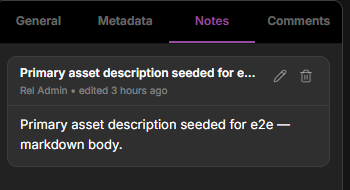 When sample notes are enabled for your workspace, the **Notes** tab also has **Private** and **Shared** sub-tabs:
* **Public** is the asset's shared Markdown note.
* **Private** is your personal note on the sample. Only you can read and edit it.
* **Shared** contains notes you wrote for selected people or groups, plus notes others shared with you. You can edit and delete notes you authored. Notes shared with you are read-only.
To share a sample note, open **Shared**, create or select a note, choose **Manage**, then add people or groups to the audience. Removing all recipients from the audience leaves the note visible only to you until you share it again.
## Comments
The **Comments** tab is a threaded discussion. Anyone with access can post a comment and **reply** to others, so questions and decisions stay attached to the asset instead of scattering across email or chat.
Mention a teammate with **@** to pull them in — they get a [notification](/account/notifications) pointing back to the exact comment.
When sample notes are enabled for your workspace, the **Notes** tab also has **Private** and **Shared** sub-tabs:
* **Public** is the asset's shared Markdown note.
* **Private** is your personal note on the sample. Only you can read and edit it.
* **Shared** contains notes you wrote for selected people or groups, plus notes others shared with you. You can edit and delete notes you authored. Notes shared with you are read-only.
To share a sample note, open **Shared**, create or select a note, choose **Manage**, then add people or groups to the audience. Removing all recipients from the audience leaves the note visible only to you until you share it again.
## Comments
The **Comments** tab is a threaded discussion. Anyone with access can post a comment and **reply** to others, so questions and decisions stay attached to the asset instead of scattering across email or chat.
Mention a teammate with **@** to pull them in — they get a [notification](/account/notifications) pointing back to the exact comment.
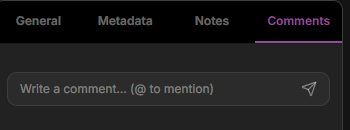 **Notes vs. comments:** put settled, reference information in the **Note**; use **Comments** for back-and-forth. The note is documentation; comments are a conversation.
## README
Collections and projects have a **README** — a Markdown document that introduces the whole group of data: what it contains, how it's organized, and how to use it. Open a collection and switch from the **Data** tab to the **Readme** tab to read or edit it. It's the natural place for an at-a-glance overview that individual asset notes can't give a collaborator landing on a group of data.
## Next steps
The asset that notes and comments attach to.
How @mentions reach the people you tag.
Where a README introduces a group of data.
Capture how your data came to be.
**Notes vs. comments:** put settled, reference information in the **Note**; use **Comments** for back-and-forth. The note is documentation; comments are a conversation.
## README
Collections and projects have a **README** — a Markdown document that introduces the whole group of data: what it contains, how it's organized, and how to use it. Open a collection and switch from the **Data** tab to the **Readme** tab to read or edit it. It's the natural place for an at-a-glance overview that individual asset notes can't give a collaborator landing on a group of data.
## Next steps
The asset that notes and comments attach to.
How @mentions reach the people you tag.
Where a README introduces a group of data.
Capture how your data came to be.