> ## Documentation Index
> Fetch the complete documentation index at: https://docs.dataerai.com/llms.txt
> Use this file to discover all available pages before exploring further.
# Share with people and groups
> Grant Read, Write, or Admin access to individual members or to groups, and manage who can see and change your data.
You share an object — a project, collection, or asset — by granting a [role](/sharing/permissions) to people or groups.
## Share with a person
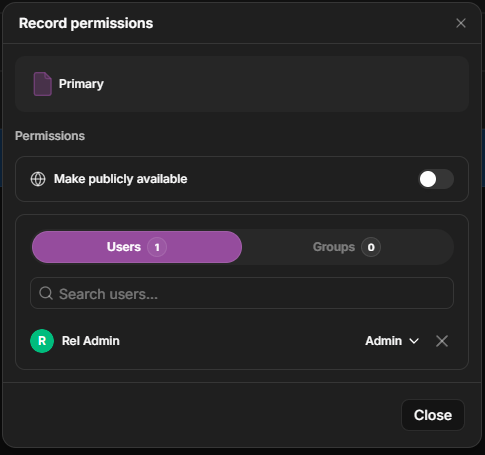
Open the object's permissions, add a member of your organization, and choose **Read**, **Write**, or **Admin**. The person who creates an object is automatically its **Admin**, so they can manage sharing from the start.
For an **asset**, select it and click **Permissions** in the action bar. For a **project** or **collection**, open its **Settings** from the sidebar.
 On the **Users** tab, add a member and choose Read, Write, or Admin.
 ## Share with a group
A **group** is a named set of members. Granting a role to a group gives everyone in it that access at once — and as people join or leave the group, their access updates automatically. Groups are the easiest way to manage access for a lab, a team, or a class.
## Share with a group
A **group** is a named set of members. Granting a role to a group gives everyone in it that access at once — and as people join or leave the group, their access updates automatically. Groups are the easiest way to manage access for a lab, a team, or a class.
 See [Groups](/account/groups) for creating and managing them.
## Manage access
* **Change a role** by selecting a different one for that person or group.
* **Revoke access** by removing the grant.
* Because permissions [cascade](/sharing/permissions), check the parent collection or project if someone has more or less access than you expect.
## Next steps
Create groups to grant access in bulk.
Share read-only with anyone via link.
See [Groups](/account/groups) for creating and managing them.
## Manage access
* **Change a role** by selecting a different one for that person or group.
* **Revoke access** by removing the grant.
* Because permissions [cascade](/sharing/permissions), check the parent collection or project if someone has more or less access than you expect.
## Next steps
Create groups to grant access in bulk.
Share read-only with anyone via link.