> ## Documentation Index
> Fetch the complete documentation index at: https://docs.dataerai.com/llms.txt
> Use this file to discover all available pages before exploring further.
# Sharing & permissions
> Control access to projects, collections, and assets with Read, Write, and Admin roles that cascade through the hierarchy.
Dataerai controls access **per object**. You can set permissions on a project, a collection, or an asset, using three roles.
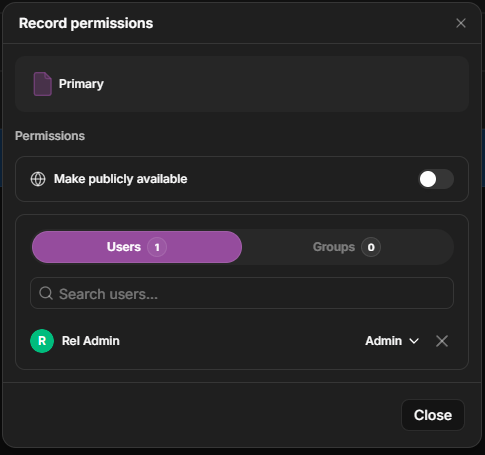
For an **asset**, select it and click **Permissions** in the action bar that appears when something is selected. For a **project** or **collection**, open its **Settings** from the sidebar — the same access controls live there.
 The dialog has a public-access toggle, Users and Groups tabs, and a role per grantee.
 ## The three roles
| Role | What it allows |
| --------- | ----------------------------------------------------------------------------------------------------- |
| **Read** | View the object — its metadata, content, and notes. |
| **Write** | Everything in Read, plus edit metadata, content, and notes (and add or manage items in a collection). |
| **Admin** | Everything in Write, plus **share** the object with others (and lock an asset). |
## The three roles
| Role | What it allows |
| --------- | ----------------------------------------------------------------------------------------------------- |
| **Read** | View the object — its metadata, content, and notes. |
| **Write** | Everything in Read, plus edit metadata, content, and notes (and add or manage items in a collection). |
| **Admin** | Everything in Write, plus **share** the object with others (and lock an asset). |
 What each role grants is tailored to the object:
* **Project** — Read sees and lists the project; Write can edit it and add data
using the project's assigned allocations; Admin can share it.
* **Collection** — Write can also add and organize the items inside; Admin can share.
* **Asset** — Read includes the file content and notes; Admin can also lock the asset.
Project Write does not make someone a storage admin. They can use allocations
already assigned to the project, but they cannot move allocations between
projects or browse the organization's storage pool unless they also have the
right admin access.
## Permissions cascade
Access granted higher in the hierarchy flows down: someone with Read on a project can read the collections and assets inside it. You can grant access on a specific item to widen or narrow it for that item.
A dataset is governed through this same hierarchy — through the project, collection, and assets it draws from — rather than through a separate sharing dialog of its own. [Restricted fields](/sharing/restricted-fields) within a dataset can be kept protected even on data you otherwise share.
## Who you can share with
* **Individual people** in your organization.
* **Groups**, to grant many people at once.
* The **public**, for read-only access to any signed-in user with the link.
See [Share with people and groups](/sharing/people-and-groups) and [Public sharing](/sharing/public).
## Next steps
Grant and manage access for individuals and teams.
Protect sensitive columns within a dataset.
What each role grants is tailored to the object:
* **Project** — Read sees and lists the project; Write can edit it and add data
using the project's assigned allocations; Admin can share it.
* **Collection** — Write can also add and organize the items inside; Admin can share.
* **Asset** — Read includes the file content and notes; Admin can also lock the asset.
Project Write does not make someone a storage admin. They can use allocations
already assigned to the project, but they cannot move allocations between
projects or browse the organization's storage pool unless they also have the
right admin access.
## Permissions cascade
Access granted higher in the hierarchy flows down: someone with Read on a project can read the collections and assets inside it. You can grant access on a specific item to widen or narrow it for that item.
A dataset is governed through this same hierarchy — through the project, collection, and assets it draws from — rather than through a separate sharing dialog of its own. [Restricted fields](/sharing/restricted-fields) within a dataset can be kept protected even on data you otherwise share.
## Who you can share with
* **Individual people** in your organization.
* **Groups**, to grant many people at once.
* The **public**, for read-only access to any signed-in user with the link.
See [Share with people and groups](/sharing/people-and-groups) and [Public sharing](/sharing/public).
## Next steps
Grant and manage access for individuals and teams.
Protect sensitive columns within a dataset.