> ## Documentation Index
> Fetch the complete documentation index at: https://docs.dataerai.com/llms.txt
> Use this file to discover all available pages before exploring further.
# Projects, collections & assets
> How Dataerai organizes data — navigate the Projects → Collections → Assets hierarchy, inspect items in the sidebar, and act on a selection. With matching API calls.
Dataerai organizes data as **Projects → Collections → Assets**. This tutorial
walks that hierarchy and shows how to navigate, inspect, and act on items —
first in the web workspace, then with the same calls from Python.
## Overview
Use this tutorial to learn how to move around your workspace.
What you'll use:
* **Projects** for the main work area.
* **Collections** for grouping related records.
* **Assets** for files, metadata, notes, and relationships.
How navigation works:
* Single-click a row to inspect it in the sidebar.
* Double-click a row to open it.
* Use the path above the list to see where you are.
* Select rows to show actions such as **Copy**, **Cut**, **Paste**, and
**Permissions**.
Good to know:
* You only see projects, collections, and assets you are allowed to access.
* Browser examples show the normal workspace flow.
* Code examples are included for users who want to inspect the same data from
Python.
The Python SDK covers transfers and metadata. The code examples for browsing
use the public REST API because the SDK does not include list/retrieve methods
for the full hierarchy.
## Select and inspect
A **single click** selects an item and opens its **detail sidebar** — a quick
way to inspect something without leaving the list.
**In the app**
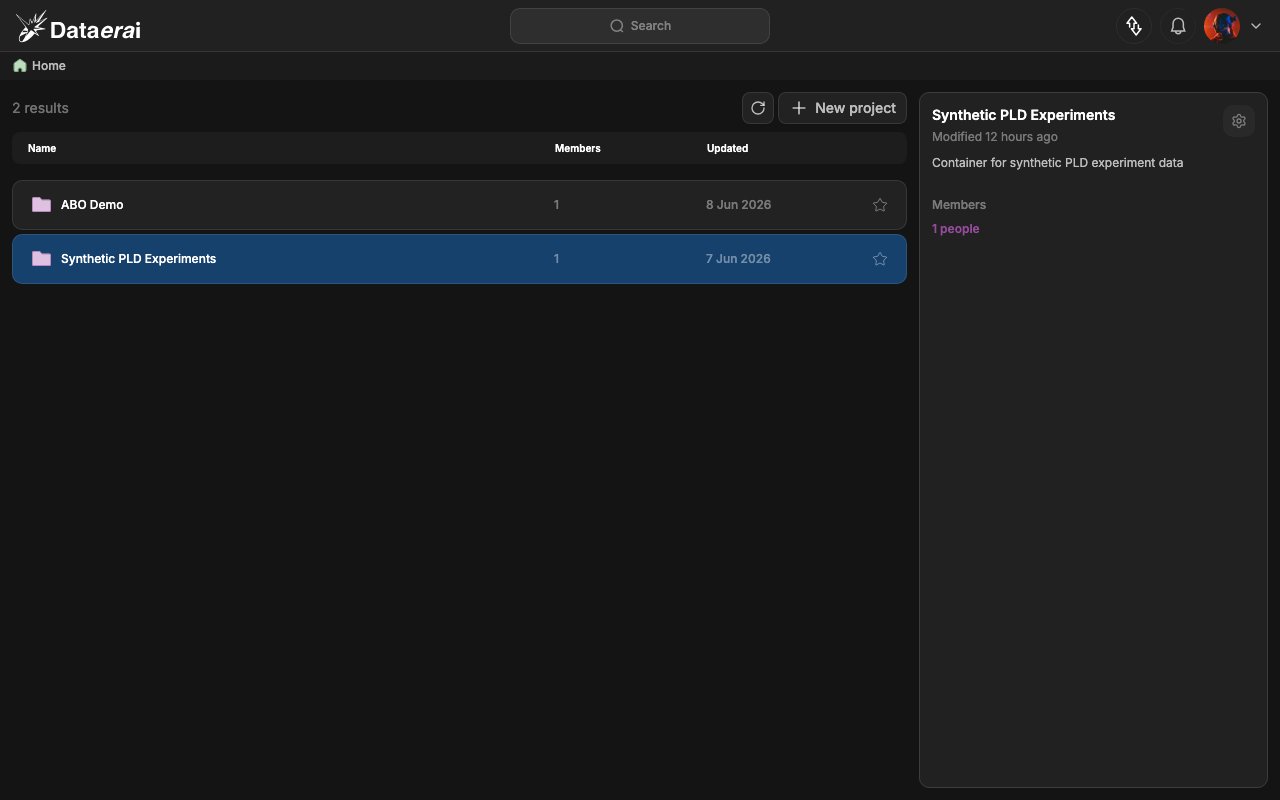
1. Sign in. The workspace opens at **Home**, listing your projects in a table
with columns **Name**, **Members**, **Updated** and a ` results` count.
2. **Single-click** a project row (e.g. *Synthetic PLD Experiments*). The row
highlights blue and the **detail sidebar** opens on the right, showing the name,
*Modified … ago*, the description, a **Members** label with ` people`, and a
settings gear.
 **From code**
First authenticate with the public REST API. Set `DATAERAI_SERVER` to your
Dataerai site and `DATAERAI_TOKEN` to an access token for your account.
```python theme={null}
import os, requests
API = os.environ.get("DATAERAI_SERVER", "https://")
TOKEN = os.environ["DATAERAI_TOKEN"]
api = requests.Session()
api.headers.update({"Authorization": f"Bearer {TOKEN}"})
me = api.get(f"{API}/api/me/").json()
print("signed in as", me["email"])
```
So the rest of the tutorial runs end-to-end on the tutorial account, we create a
small hierarchy from code — in the web app you'd click **New project**, **+ New
collection**, and drag a file into **Upload** instead. (The screenshots use a
different seed account, *Synthetic PLD Experiments*, so the on-screen names won't
match the ones we create; the calls are the same.)
```python theme={null}
import csv, pathlib, shutil
from dataerai import DataeraiClient
# 1. A project (top of the hierarchy). Creating returns its root collection id.
resp = api.post(f"{API}/api/projects/",
json={"name": "Navigation tutorial project",
"description": "Created from code by tutorial 02."})
resp.raise_for_status()
project = resp.json()
root_id = project["root_collection_id"]
# 2. A collection inside the project's root collection.
resp = api.post(f"{API}/api/collections/",
json={"title": "Run-001",
"owner_type": "project", "owner_id": project["id"],
"parent_id": root_id})
resp.raise_for_status()
collection = resp.json()
collection_id = collection["id"]
# 3. An asset with file content, uploaded with the SDK. The asset is owned
# by the project and placed in our collection via collection_id.
data_file = pathlib.Path.home() / "dataerai-tutorial" / "nav.csv"
data_file.parent.mkdir(parents=True, exist_ok=True)
with open(data_file, "w", newline="") as fh:
w = csv.writer(fh); w.writerow(["id", "value"])
for i in range(10): w.writerow([i, i * i])
client = DataeraiClient(binary_path=shutil.which("dataerai") or "dataerai")
client.connect()
uploaded = client.upload(str(data_file), title="Run-001 readings",
owner_type="project", owner_id=project["id"],
collection_id=collection_id)
client.close()
asset_id = uploaded.asset_id
```
## Drill into a project
**Double-click** a project to open it and see its **collections**.
**In the app**
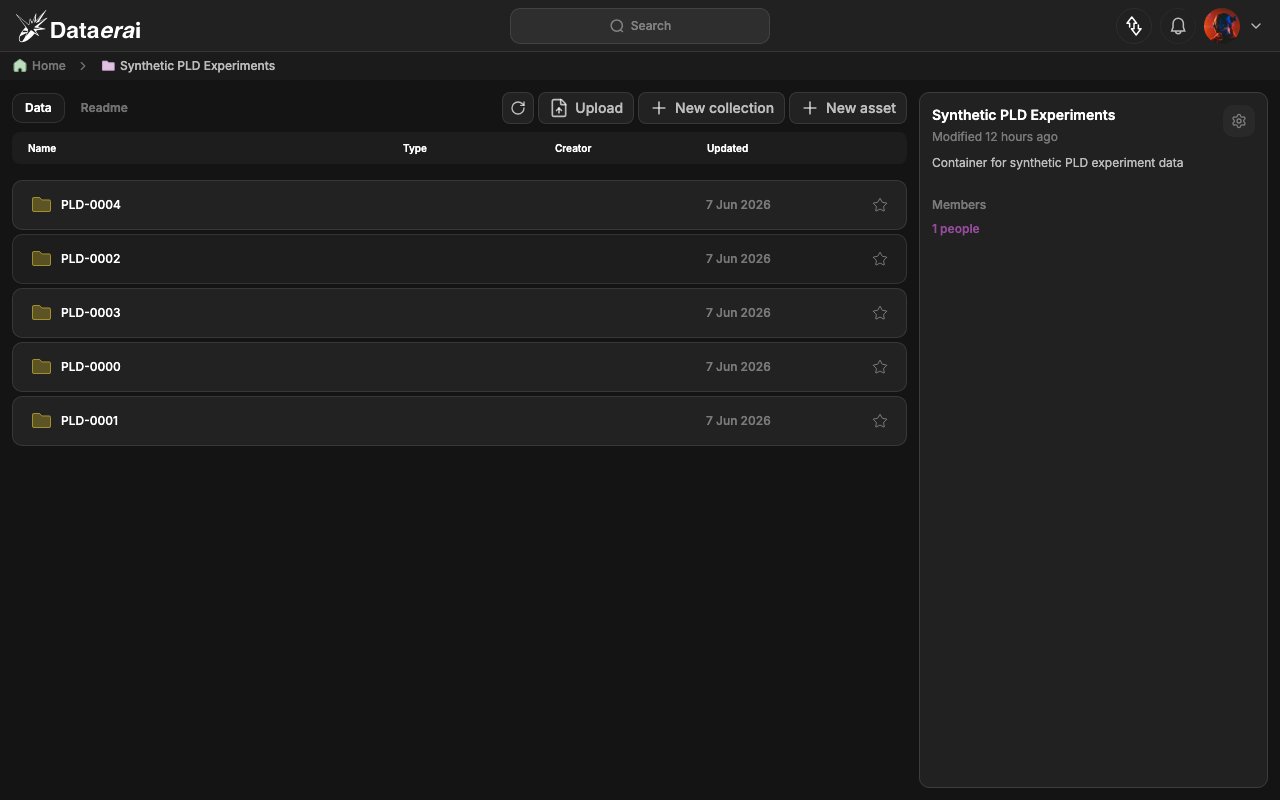
1. **Double-click** the project row. The list opens that project.
2. The list now shows the project's **child collections** with columns **Name**,
**Type**, **Creator**, **Updated**, and the toolbar gains the **Data** / **Readme**
tabs plus **Upload**, **+ New collection**, and **+ New asset** buttons.
**From code**
First authenticate with the public REST API. Set `DATAERAI_SERVER` to your
Dataerai site and `DATAERAI_TOKEN` to an access token for your account.
```python theme={null}
import os, requests
API = os.environ.get("DATAERAI_SERVER", "https://")
TOKEN = os.environ["DATAERAI_TOKEN"]
api = requests.Session()
api.headers.update({"Authorization": f"Bearer {TOKEN}"})
me = api.get(f"{API}/api/me/").json()
print("signed in as", me["email"])
```
So the rest of the tutorial runs end-to-end on the tutorial account, we create a
small hierarchy from code — in the web app you'd click **New project**, **+ New
collection**, and drag a file into **Upload** instead. (The screenshots use a
different seed account, *Synthetic PLD Experiments*, so the on-screen names won't
match the ones we create; the calls are the same.)
```python theme={null}
import csv, pathlib, shutil
from dataerai import DataeraiClient
# 1. A project (top of the hierarchy). Creating returns its root collection id.
resp = api.post(f"{API}/api/projects/",
json={"name": "Navigation tutorial project",
"description": "Created from code by tutorial 02."})
resp.raise_for_status()
project = resp.json()
root_id = project["root_collection_id"]
# 2. A collection inside the project's root collection.
resp = api.post(f"{API}/api/collections/",
json={"title": "Run-001",
"owner_type": "project", "owner_id": project["id"],
"parent_id": root_id})
resp.raise_for_status()
collection = resp.json()
collection_id = collection["id"]
# 3. An asset with file content, uploaded with the SDK. The asset is owned
# by the project and placed in our collection via collection_id.
data_file = pathlib.Path.home() / "dataerai-tutorial" / "nav.csv"
data_file.parent.mkdir(parents=True, exist_ok=True)
with open(data_file, "w", newline="") as fh:
w = csv.writer(fh); w.writerow(["id", "value"])
for i in range(10): w.writerow([i, i * i])
client = DataeraiClient(binary_path=shutil.which("dataerai") or "dataerai")
client.connect()
uploaded = client.upload(str(data_file), title="Run-001 readings",
owner_type="project", owner_id=project["id"],
collection_id=collection_id)
client.close()
asset_id = uploaded.asset_id
```
## Drill into a project
**Double-click** a project to open it and see its **collections**.
**In the app**
1. **Double-click** the project row. The list opens that project.
2. The list now shows the project's **child collections** with columns **Name**,
**Type**, **Creator**, **Updated**, and the toolbar gains the **Data** / **Readme**
tabs plus **Upload**, **+ New collection**, and **+ New asset** buttons.
 **From code**
List your projects, then list a collection's child collections. This is the same
data the web app uses when you double-click into a project.
Each project carries a `root_collection_id`: the hidden root that holds its
top-level collections and assets. `root_collection_id` is `null` if you can't
see the root, and collections form a DAG, so `parent_ids` may list several
parents.
```python theme={null}
# Top of the hierarchy: my projects.
projects = api.get(f"{API}/api/projects/").json()
for p in projects:
print(p["name"], "-> root:", p["root_collection_id"])
# Retrieve one project (adds current_user_role on top of the list shape).
detail = api.get(f"{API}/api/projects/{project['id']}/").json()
print("role:", detail["current_user_role"], "| root:", detail["root_collection_id"])
# Drill in: list the root collection's child collections (the project's top level).
children = api.get(f"{API}/api/collections/{root_id}/edges/").json()
for c in children:
print(c["title"], "| is_root:", c["is_root"], "| parents:", c["parent_ids"])
```
## Into a collection — the assets
Double-click a collection to see its **assets** (the leaf of the hierarchy).
**In the app**
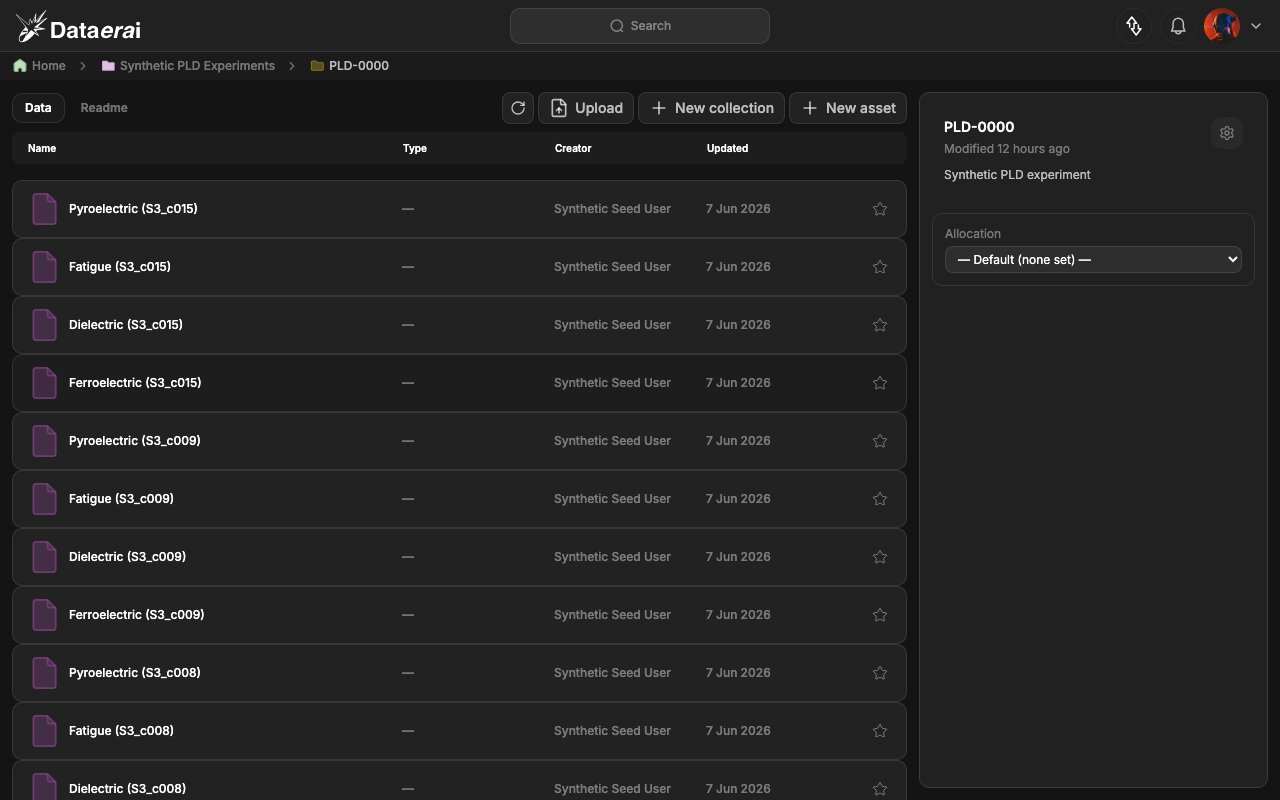
1. **Double-click** a collection row. The path above the list updates to show
the project and collection you opened.
2. The list now shows that collection's **assets** with columns **Name**, **Type**,
**Creator**, **Updated**.
**From code**
List your projects, then list a collection's child collections. This is the same
data the web app uses when you double-click into a project.
Each project carries a `root_collection_id`: the hidden root that holds its
top-level collections and assets. `root_collection_id` is `null` if you can't
see the root, and collections form a DAG, so `parent_ids` may list several
parents.
```python theme={null}
# Top of the hierarchy: my projects.
projects = api.get(f"{API}/api/projects/").json()
for p in projects:
print(p["name"], "-> root:", p["root_collection_id"])
# Retrieve one project (adds current_user_role on top of the list shape).
detail = api.get(f"{API}/api/projects/{project['id']}/").json()
print("role:", detail["current_user_role"], "| root:", detail["root_collection_id"])
# Drill in: list the root collection's child collections (the project's top level).
children = api.get(f"{API}/api/collections/{root_id}/edges/").json()
for c in children:
print(c["title"], "| is_root:", c["is_root"], "| parents:", c["parent_ids"])
```
## Into a collection — the assets
Double-click a collection to see its **assets** (the leaf of the hierarchy).
**In the app**
1. **Double-click** a collection row. The path above the list updates to show
the project and collection you opened.
2. The list now shows that collection's **assets** with columns **Name**, **Type**,
**Creator**, **Updated**.
 **From code**
List a collection's assets.
The page of assets is in the JSON body, but the cursor/has-more metadata lives
in the response headers: `X-Page-Limit`, `X-Has-More`, and `X-Next-Cursor`.
Pass `X-Next-Cursor` back as the `cursor` param for the next page. Default
`limit` is 100, max 1000. `current_content` is `null` if you lack read-content
access.
```python theme={null}
r = api.get(f"{API}/api/collections/{collection_id}/assets/", params={"limit": 100})
assets = r.json()
print("page size:", r.headers["X-Page-Limit"], "| more:", r.headers["X-Has-More"])
for a in assets:
content = a["current_content"]
print(a["title"], "|", content["size_bytes"] if content else "no content", "bytes")
next_cursor = r.headers.get("X-Next-Cursor") # pass as cursor= to fetch the next page
# Equivalent global listing filtered to this collection (same body + same headers):
same = api.get(f"{API}/api/assets/", params={"collection_id": collection_id, "limit": 50})
print("via /api/assets/?collection_id=:", [a["title"] for a in same.json()])
```
## Asset detail & the selection toolbar
Select an asset to open its full detail panel, and use the floating toolbar to
act on a selection.
**In the app**
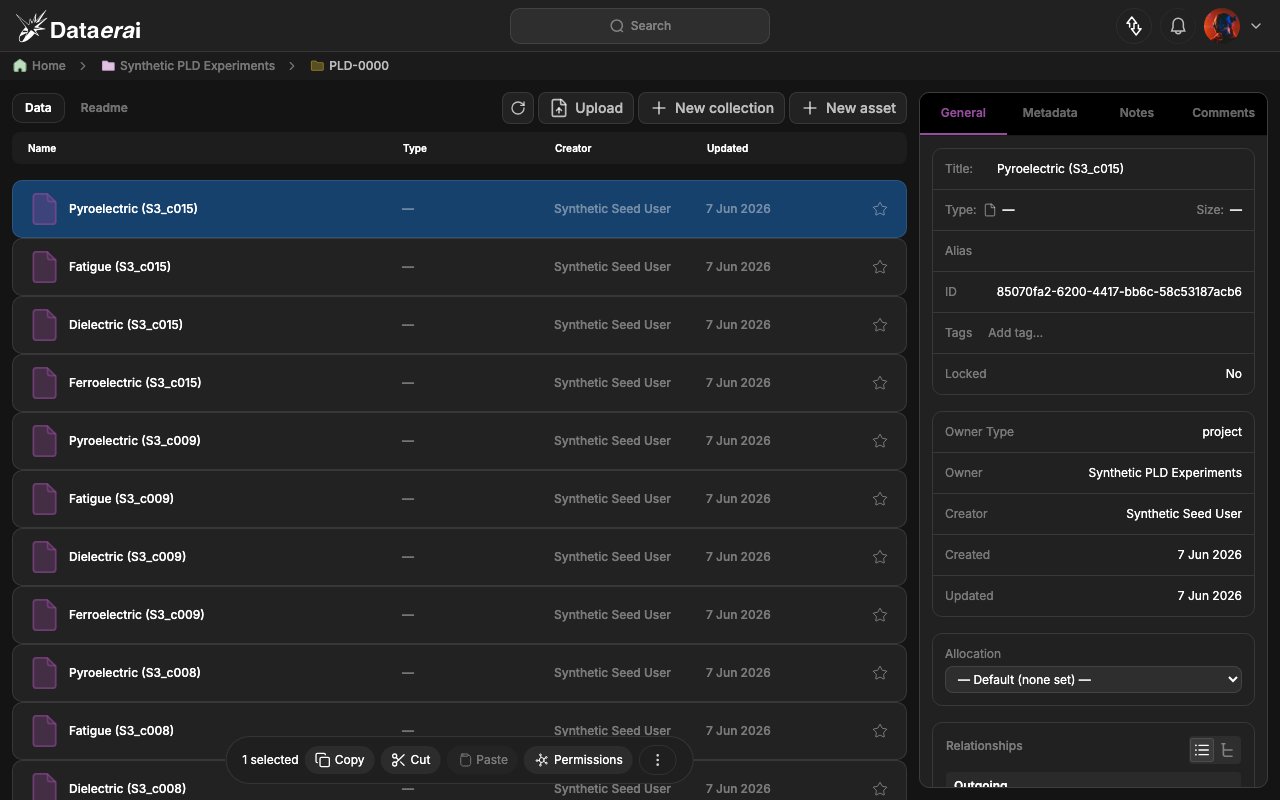
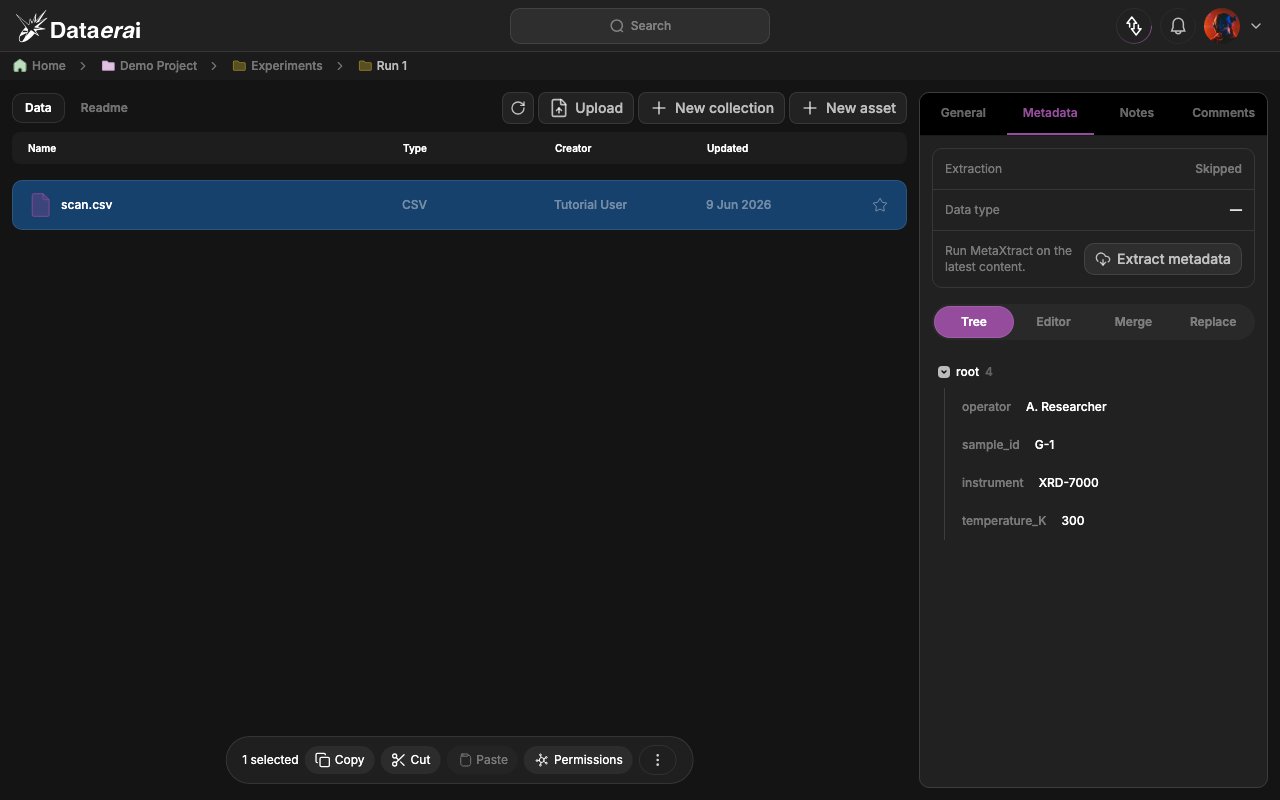
1. **Single-click** an asset row. The detail sidebar shows the record with four
tabs: **General**, **Metadata**, **Notes**, **Comments**. The **General** tab
lists Title, Type, Size, Alias, **DID** (the asset's auto-minted persistent
identifier, with a **View DID document** button), Tags (with an *Add tag…*
input), Locked, Owner Type, Owner, Creator, Created, Updated, an **Allocation**
dropdown, a **Relationships** card (add and browse provenance links — see
[Provenance & relationships](/tutorials/05-provenance/provenance)), and a
**Citation** panel (copy or download a citation in BibTeX, RIS, APA, MLA, or
Chicago).
2. With one or more rows selected, a **floating toolbar** appears centered at the
bottom reading ` selected` with **Copy**, **Cut**, **Paste**, **Permissions**,
and a **⋮** (More actions) menu (Download, Copy Link, Edit, Delete, Provenance,
Annotate, Unlink).
**From code**
List a collection's assets.
The page of assets is in the JSON body, but the cursor/has-more metadata lives
in the response headers: `X-Page-Limit`, `X-Has-More`, and `X-Next-Cursor`.
Pass `X-Next-Cursor` back as the `cursor` param for the next page. Default
`limit` is 100, max 1000. `current_content` is `null` if you lack read-content
access.
```python theme={null}
r = api.get(f"{API}/api/collections/{collection_id}/assets/", params={"limit": 100})
assets = r.json()
print("page size:", r.headers["X-Page-Limit"], "| more:", r.headers["X-Has-More"])
for a in assets:
content = a["current_content"]
print(a["title"], "|", content["size_bytes"] if content else "no content", "bytes")
next_cursor = r.headers.get("X-Next-Cursor") # pass as cursor= to fetch the next page
# Equivalent global listing filtered to this collection (same body + same headers):
same = api.get(f"{API}/api/assets/", params={"collection_id": collection_id, "limit": 50})
print("via /api/assets/?collection_id=:", [a["title"] for a in same.json()])
```
## Asset detail & the selection toolbar
Select an asset to open its full detail panel, and use the floating toolbar to
act on a selection.
**In the app**
1. **Single-click** an asset row. The detail sidebar shows the record with four
tabs: **General**, **Metadata**, **Notes**, **Comments**. The **General** tab
lists Title, Type, Size, Alias, **DID** (the asset's auto-minted persistent
identifier, with a **View DID document** button), Tags (with an *Add tag…*
input), Locked, Owner Type, Owner, Creator, Created, Updated, an **Allocation**
dropdown, a **Relationships** card (add and browse provenance links — see
[Provenance & relationships](/tutorials/05-provenance/provenance)), and a
**Citation** panel (copy or download a citation in BibTeX, RIS, APA, MLA, or
Chicago).
2. With one or more rows selected, a **floating toolbar** appears centered at the
bottom reading ` selected` with **Copy**, **Cut**, **Paste**, **Permissions**,
and a **⋮** (More actions) menu (Download, Copy Link, Edit, Delete, Provenance,
Annotate, Unlink).
 3. Click the **Metadata** tab to see the asset's metadata tree (the user `metadata`
plus any `current_content.extracted_metadata`).
3. Click the **Metadata** tab to see the asset's metadata tree (the user `metadata`
plus any `current_content.extracted_metadata`).
 **From code**
Retrieve one asset — its fields map 1:1 to the sidebar's **General** tab (Title,
Alias, ID, Tags, Locked, Owner Type, Owner, Creator, Created, Updated; Type/Size
come from `current_content.files`, and the **Metadata** tab is `metadata` +
`current_content.extracted_metadata`).
```python theme={null}
asset = api.get(f"{API}/api/assets/{asset_id}/").json()
print("title :", asset["title"])
print("owner :", asset["owner_type"], "->", asset["owner_name"])
print("locked:", asset["is_locked"], "| tags:", asset["tags"])
print("metadata:", asset["metadata"])
content = asset["current_content"]
if content:
files = content["files"]
print("size :", content["size_bytes"], "bytes |", [f["filename"] for f in files])
```
## Navigation paths & shareable links
Every view can be shared or bookmarked from the browser. Use the path above the
list to jump back up to a project or parent collection.
**In the app**
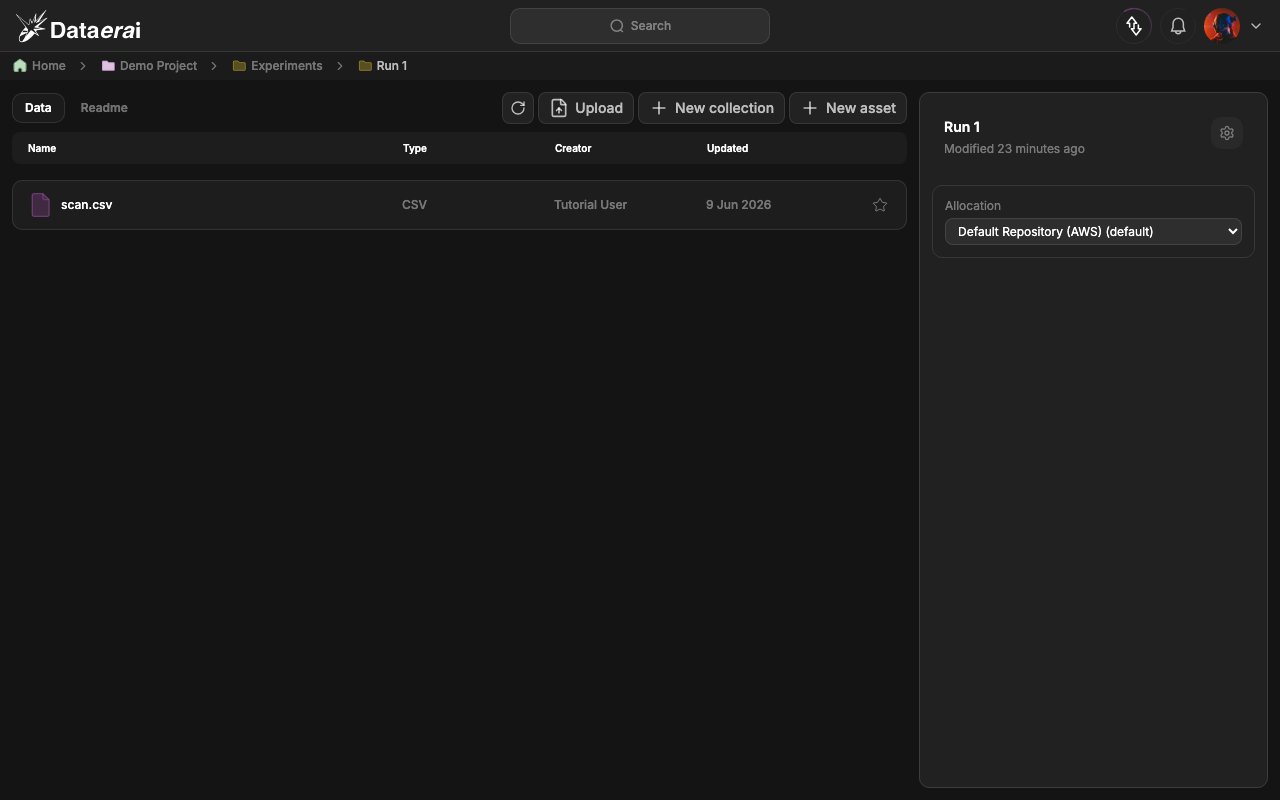
1. The path above the list shows where you are, such as **Home**, then the
project, then the collection.
Click any part of the path to jump straight to that level.
2. Copy the browser URL to share or bookmark the exact view you're looking at.
**From code**
Retrieve one asset — its fields map 1:1 to the sidebar's **General** tab (Title,
Alias, ID, Tags, Locked, Owner Type, Owner, Creator, Created, Updated; Type/Size
come from `current_content.files`, and the **Metadata** tab is `metadata` +
`current_content.extracted_metadata`).
```python theme={null}
asset = api.get(f"{API}/api/assets/{asset_id}/").json()
print("title :", asset["title"])
print("owner :", asset["owner_type"], "->", asset["owner_name"])
print("locked:", asset["is_locked"], "| tags:", asset["tags"])
print("metadata:", asset["metadata"])
content = asset["current_content"]
if content:
files = content["files"]
print("size :", content["size_bytes"], "bytes |", [f["filename"] for f in files])
```
## Navigation paths & shareable links
Every view can be shared or bookmarked from the browser. Use the path above the
list to jump back up to a project or parent collection.
**In the app**
1. The path above the list shows where you are, such as **Home**, then the
project, then the collection.
Click any part of the path to jump straight to that level.
2. Copy the browser URL to share or bookmark the exact view you're looking at.
 **From code**
The API can return an asset's location, including its project and collection
path, which is useful when you need to build links or move between related
views.
```python theme={null}
# Resolve an asset's location.
loc = api.get(f"{API}/api/assets/{asset_id}/location/").json()
print("project :", loc["project"]["name"] if loc["project"] else None)
print("path :", [c["title"] for c in loc["collection_path"]])
```
## Next steps
* [Describe & organize your data](/tutorials/04-describe-and-organize/describe-and-organize)
* [Search & discover](/tutorials/06-search/search)
**From code**
The API can return an asset's location, including its project and collection
path, which is useful when you need to build links or move between related
views.
```python theme={null}
# Resolve an asset's location.
loc = api.get(f"{API}/api/assets/{asset_id}/location/").json()
print("project :", loc["project"]["name"] if loc["project"] else None)
print("path :", [c["title"] for c in loc["collection_path"]])
```
## Next steps
* [Describe & organize your data](/tutorials/04-describe-and-organize/describe-and-organize)
* [Search & discover](/tutorials/06-search/search)