> ## Documentation Index
> Fetch the complete documentation index at: https://docs.dataerai.com/llms.txt
> Use this file to discover all available pages before exploring further.

# Metadata, notes & organizing

> Describe assets with structured metadata and a Markdown note, give a project a README, and reorganize with copy / cut / paste and delete.

Use this tutorial to make data easier to understand later.

You'll work with three kinds of context:

* **Metadata** for structured facts such as instrument, temperature, or sample
  id.
* **Notes** for free-form Markdown about one asset.
* **Readme** for a project-level overview.

You'll also practice:

* Editing metadata in the app.
* Adding and removing a note.
* Creating a project Readme.
* Moving items with copy, cut, paste, and delete.

Good to know:

* Notes are one per asset.
* Comments are separate from notes.
* A Readme belongs to a project, not an individual collection.

<Accordion title="Technical details">
  Metadata values must be a JSON object and a `PATCH` replaces the whole object,
  so code examples use read-modify-write. Notes are last-write-wins with no
  conflict detection. The README is stored as an ordinary asset named
  `README.md`, so editing it means uploading replacement content.
</Accordion>

## Metadata

Metadata is a per-asset JSON object (the asset's `metadata` field) for structured,
queryable facts: instrument, temperature, sample id, and so on. You can hand-edit
it, or — for supported instrument files (`.h5`, `.xrdml`, `.dm4`, `.ibw`) — let
**Dataerai** populate it automatically.

<Accordion title="Technical details: editable and extracted metadata">
  The Metadata tab shows
  `current_content.extracted_metadata` (auto-extracted metadata) when it exists and *only
  falls back* to the editable `metadata` field otherwise. When extracted metadata is
  present the Tree/Editor views are **read-only** and the Merge/Replace modes are
  hidden. Editing always writes the asset's own `metadata` field. That's why the
  tutorial uses a `.csv` (extraction is skipped), so the editor stays writable.
</Accordion>

### In the app

1. From **Home**, double-click your project, then a collection, to open the
   **Data** list.
2. Click an asset row to open the right-hand record sidebar, then click the
   **Metadata** tab.
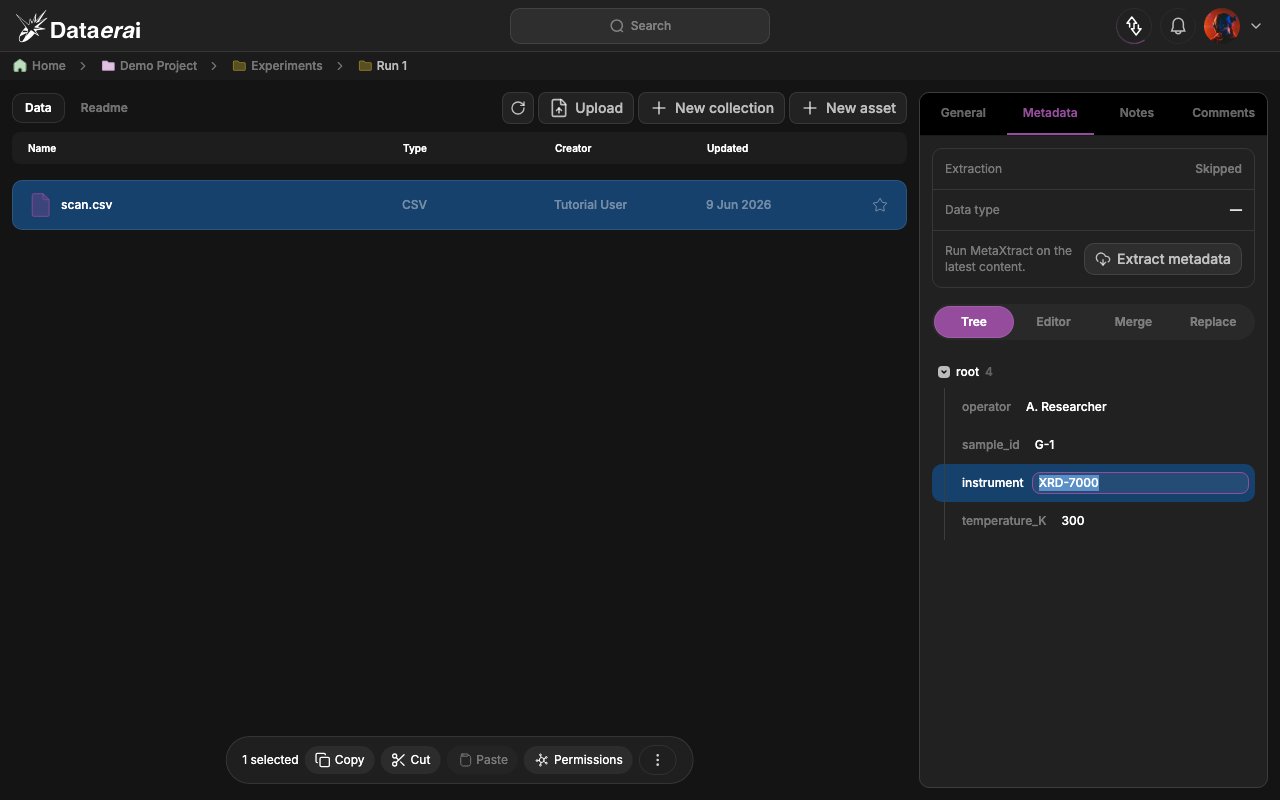
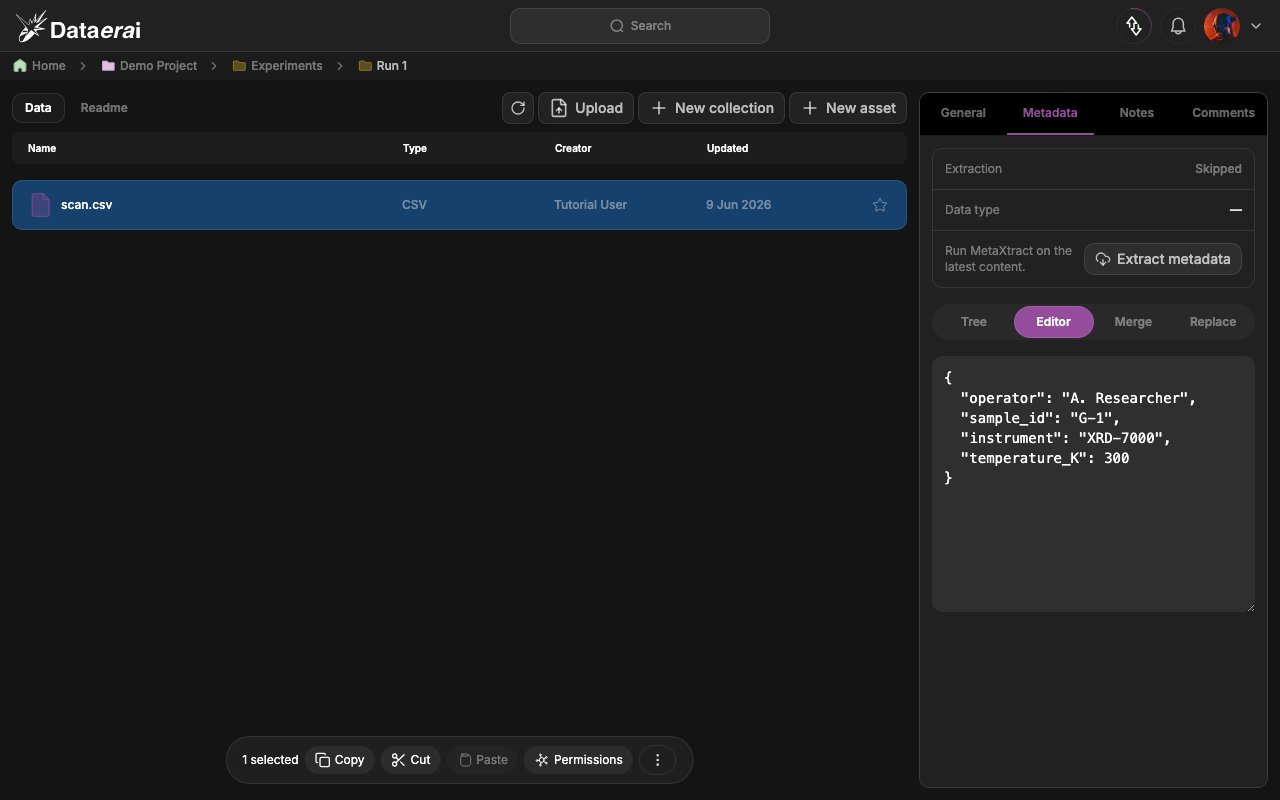
3. The pill control offers **Tree** and **Editor**. In **Tree** mode, click a field
   value to edit it, or use the **+** affordance to add a key; in **Editor** mode you
   see the same object as formatted JSON.
4. A sticky **Cancel** / **Save** bar appears at the bottom once you have changes —
   click **Save** to write them back.

*(For supported instrument files, a **Re-extract** affordance reruns extraction.
Tree/Editor are read-only while extracted metadata is shown.)*

<img src="https://mintcdn.com/dataerai/JYQfiA1164D5XDuO/tutorials/04-describe-and-organize/screens/metadata-editor-edit.png?fit=max&auto=format&n=JYQfiA1164D5XDuO&q=85&s=79d654976642c6505fe19a782c1f218b" alt="Editing a field in the Metadata Tree view, with the Save bar visible" width="1280" height="800" data-path="tutorials/04-describe-and-organize/screens/metadata-editor-edit.png" />

<img src="https://mintcdn.com/dataerai/JYQfiA1164D5XDuO/tutorials/04-describe-and-organize/screens/metadata-editor-raw.png?fit=max&auto=format&n=JYQfiA1164D5XDuO&q=85&s=3602a0b8ad5eb1705590c64460492e56" alt="The raw JSON in the Metadata Editor view" width="1280" height="800" data-path="tutorials/04-describe-and-organize/screens/metadata-editor-raw.png" />

### From code

Read the asset first, update a copy of its `metadata`, and save it back.

<Accordion title="Technical details">
  `PATCH` replaces the whole `metadata` object, so read-modify-write preserves
  existing keys. `metadata` must be a JSON object or the API returns `400`.
</Accordion>

```python theme={null}
# Read-modify-write so we don't clobber any existing keys.
asset = s.get(f"{API}/api/assets/{ASSET_ID}/").json()
print("current metadata   :", asset["metadata"])
print("extracted metadata :", (asset.get("current_content") or {}).get("extracted_metadata"))

meta = dict(asset.get("metadata") or {})
meta.update({"instrument": "PLD", "temp_max_K": 370.5, "capacitor_id": "S3_c015"})
r = s.patch(f"{API}/api/assets/{ASSET_ID}/",
            json={"metadata": meta, "tags": ["pld", "pyroelectric"]})
r.raise_for_status()
print("updated metadata   :", r.json()["metadata"])
```

The SDK exposes the same write via `set_metadata` (and `get_metadata` to read):

```python theme={null}
current = client.get_metadata(ASSET_ID)
print("title:", current.title, "| tags:", current.tags)

client.set_metadata(ASSET_ID, tags=["pld", "pyroelectric"],
                    metadata={"instrument": "PLD", "temp_max_K": 370.5,
                              "capacitor_id": "S3_c015"})
```

## Notes

The **Notes** tab holds a single free-form Markdown note per asset — a canonical
place for descriptions, lab-notebook entries, and caveats. It is **one note per
asset** (not a thread): writing again replaces the body. Don't confuse it with the
**Comments** tab, which is the threaded, multi-author surface.

<Note>
  The note is capped at **1 MiB**. Its `author` records the *first* writer and is
  preserved on later edits (last-write-wins, no conflict detection).
</Note>

### In the app

1. With an asset selected, click the **Notes** tab in the record sidebar.
2. The empty state shows *"No note yet for this record. Capture context,
   observations, or links here."* and an **Add note** button.
3. Click **Add note** to open the rich-text / Markdown editor (Bold, Italic,
   Underline, Heading 1–3, bullet & numbered lists, a Link popover, inline code),
   type your note, and click **Save**.
4. A saved note shows its title (the first heading/line), the author and *edited
   \<time>*, plus a **pencil** to edit and a **trash** icon to delete.

<img src="https://mintcdn.com/dataerai/JYQfiA1164D5XDuO/tutorials/04-describe-and-organize/screens/notes-editor.png?fit=max&auto=format&n=JYQfiA1164D5XDuO&q=85&s=be47a44a2bb93b311602c3c0ffdaf2b1" alt="The note editor open with sample Markdown, before saving" width="1280" height="800" data-path="tutorials/04-describe-and-organize/screens/notes-editor.png" />

<img src="https://mintcdn.com/dataerai/JYQfiA1164D5XDuO/tutorials/04-describe-and-organize/screens/notes-view.png?fit=max&auto=format&n=JYQfiA1164D5XDuO&q=85&s=28aa9c22278f8a628c0f15c7217dae9d" alt="A saved note in view mode with author and edit/delete controls" width="1280" height="800" data-path="tutorials/04-describe-and-organize/screens/notes-view.png" />

### From code

The notes tab is a single Markdown body. There is no SDK method for the note, so
we use the same authenticated session.

<Accordion title="Technical details">
  The note lives at `/api/assets/{id}/markdown-note/`: `GET` reads it (`404` when
  none exists yet), `PUT` creates or updates it (`201` on first create, `200` on
  later edits), and `DELETE` removes it.
</Accordion>

```python theme={null}
# Read the current note (404 means there isn't one yet).
r = s.get(f"{API}/api/assets/{ASSET_ID}/markdown-note/")
note = r.json() if r.status_code == 200 else None
print("existing note:", None if note is None else note["content"])

# Create or update the note (upsert).
body = {"content": "# Lab notes\n\n"
                   "Instrument: PLD. Column `temp_K` is in kelvin; "
                   "`current_A` is the pyroelectric current."}
r = s.put(f"{API}/api/assets/{ASSET_ID}/markdown-note/",
          json=body)
r.raise_for_status()
print("created" if r.status_code == 201 else "updated", "->", r.json()["author"]["name"])
```

To remove the note entirely:

```python theme={null}
r = s.delete(f"{API}/api/assets/{ASSET_ID}/markdown-note/")
print("deleted" if r.status_code == 204 else r.status_code)
```

## Project README

A project README gives the whole project a front page. It is rendered as Markdown
on the project's **Readme** tab. README is **project-only** (there is no
per-collection README).

<Accordion title="Technical details">
  Under the hood, the README is an ordinary asset named `README.md` in the
  project's root collection. There is no dedicated README endpoint; editing it
  means uploading new content.
</Accordion>

### In the app

1. Open a project from **Home**. The top tab bar shows **Data** | **Readme**.
2. Click **Readme**. The empty state shows a document icon, *"Add a README"*, and a
   purple **Add Readme** button.
3. Click **Add Readme** to open the full editor (headings, lists, tables, images,
   code blocks, links), write your overview, and save.
4. When a README exists the tab renders the Markdown with an **Edit** button to
   revise it.

<img src="https://mintcdn.com/dataerai/JYQfiA1164D5XDuO/tutorials/04-describe-and-organize/screens/readme-editor.png?fit=max&auto=format&n=JYQfiA1164D5XDuO&q=85&s=6e0dafb1172ad9c2447a11b4a973de7f" alt="The README editor with a sample project overview, before saving" width="1280" height="800" data-path="tutorials/04-describe-and-organize/screens/readme-editor.png" />

<img src="https://mintcdn.com/dataerai/JYQfiA1164D5XDuO/tutorials/04-describe-and-organize/screens/readme-view.png?fit=max&auto=format&n=JYQfiA1164D5XDuO&q=85&s=7d9cd1edd85189a465feab0fe19c422f" alt="A rendered README on the project Readme tab with the Edit button" width="1280" height="800" data-path="tutorials/04-describe-and-organize/screens/readme-view.png" />

### From code

First find the project's **root collection**, then look for an existing `README.md`
asset in it (this is exactly how the UI discovers the README). To add or replace the
README, upload a `README.md` file into that root collection. Re-running the
upload updates the existing README by title.

```python theme={null}
import re

# The README lives in the project's root collection.
proj = s.get(f"{API}/api/projects/{PROJECT_ID}/").json()
ROOT = proj["root_collection_id"]

# Discover an existing README the same way the UI does.
hits = s.get(f"{API}/api/assets/",
             params={"collection_id": ROOT, "title_prefix": "readme", "limit": 20}).json()
readme = next((a for a in hits
               if re.fullmatch(r"readme(\.[a-z0-9]+)?", a["title"], re.I)), None)
print("existing README asset:", None if not readme else readme["id"])
```

Now write a `README.md` and upload it into the root collection. Re-running this
upserts by title, so it doubles as the "edit" path.

```python theme={null}
README_FILE = pathlib.Path.home() / "dataerai-tutorial" / "README.md"
README_FILE.write_text(
    "# Describe & organize tutorial\n\n"
    "Container for the sample pyroelectric scan used in this tutorial.\n\n"
    "## Contents\n\n"
    "- `Pyroelectric scan` - a small synthetic temperature/current sweep.\n"
)

res = client.upload(str(README_FILE), title="README.md",
                    owner_type="project", owner_id=PROJECT_ID,
                    collection_id=ROOT)
print("README asset:", res.asset_id)
```

## Reorganize

Select one or more items and use the **floating toolbar** — **Copy**, **Cut**,
**Paste** to move things between collections, plus delete/unlink — without leaving
the list. (The toolbar appears at the bottom whenever something is selected.)

## Next steps

* [Search & discover](/discover/search)
* [Permissions & sharing](/sharing/permissions)