> ## Documentation Index
> Fetch the complete documentation index at: https://docs.dataerai.com/llms.txt
> Use this file to discover all available pages before exploring further.
# Provenance & relationships
> Trace where an asset came from and what derives from it — create two records, link them, and view the lineage as a list or a graph.
Use this tutorial to see where a record came from and what depends on it.
Provenance helps you answer:
* What raw data or sample led to this result?
* What analyses or derived records came from it?
* Can a collaborator follow the chain end to end?
You'll learn how to:
* Create two example records.
* Link them with a typed relationship from the asset sidebar.
* Browse relationships in the asset sidebar.
* Switch between list view and tree view.
* Read and write the same relationship from code.
What you can do today:
* Add a relationship from an asset's **General** tab — choose a target asset, a
relationship type, and an optional analysis mode.
* Remove a relationship you created.
* View existing relationships, including links created during data import.
* Use list view for a compact read or tree view for a visual chain.
You can also read and write an asset's links over the REST API:
`GET /api/assets/{id}/relationships/` merges incoming and outgoing links, and
`POST /api/assets/{id}/relationships/` creates a new outgoing link.
## Set up: log in and create a project (from code)
The setup below uses the public REST API to create a project for the example.
Set `DATAERAI_SERVER` to your Dataerai site and `DATAERAI_TOKEN` to an access
token for your account.
```python theme={null}
import os, requests
API = os.environ.get("DATAERAI_SERVER", "https://")
TOKEN = os.environ["DATAERAI_TOKEN"]
api = requests.Session()
api.headers.update({"Authorization": f"Bearer {TOKEN}"})
# A project to hold the two records we are about to relate.
resp = api.post(f"{API}/api/projects/",
json={"name": "Provenance tutorial project",
"description": "Created from code by this tutorial."})
resp.raise_for_status()
PROJECT_ID = resp.json()["id"]
print("project:", PROJECT_ID)
```
## Create two related records
Provenance needs two records to connect: a **source** record and a **derived**
record. Here we create a growth run and an XRD scan of that run.
**In the app**
1. From **Home**, click **New project** (or open an existing project) and
double-click a collection to open its asset table.
2. Click **Upload** and add a file for the source record (e.g. *Growth run G-1*),
setting any **tags** you want to carry onto the asset.
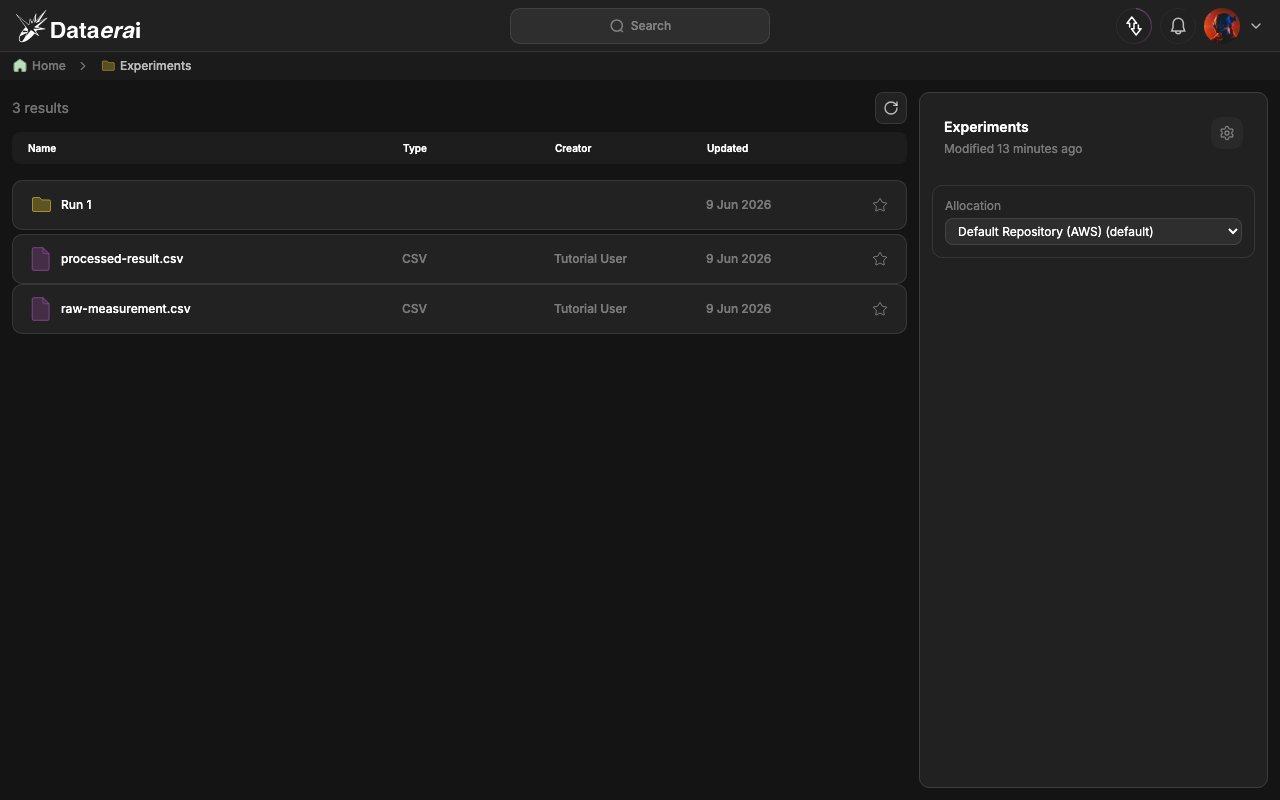
3. Repeat for the derived record (e.g. *XRD scan of G-1*). Both rows now appear
side by side in the collection's asset table (columns **Name**, **Type**,
**Creator**, **Updated**).
 **From code**
The web app creates assets by uploading a file; here we create the two records
directly so the example stays small.
The code uses `POST /api/assets/`. The `dataerai` SDK has no generic
create-asset method; it creates assets through `upload()`, which needs a file.
```python theme={null}
# 1) source record
src = api.post(f"{API}/api/assets/",
json={"title": "Growth run G-1", "owner_type": "project",
"owner_id": PROJECT_ID, "tags": ["pld"],
"metadata": {"step": "growth"}})
src.raise_for_status()
asset_a_id = src.json()["id"] # source
# 2) derived record
der = api.post(f"{API}/api/assets/",
json={"title": "XRD scan of G-1", "owner_type": "project",
"owner_id": PROJECT_ID,
"metadata": {"step": "characterization"}})
der.raise_for_status()
asset_b_id = der.json()["id"] # derived
print("source (A):", asset_a_id)
print("derived (B):", asset_b_id)
```
## Link them: add a typed relationship
Now connect the two records with a directed relationship. You create the link
*from* the derived record (the XRD scan) *to* the source record (the growth run),
so the lineage reads "XRD scan derived from growth run".
**In the app**
1. Open the project and double-click the collection to reach the asset table.
2. Single-click the **derived** record's row (e.g. *XRD scan of G-1*) to open its
right detail panel on the **General** tab.
3. Scroll to the **Relationships** card and click the **+** (Add relationship)
button in its header. An inline form opens.
4. Fill the form:
* **Target asset ID (UUID)** — paste the source record's ID (the asset you are
linking *to*). You can copy an asset's ID from its **General** tab.
* **Type** — a free-form relationship type, such as `derived_from` or
`analysis_of`. Types are humanized in the display (`derived_from` →
**Derived From**).
* **Analysis mode** (optional) — pick from the dropdown: **(no analysis
mode)**, **Non-destructive**, **Altering**, **Destructive**, **In-situ**,
**Ex-situ**, **Invasive**, or **Non-invasive**.
5. Click **Add**. The new link appears in the card immediately. To remove a link
you created, click the **✕** next to an **Outgoing** row (only the link's
source can delete it).
Relationships you create here are also written by the ingestion pipeline during
data import and in prepared sample datasets, so an asset's card can mix links you
added by hand with links created automatically.
**From code**
Create the same outgoing link with `POST /api/assets/{id}/relationships/`. The
asset in the URL is the link's source, and `to_asset_id` is the target.
Only the link's source (the asset you posted to) can delete the link, which
matches the **✕** affordance shown on **Outgoing** rows in the UI.
```python theme={null}
# Link the derived record (B) -> the source record (A) with a derived_from edge.
rel = api.post(f"{API}/api/assets/{asset_b_id}/relationships/",
json={"to_asset_id": asset_a_id,
"type": "derived_from",
"analysis_mode": "non_destructive"})
rel.raise_for_status()
print("created link:", rel.json()["type"])
```
## View an asset's lineage
With the link in place, you can read and browse the provenance.
The API merges outgoing and incoming links, computing `direction` relative to
the asset you ask about.
**In the app**
1. Sign in to your Dataerai site.
2. Open the project and double-click the collection to reach the asset table.
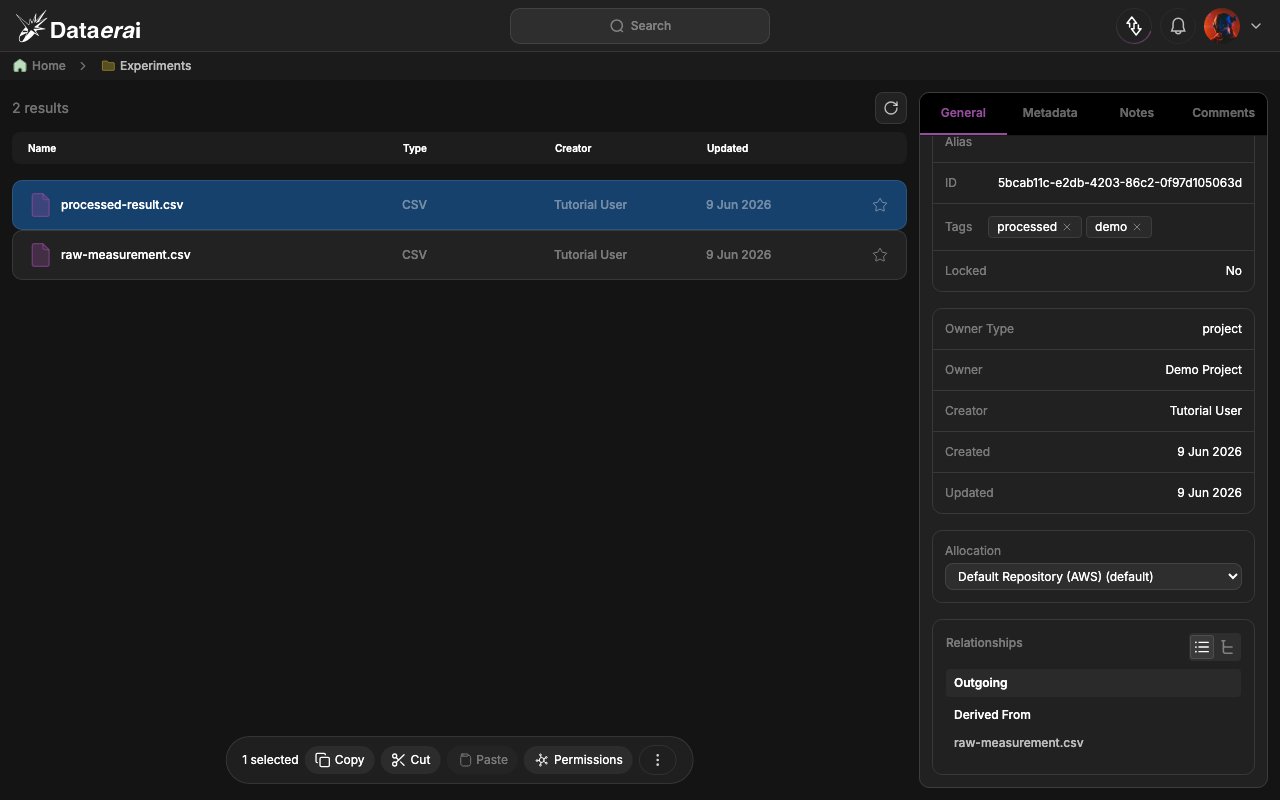
3. Click the **derived** record's row (e.g. *XRD scan of G-1*). The right detail
panel opens on the **General** tab.
4. Scroll to the **Relationships** card at the bottom of the panel. In the default
**List view** the link appears under **Outgoing** → **Derived From** →
*Growth run G-1*. (Types are humanized: `derived_from` → **Derived From**.)
**From code**
The web app creates assets by uploading a file; here we create the two records
directly so the example stays small.
The code uses `POST /api/assets/`. The `dataerai` SDK has no generic
create-asset method; it creates assets through `upload()`, which needs a file.
```python theme={null}
# 1) source record
src = api.post(f"{API}/api/assets/",
json={"title": "Growth run G-1", "owner_type": "project",
"owner_id": PROJECT_ID, "tags": ["pld"],
"metadata": {"step": "growth"}})
src.raise_for_status()
asset_a_id = src.json()["id"] # source
# 2) derived record
der = api.post(f"{API}/api/assets/",
json={"title": "XRD scan of G-1", "owner_type": "project",
"owner_id": PROJECT_ID,
"metadata": {"step": "characterization"}})
der.raise_for_status()
asset_b_id = der.json()["id"] # derived
print("source (A):", asset_a_id)
print("derived (B):", asset_b_id)
```
## Link them: add a typed relationship
Now connect the two records with a directed relationship. You create the link
*from* the derived record (the XRD scan) *to* the source record (the growth run),
so the lineage reads "XRD scan derived from growth run".
**In the app**
1. Open the project and double-click the collection to reach the asset table.
2. Single-click the **derived** record's row (e.g. *XRD scan of G-1*) to open its
right detail panel on the **General** tab.
3. Scroll to the **Relationships** card and click the **+** (Add relationship)
button in its header. An inline form opens.
4. Fill the form:
* **Target asset ID (UUID)** — paste the source record's ID (the asset you are
linking *to*). You can copy an asset's ID from its **General** tab.
* **Type** — a free-form relationship type, such as `derived_from` or
`analysis_of`. Types are humanized in the display (`derived_from` →
**Derived From**).
* **Analysis mode** (optional) — pick from the dropdown: **(no analysis
mode)**, **Non-destructive**, **Altering**, **Destructive**, **In-situ**,
**Ex-situ**, **Invasive**, or **Non-invasive**.
5. Click **Add**. The new link appears in the card immediately. To remove a link
you created, click the **✕** next to an **Outgoing** row (only the link's
source can delete it).
Relationships you create here are also written by the ingestion pipeline during
data import and in prepared sample datasets, so an asset's card can mix links you
added by hand with links created automatically.
**From code**
Create the same outgoing link with `POST /api/assets/{id}/relationships/`. The
asset in the URL is the link's source, and `to_asset_id` is the target.
Only the link's source (the asset you posted to) can delete the link, which
matches the **✕** affordance shown on **Outgoing** rows in the UI.
```python theme={null}
# Link the derived record (B) -> the source record (A) with a derived_from edge.
rel = api.post(f"{API}/api/assets/{asset_b_id}/relationships/",
json={"to_asset_id": asset_a_id,
"type": "derived_from",
"analysis_mode": "non_destructive"})
rel.raise_for_status()
print("created link:", rel.json()["type"])
```
## View an asset's lineage
With the link in place, you can read and browse the provenance.
The API merges outgoing and incoming links, computing `direction` relative to
the asset you ask about.
**In the app**
1. Sign in to your Dataerai site.
2. Open the project and double-click the collection to reach the asset table.
3. Click the **derived** record's row (e.g. *XRD scan of G-1*). The right detail
panel opens on the **General** tab.
4. Scroll to the **Relationships** card at the bottom of the panel. In the default
**List view** the link appears under **Outgoing** → **Derived From** →
*Growth run G-1*. (Types are humanized: `derived_from` → **Derived From**.)
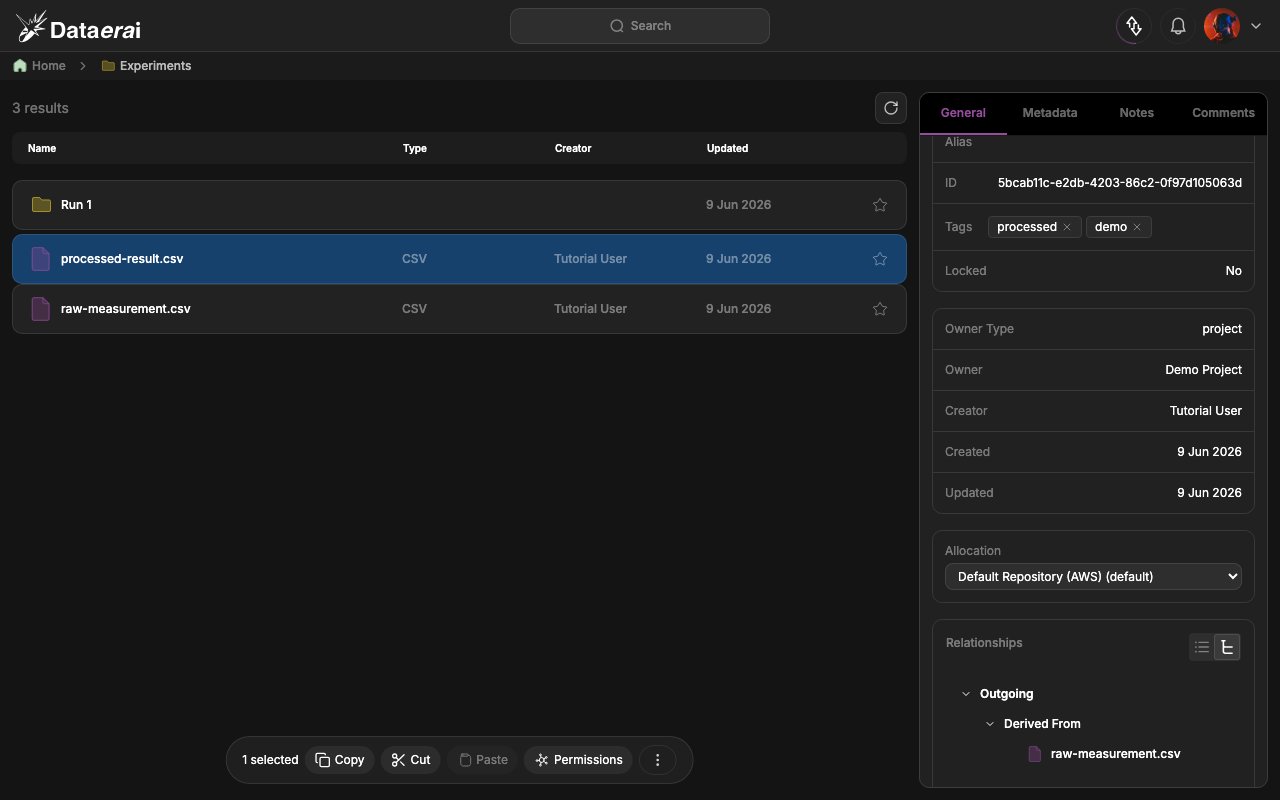
 5. Click the **Tree view** toggle (the button to the right of the
**Relationships** header) to see the same link as a collapsible provenance
graph. Click a related-record node to peek that asset and hop along the chain.
5. Click the **Tree view** toggle (the button to the right of the
**Relationships** header) to see the same link as a collapsible provenance
graph. Click a related-record node to peek that asset and hop along the chain.
 **From code**
Read the derived record's relationships back over the API. `direction` is computed
relative to the asset in the URL, and `related_asset` is the *other* asset in each
link.
```python theme={null}
# Read the relationships of the derived record (B).
rels = api.get(f"{API}/api/assets/{asset_b_id}/relationships/")
rels.raise_for_status()
for r in rels.json():
print(r['direction'], r['type'], '->', r['related_asset']['title'])
# The same link viewed from the source record (A) reads as 'incoming'.
rels_a = api.get(f"{API}/api/assets/{asset_a_id}/relationships/")
rels_a.raise_for_status()
for r in rels_a.json():
print(r['direction'], r['type'], '->', r['related_asset']['title'])
```
## A richer, real provenance graph
The tutorial environment includes a synthetic dataset (**Synthetic PLD
Experiments**) whose records are already linked into a multi-step workflow —
samples, growth runs, and measurements connected by
`created_sample`, `analysis_of`, `prepared_from`, `step_of`, and more. It is a
good place to see provenance fan out beyond a single edge.
**In the app**
1. From the home view, double-click **Synthetic PLD Experiments**, then a
`PLD-xxxx` collection.
2. Click a record with several links — a *Sample (Sxx)* or capacitor record — and
open the **Relationships** card on the **General** tab.
3. Switch to **Tree view** to see the Incoming/Outgoing branches grouped by type
fan out into a real lineage graph.
## Next steps
* [Advanced (graph) search](/tutorials/06-search/search) — query the lineage you
build here with relationship-aware searches.
* [Programmatic workflows with the SDK](/sdks/python)
**From code**
Read the derived record's relationships back over the API. `direction` is computed
relative to the asset in the URL, and `related_asset` is the *other* asset in each
link.
```python theme={null}
# Read the relationships of the derived record (B).
rels = api.get(f"{API}/api/assets/{asset_b_id}/relationships/")
rels.raise_for_status()
for r in rels.json():
print(r['direction'], r['type'], '->', r['related_asset']['title'])
# The same link viewed from the source record (A) reads as 'incoming'.
rels_a = api.get(f"{API}/api/assets/{asset_a_id}/relationships/")
rels_a.raise_for_status()
for r in rels_a.json():
print(r['direction'], r['type'], '->', r['related_asset']['title'])
```
## A richer, real provenance graph
The tutorial environment includes a synthetic dataset (**Synthetic PLD
Experiments**) whose records are already linked into a multi-step workflow —
samples, growth runs, and measurements connected by
`created_sample`, `analysis_of`, `prepared_from`, `step_of`, and more. It is a
good place to see provenance fan out beyond a single edge.
**In the app**
1. From the home view, double-click **Synthetic PLD Experiments**, then a
`PLD-xxxx` collection.
2. Click a record with several links — a *Sample (Sxx)* or capacitor record — and
open the **Relationships** card on the **General** tab.
3. Switch to **Tree view** to see the Incoming/Outgoing branches grouped by type
fan out into a real lineage graph.
## Next steps
* [Advanced (graph) search](/tutorials/06-search/search) — query the lineage you
build here with relationship-aware searches.
* [Programmatic workflows with the SDK](/sdks/python)