> ## Documentation Index
> Fetch the complete documentation index at: https://docs.dataerai.com/llms.txt
> Use this file to discover all available pages before exploring further.
# Searching your data
> Find assets fast — keyword search across title/description/alias with facets, or a structured boolean query combining text, tags, creator, collection, ID, and metadata clauses with AND / OR / NOT.
Use this tutorial to find assets by text, tags, people, collections, or metadata.
You can search by:
* Words in a title, description, or alias.
* Tags.
* Creator.
* Collection.
* ID or alias.
* Structured metadata.
You'll learn two search styles:
* **Keyword search** for a quick text query with optional filters.
* **Structured search** for combining multiple conditions with **AND**, **OR**,
and **NOT**.
Good to know:
* Search only returns assets you can access.
* Starred assets appear first, followed by the newest matches.
Keyword search uses `GET /api/search/` to substring-match across title,
description, and alias and AND-combine facets. Structured search uses
`POST /api/assets/query/` to compile a JSON boolean tree into a result set.
Matching is substring/ILIKE-based with JSONB containment for metadata, not a
true full-text engine, and results are cursor-paginated by default.
Reference for clause types and operators: [Search & discover](/discover/search).
## Choose what you're searching
At the top of the search page (and in the search modal) a **Search in** selector
lets you choose *what kind of thing* you're looking for. The scopes are:
* **Assets** — your data records (the default; everything below in this tutorial).
* **Collections** — your folder-like containers.
* **Projects** — your top-level workspaces.
* **People** — researchers, by name.
* **Publications** — scholarly works.
* **Grants** — funding awards.
For **People**, **Publications**, and **Grants**, results start with matches
already in Dataerai. A **Search the web** button then pulls in matches from the
public scholarly catalog (OpenAlex), which you can import into your workspace.
Which scopes appear depends on what your Dataerai site has enabled. **Assets**
and **Collections** are always available; the others are turned on per site.
## Set up
The notebook creates a small project and asset so the searches have a hit. Set
`DATAERAI_SERVER` to your Dataerai site and `DATAERAI_TOKEN` to an access token
for your account.
## 1. Keyword search
A keyword search matches your term as a case-insensitive **substring** across each
asset's title, description, and alias, and returns the assets you can access.
Multiple whitespace-separated tokens are each required (AND'd). Results are ordered
**starred first, then newest** and come back one cursor-paginated page at a time
(default 100 rows). You can narrow it with **facets** — `collection`, `id`,
`tags`, `creator`, and repeatable `metadata` filters — all AND-combined with the
keyword.
**In the app**
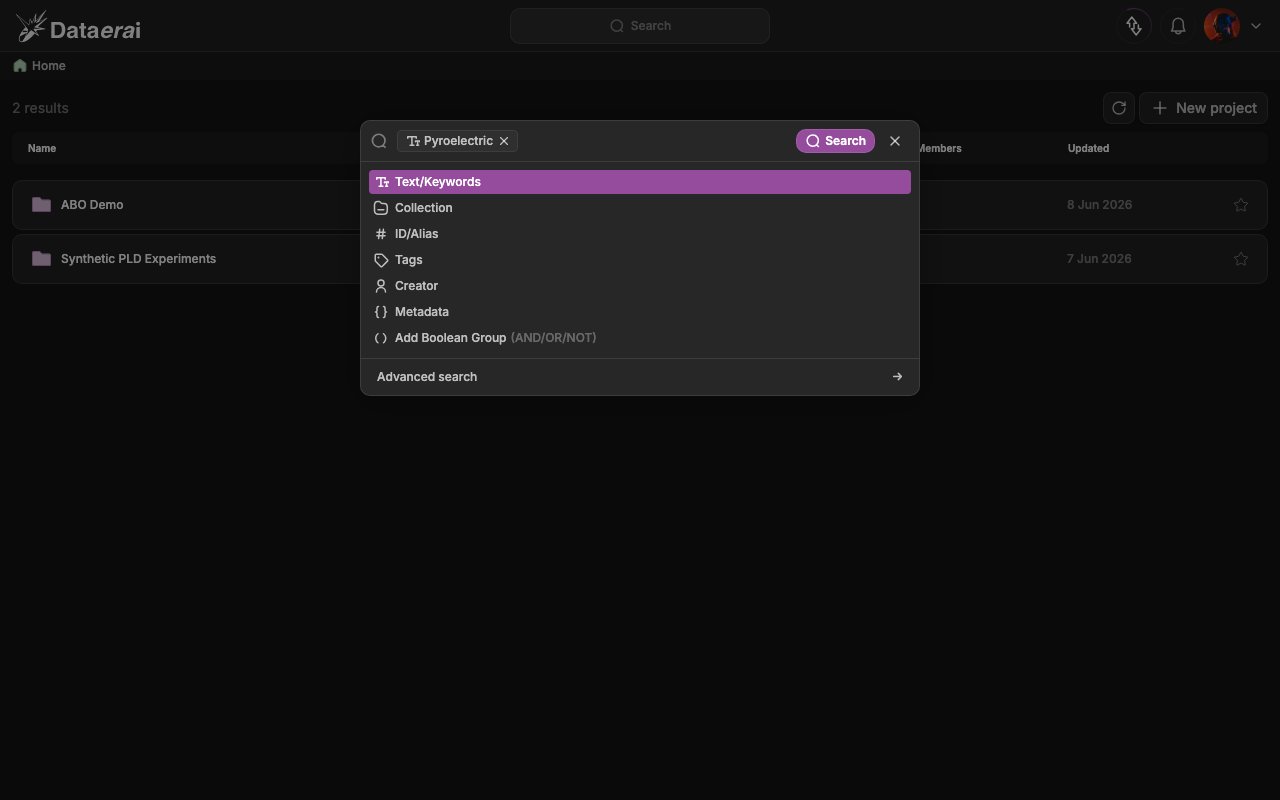
1. From anywhere in the signed-in app, open the search modal: click the centered
**Search** pill in the top bar, or press **Cmd/Ctrl + K**.
2. Type a term in the input (placeholder *"Type something or select saved
queries"*). A category dropdown lists the clause kinds: **Text/Keywords**,
**Collection**, **ID/Alias**, **Tags**, **Creator**, **Metadata**.
3. Pick **Text/Keywords** to commit your term as a chip, then press **Enter** (or
click the purple **Search** button).
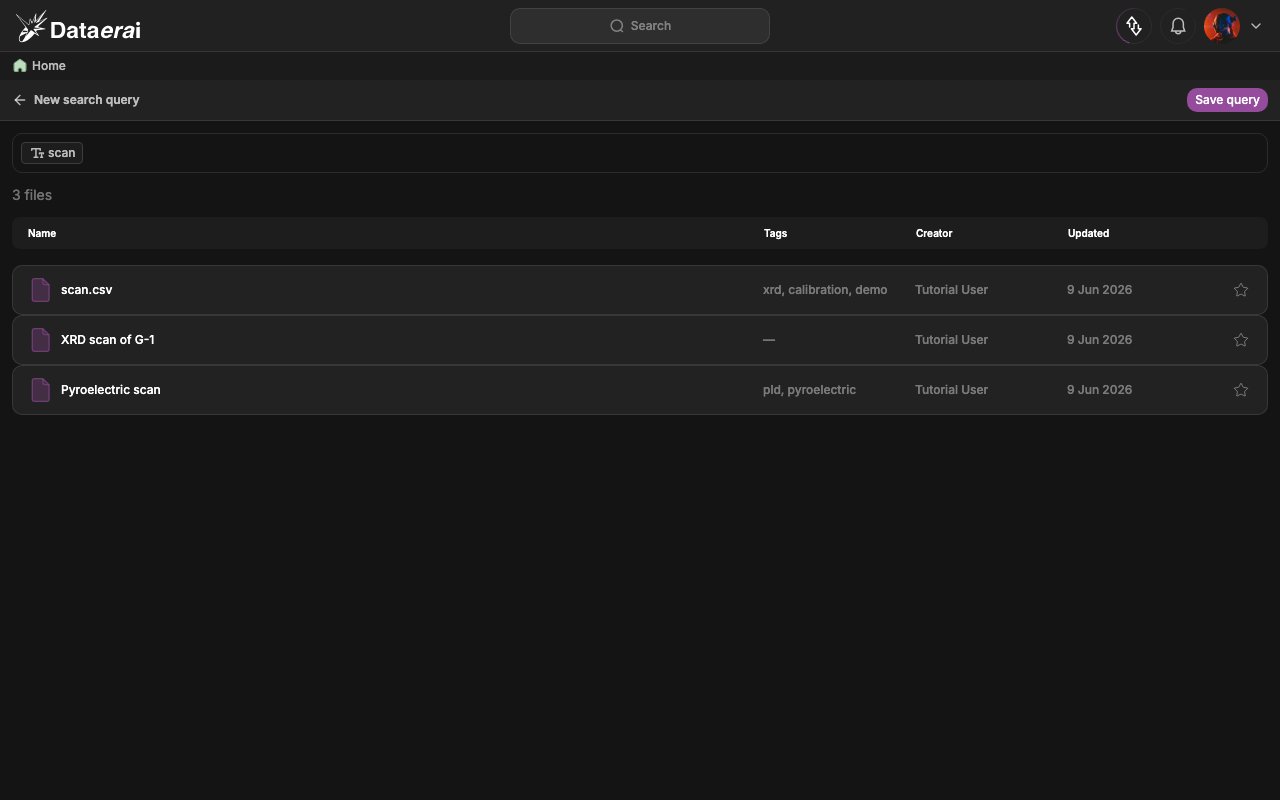
4. You land on the `/search` results page: the header reads **New search query**
(with a **Save query** action), the filter bar shows the active expression, the
count line reads *"Searching..."* then *"N files"*, and the results table lists
matching assets with infinite-scroll paging.
 **From code**
Call `GET /api/search/`.
The response is a bare JSON array of `AssetSearch` objects, not wrapped in
`{results: ...}`. Pagination is carried in response headers: `X-Has-More` and
`X-Next-Cursor`. Pass the cursor back as `?cursor=` to fetch the next page.
```python theme={null}
# Simple keyword search (the `s` Session from setup is already logged in).
r = s.get(f"{API}/api/search/", params={"q": "pyroelectric", "limit": 5})
r.raise_for_status()
hits = r.json() # bare list, not {"results": [...]}
print(len(hits), "hits | more pages?", r.headers.get("X-Has-More"))
for a in hits:
print(" -", a["title"], "| tags:", a["tags"], "| creator:", a["creator_name"])
next_cursor = r.headers.get("X-Next-Cursor") # pass back as ?cursor= for page 2
```
Narrow a keyword search with facets — all AND-combined with the keyword.
`metadata` is repeatable: `"key:value"` is JSONB containment, a bare `"key"` tests
key existence. `search_metadata=true` also substring-scans metadata values (it
disables the GIN index, so avoid it on large datasets).
```python theme={null}
r = s.get(f"{API}/api/search/", params={
"q": "demo",
"tags": "sdk,demo", # comma-separated, AND logic, exact tag match
"creator": "tutorial", # name OR email, substring match
"metadata": ["measurements.depth"], # bare key -> key existence
"limit": 5,
})
r.raise_for_status()
print(len(r.json()), "faceted hits | more?", r.headers.get("X-Has-More"))
```
## 2. Structured search across categories
When one keyword is not enough, build a **structured query** combining multiple
categories with full boolean logic. This is the engine behind the search modal:
the GUI's clause builder compiles your expression into a JSON **query tree** and
posts it to `POST /api/assets/query/`.
The tree nests `{"and": [...]}`, `{"or": [...]}`, and `{"not": }` over leaf
predicates:
* `{"text": ""}` — substring across title/description/alias
* `{"collection": ""}`, `{"id": ""}`, `{"tag": ""}`,
`{"creator": ""}`
* metadata operators: `{"eq": {"path": v}}`, `{"ne": ...}`,
`{"gt"|"gte"|"lt"|"lte": {"path": num}}`, `{"exists": "path"}`,
`{"not_exists": "path"}`, `{"contains": {"path": "str"}}`,
`{"contains_keywords": {"path": "str"}}`,
`{"array_contains"|"array_not_contains": {"path": v}}`
Metadata paths are dot-notation into the JSONB document (e.g.
`measurements.depth`). The compiler accepts up to 64 normalized OR branches.
**In the app**
1. Open the search modal (**Search** in the top bar, or **Cmd/Ctrl + K**) and
start typing.
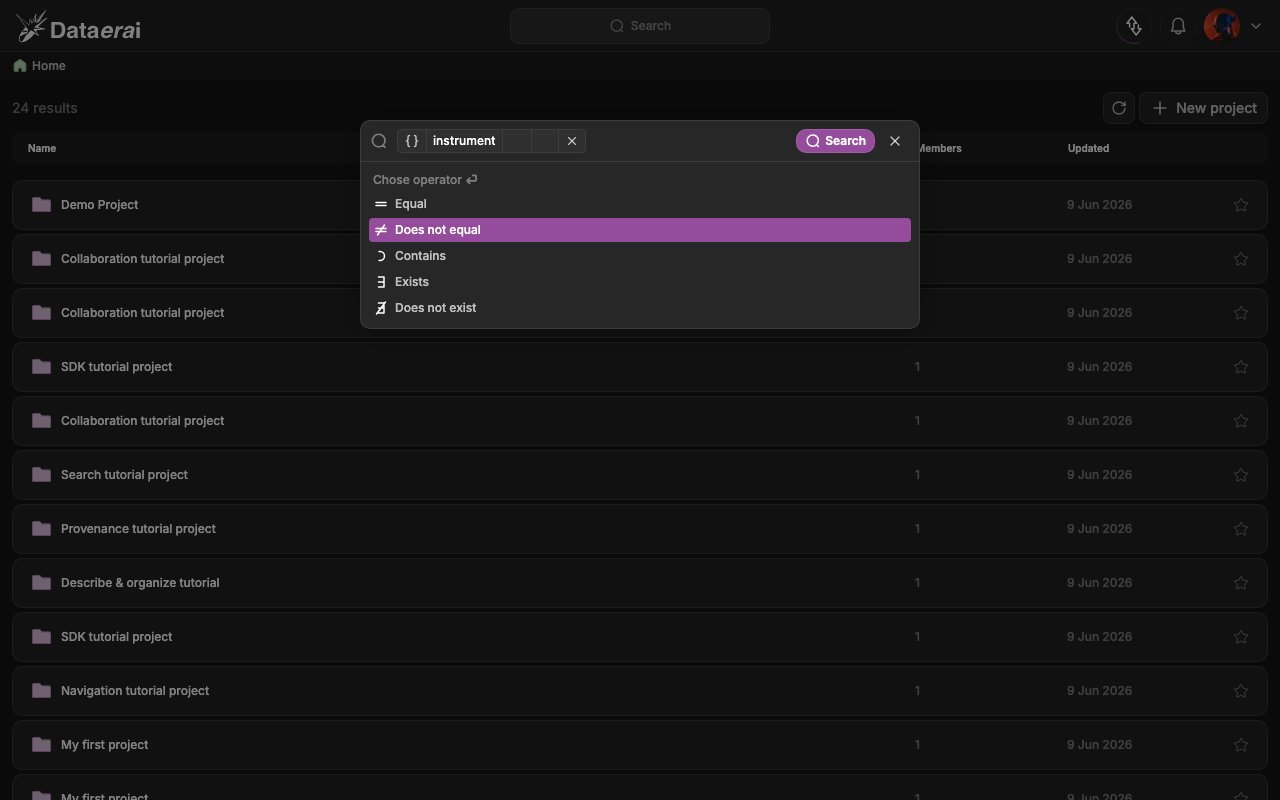
2. Pick a clause kind from the dropdown. For **Metadata**, a 3-step picker runs:
choose a data type (**Numerical** / **String** / **Boolean** / **Array**, under
the header *"Chose data type"*), then an operator (*"Chose operator"* — e.g.
**Equal**, **Greater than**, **Contains**, **Exists**), then enter a value. For
**Collection**, a collection-tree picker opens.
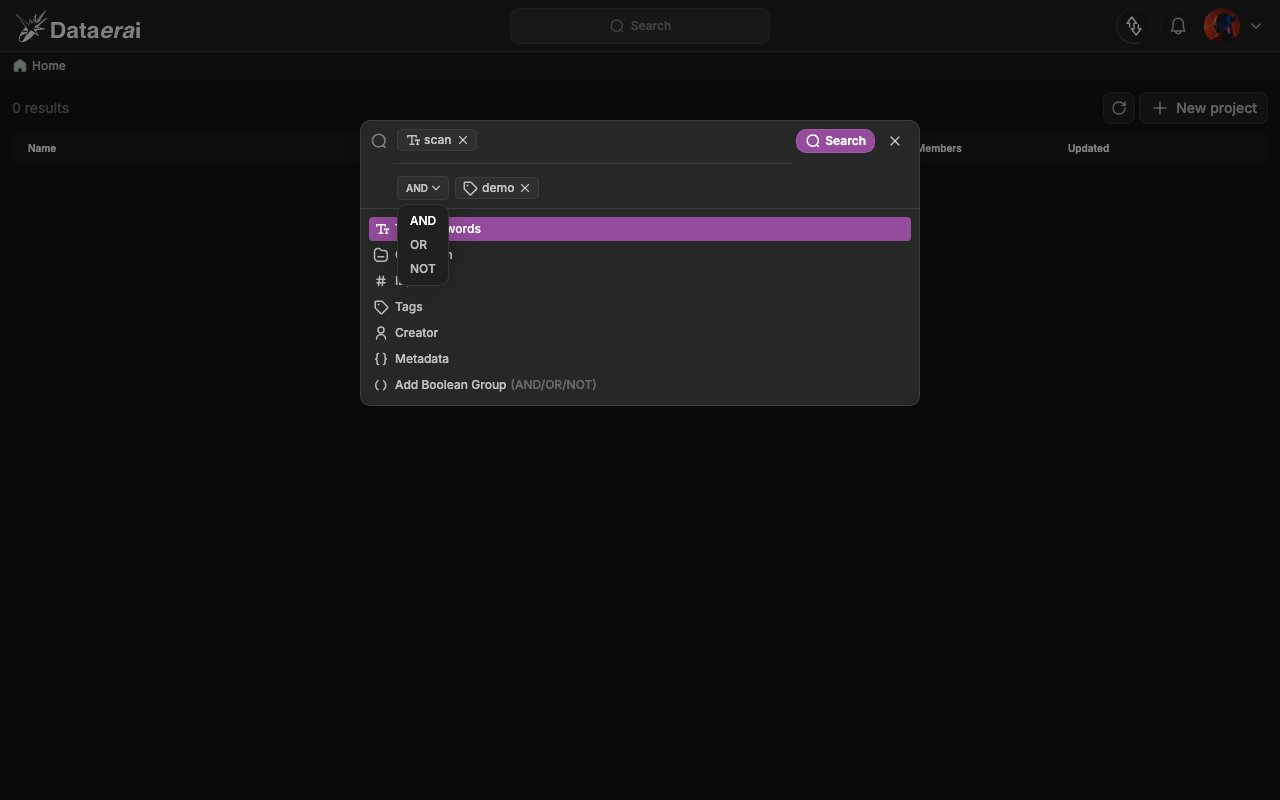
3. Combine clauses: click **Add Boolean Group (AND/OR/NOT)** to add a row, and use
the join chips between clauses to switch **AND** / **OR** / **NOT**. The bar
shows a plain-language summary of the expression.
4. Click the **Search** submit button. You land on the search results page with
your expression preserved in the browser URL.
**From code**
Call `GET /api/search/`.
The response is a bare JSON array of `AssetSearch` objects, not wrapped in
`{results: ...}`. Pagination is carried in response headers: `X-Has-More` and
`X-Next-Cursor`. Pass the cursor back as `?cursor=` to fetch the next page.
```python theme={null}
# Simple keyword search (the `s` Session from setup is already logged in).
r = s.get(f"{API}/api/search/", params={"q": "pyroelectric", "limit": 5})
r.raise_for_status()
hits = r.json() # bare list, not {"results": [...]}
print(len(hits), "hits | more pages?", r.headers.get("X-Has-More"))
for a in hits:
print(" -", a["title"], "| tags:", a["tags"], "| creator:", a["creator_name"])
next_cursor = r.headers.get("X-Next-Cursor") # pass back as ?cursor= for page 2
```
Narrow a keyword search with facets — all AND-combined with the keyword.
`metadata` is repeatable: `"key:value"` is JSONB containment, a bare `"key"` tests
key existence. `search_metadata=true` also substring-scans metadata values (it
disables the GIN index, so avoid it on large datasets).
```python theme={null}
r = s.get(f"{API}/api/search/", params={
"q": "demo",
"tags": "sdk,demo", # comma-separated, AND logic, exact tag match
"creator": "tutorial", # name OR email, substring match
"metadata": ["measurements.depth"], # bare key -> key existence
"limit": 5,
})
r.raise_for_status()
print(len(r.json()), "faceted hits | more?", r.headers.get("X-Has-More"))
```
## 2. Structured search across categories
When one keyword is not enough, build a **structured query** combining multiple
categories with full boolean logic. This is the engine behind the search modal:
the GUI's clause builder compiles your expression into a JSON **query tree** and
posts it to `POST /api/assets/query/`.
The tree nests `{"and": [...]}`, `{"or": [...]}`, and `{"not": }` over leaf
predicates:
* `{"text": ""}` — substring across title/description/alias
* `{"collection": ""}`, `{"id": ""}`, `{"tag": ""}`,
`{"creator": ""}`
* metadata operators: `{"eq": {"path": v}}`, `{"ne": ...}`,
`{"gt"|"gte"|"lt"|"lte": {"path": num}}`, `{"exists": "path"}`,
`{"not_exists": "path"}`, `{"contains": {"path": "str"}}`,
`{"contains_keywords": {"path": "str"}}`,
`{"array_contains"|"array_not_contains": {"path": v}}`
Metadata paths are dot-notation into the JSONB document (e.g.
`measurements.depth`). The compiler accepts up to 64 normalized OR branches.
**In the app**
1. Open the search modal (**Search** in the top bar, or **Cmd/Ctrl + K**) and
start typing.
2. Pick a clause kind from the dropdown. For **Metadata**, a 3-step picker runs:
choose a data type (**Numerical** / **String** / **Boolean** / **Array**, under
the header *"Chose data type"*), then an operator (*"Chose operator"* — e.g.
**Equal**, **Greater than**, **Contains**, **Exists**), then enter a value. For
**Collection**, a collection-tree picker opens.
3. Combine clauses: click **Add Boolean Group (AND/OR/NOT)** to add a row, and use
the join chips between clauses to switch **AND** / **OR** / **NOT**. The bar
shows a plain-language summary of the expression.
4. Click the **Search** submit button. You land on the search results page with
your expression preserved in the browser URL.
 **From code**
Post the `query` tree to `POST /api/assets/query/`.
`limit` and `cursor` are request parameters; the body's `query` is required,
and you can add optional pre-filters such as `tags` (AND-combined),
`owner_type`/`owner_id`, `collection_id`, or `locked`. The response is a bare
JSON array of full `Asset` objects with the same cursor headers. An
`X-Post-Filter: true` header appears when operators like `ne`, `not_exists`, or
`contains` require a Python post-filter pass.
```python theme={null}
import json
# Faceted boolean query across MULTIPLE categories:
# (text "pyroelectric" OR tag "sdk") AND metadata depth >= 10 AND NOT tag "archived"
query = {
"and": [
{"or": [{"text": "pyroelectric"}, {"tag": "sdk"}]},
{"gte": {"measurements.depth": 10}},
{"not": {"tag": "archived"}},
]
}
r = s.post(f"{API}/api/assets/query/",
params={"limit": 50},
json={"query": query, "tags": ["demo"]}) # `tags` here is a pre-filter (AND)
r.raise_for_status()
assets = r.json() # bare list of Asset objects
print(len(assets), "hits | more?", r.headers.get("X-Has-More"),
"| post-filtered?", r.headers.get("X-Post-Filter"))
print(json.dumps([a["title"] for a in assets], indent=2))
```
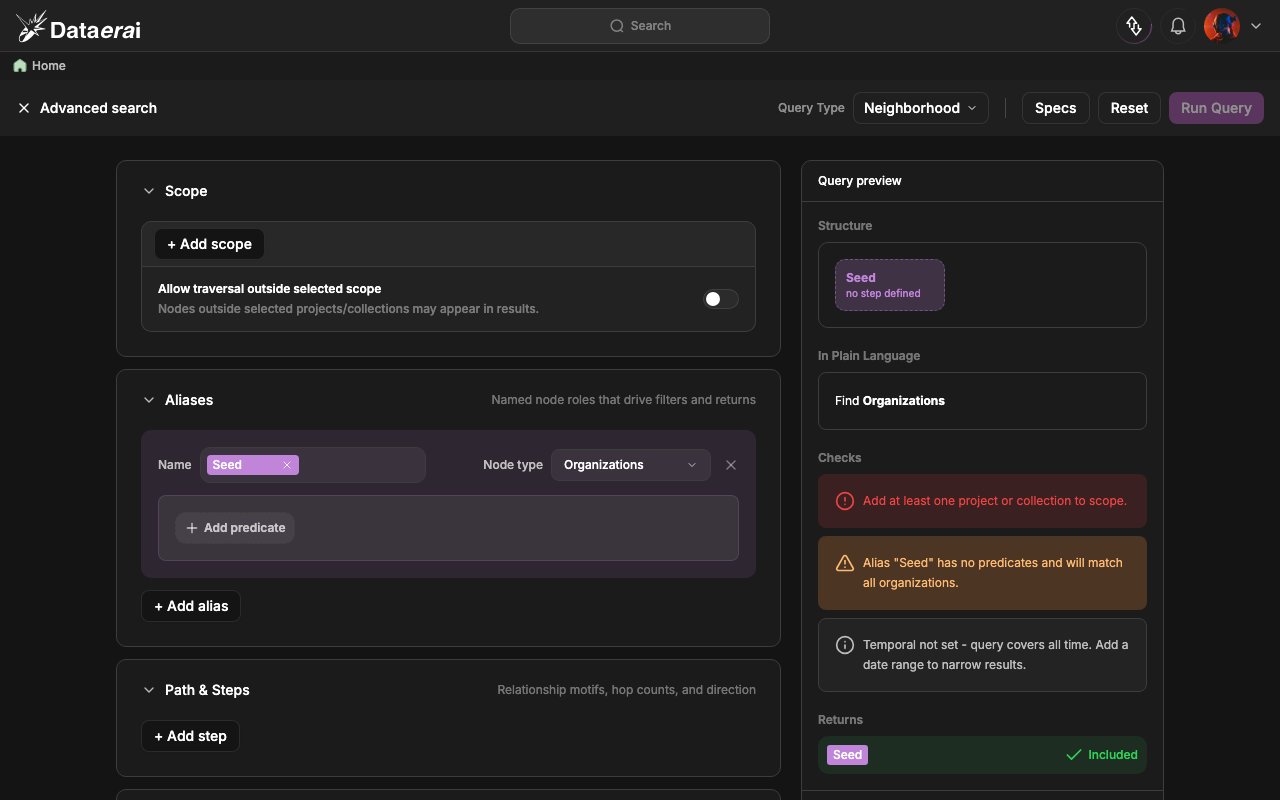
## 3. Advanced (graph) search
Advanced search runs **relationship-aware queries** over the provenance graph —
following the links you create in [Provenance &
relationships](/tutorials/05-provenance/provenance). Open it from the **Advanced
search →** entry at the bottom of the search modal.
The builder lets you pick a **query type**, set a **scope** of where to look, name
node roles with **aliases**, add **path steps** along relationships, and choose
what to **return**. A live **preview** shows a plain-language summary and runs
validation **checks** before you click **Run Query**.
Query types include **Neighborhood**, **Multi-Hop**, **Shortest Path**, **Pattern
Match**, **Reachability**, **Lineage**, **Similarity**, **Aggregation**,
**Centrality**, **Community**, **Integrity**, and **Temporal Slice**. For example,
a **Lineage** query traces a record's ancestors (upstream) or descendants
(downstream); a **Shortest Path** query finds how two records are connected.
**From code**
Post the `query` tree to `POST /api/assets/query/`.
`limit` and `cursor` are request parameters; the body's `query` is required,
and you can add optional pre-filters such as `tags` (AND-combined),
`owner_type`/`owner_id`, `collection_id`, or `locked`. The response is a bare
JSON array of full `Asset` objects with the same cursor headers. An
`X-Post-Filter: true` header appears when operators like `ne`, `not_exists`, or
`contains` require a Python post-filter pass.
```python theme={null}
import json
# Faceted boolean query across MULTIPLE categories:
# (text "pyroelectric" OR tag "sdk") AND metadata depth >= 10 AND NOT tag "archived"
query = {
"and": [
{"or": [{"text": "pyroelectric"}, {"tag": "sdk"}]},
{"gte": {"measurements.depth": 10}},
{"not": {"tag": "archived"}},
]
}
r = s.post(f"{API}/api/assets/query/",
params={"limit": 50},
json={"query": query, "tags": ["demo"]}) # `tags` here is a pre-filter (AND)
r.raise_for_status()
assets = r.json() # bare list of Asset objects
print(len(assets), "hits | more?", r.headers.get("X-Has-More"),
"| post-filtered?", r.headers.get("X-Post-Filter"))
print(json.dumps([a["title"] for a in assets], indent=2))
```
## 3. Advanced (graph) search
Advanced search runs **relationship-aware queries** over the provenance graph —
following the links you create in [Provenance &
relationships](/tutorials/05-provenance/provenance). Open it from the **Advanced
search →** entry at the bottom of the search modal.
The builder lets you pick a **query type**, set a **scope** of where to look, name
node roles with **aliases**, add **path steps** along relationships, and choose
what to **return**. A live **preview** shows a plain-language summary and runs
validation **checks** before you click **Run Query**.
Query types include **Neighborhood**, **Multi-Hop**, **Shortest Path**, **Pattern
Match**, **Reachability**, **Lineage**, **Similarity**, **Aggregation**,
**Centrality**, **Community**, **Integrity**, and **Temporal Slice**. For example,
a **Lineage** query traces a record's ancestors (upstream) or descendants
(downstream); a **Shortest Path** query finds how two records are connected.
 ## Next steps
* [Permissions & sharing](/sharing/permissions)
* [Public access](/sharing/public)
## Next steps
* [Permissions & sharing](/sharing/permissions)
* [Public access](/sharing/public)