> ## Documentation Index
> Fetch the complete documentation index at: https://docs.dataerai.com/llms.txt
> Use this file to discover all available pages before exploring further.
# Signing in & account recovery
> Create an account and confirm your email, sign in with a password or Globus SSO, and recover a forgotten password — the unauthenticated auth surface of the Dataerai Console.
Everything that happens *before* you are signed in to the Dataerai Console:
creating an account, confirming your email, signing in (with a password or your
institutional Globus identity), and recovering a forgotten password.
New here? Start with [Getting started](/tutorials/01-getting-started/getting-started).
## Overview
Use this tutorial before you are signed in.
You can:
* Create an email/password account.
* Confirm your email address.
* Sign in with email and password.
* Sign in with **Continue with Globus**.
* Reset a forgotten password.
Who it is for:
* New users creating an account.
* Returning users signing in.
* Users who need password recovery.
Good to know:
* **Email verification is mandatory** for password signups — the new account
cannot sign in until the confirmation link is clicked. Globus sign-in skips
this.
* **Globus accounts have no usable password**, so the forgot-password and
change-password flows do not apply to them.
* The reset-password request screen **always confirms the request** whether or
not the email exists, so the page does not reveal who has an account.
* Managing your profile, avatar, and changing your password *while signed in*
live in the **authenticated** account tutorials, not here.
Use a test account when practicing these flows. Sign-up and password-reset
messages go to that account's email inbox.
## Create an account (sign up + confirm your email)
Signing up registers a new email/password account. Dataerai requires you to
**confirm your email address** before that account can sign in, which proves the
address is reachable and yours.
**In the app**
1. On the **Sign in** page (`/login`), click the **Sign up** link (under *Don't
have an account?*) to open the create-account form at `/signup`.
2. Fill **Full name**, **Email**, **Password**, and **Confirm password**, then
click **Create account**. (If the two passwords differ, the form shows
*Passwords do not match.*)
3. You land on a **Check your inbox** screen. Open the verification email and
click its link — it opens `/auth/confirm-email/` and shows **Email
confirmed**. Use **Back to sign in** to return to `/login` and sign in.
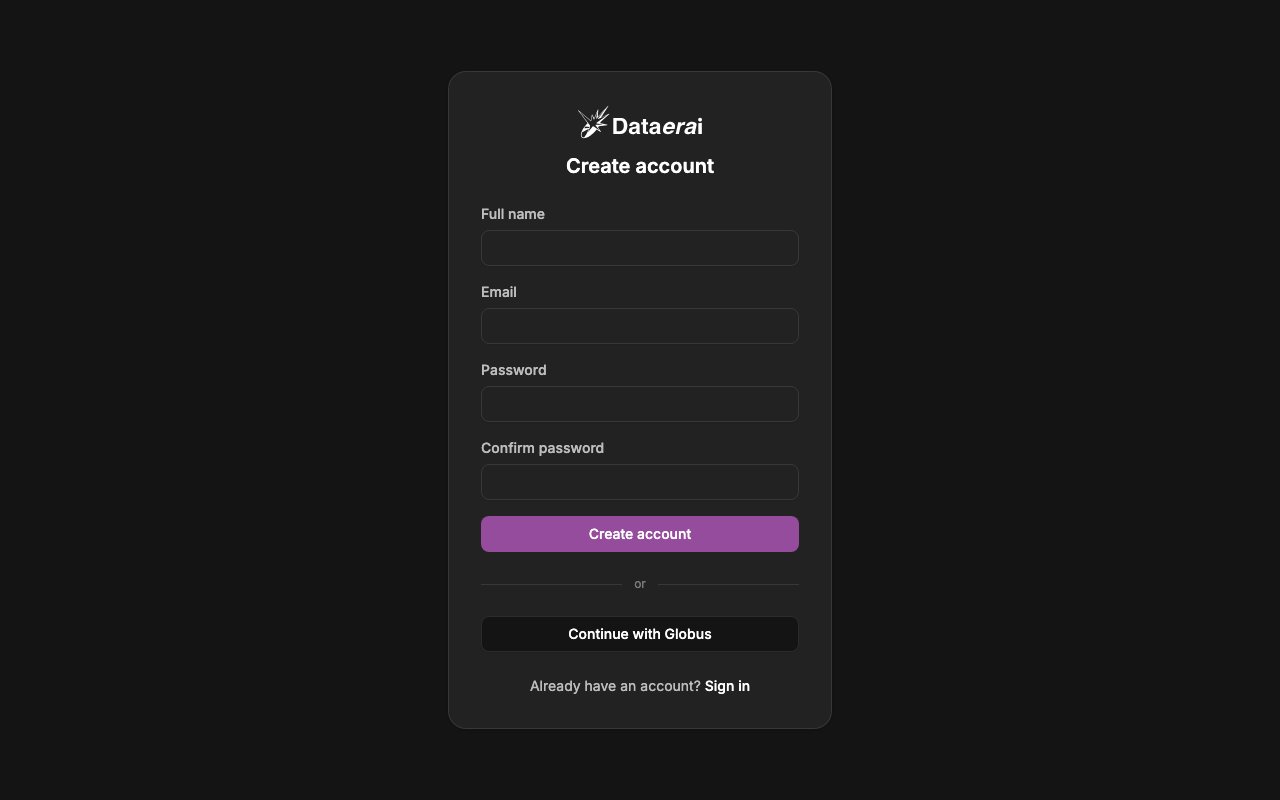 Account creation is intentionally shown through the app. That keeps email
verification and Globus sign-in in the same browser flow users normally see.
## Sign in (email/password or Globus SSO)
Dataerai supports two ways in: an **email + password** account, or
**Continue with Globus**, which delegates to your institutional identity
provider.
**In the app**
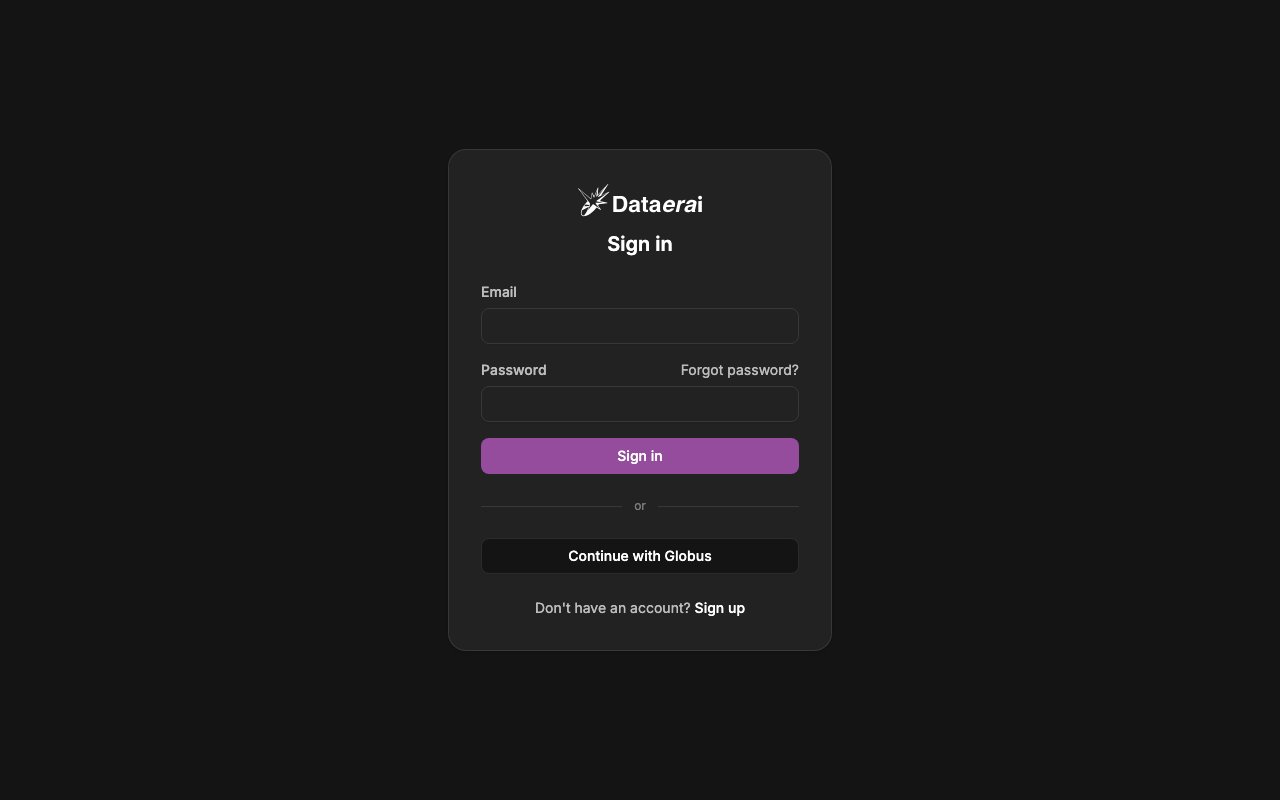
1. Go to your Dataerai instance — if you are not signed in, the app redirects
you to the **Sign in** page (`/login`).
2. Type your **Email** and **Password**, then click the **Sign in** button.
(Forgot it? Use the **Forgot password?** link — see the recovery section
below.)
3. To use an institutional identity instead, click **Continue with Globus**.
Globus sends you to your trusted identity provider, such as your university
or Google, and returns you to the app after authorization.
Account creation is intentionally shown through the app. That keeps email
verification and Globus sign-in in the same browser flow users normally see.
## Sign in (email/password or Globus SSO)
Dataerai supports two ways in: an **email + password** account, or
**Continue with Globus**, which delegates to your institutional identity
provider.
**In the app**
1. Go to your Dataerai instance — if you are not signed in, the app redirects
you to the **Sign in** page (`/login`).
2. Type your **Email** and **Password**, then click the **Sign in** button.
(Forgot it? Use the **Forgot password?** link — see the recovery section
below.)
3. To use an institutional identity instead, click **Continue with Globus**.
Globus sends you to your trusted identity provider, such as your university
or Google, and returns you to the app after authorization.
 For programmatic access, use an OAuth access token as described in
[API authentication](/api-reference/authentication). The account sign-in flow is
shown here as an app workflow.
## Recover a forgotten password (forgot / reset)
Locked out? The recovery flow has two steps: **request** a reset link by email,
then **reset** the password using the single-use key from that link. This only
applies to email/password accounts — Globus users recover access through Globus.
**In the app**
1. On the **Sign in** page, click **Forgot password?** to open
`/auth/forgot-password` (heading: *Forgot your password?*).
2. Enter your **Email** and click **Send reset link**, then you see **Check your
inbox**. (For privacy this always succeeds, even if no account uses that
address.)
3. Open the email and click its link — it opens `/auth/reset-password/`
(**Set new password**). Enter and confirm a new password and submit; you can
then sign in with it.
For programmatic access, use an OAuth access token as described in
[API authentication](/api-reference/authentication). The account sign-in flow is
shown here as an app workflow.
## Recover a forgotten password (forgot / reset)
Locked out? The recovery flow has two steps: **request** a reset link by email,
then **reset** the password using the single-use key from that link. This only
applies to email/password accounts — Globus users recover access through Globus.
**In the app**
1. On the **Sign in** page, click **Forgot password?** to open
`/auth/forgot-password` (heading: *Forgot your password?*).
2. Enter your **Email** and click **Send reset link**, then you see **Check your
inbox**. (For privacy this always succeeds, even if no account uses that
address.)
3. Open the email and click its link — it opens `/auth/reset-password/`
(**Set new password**). Enter and confirm a new password and submit; you can
then sign in with it.
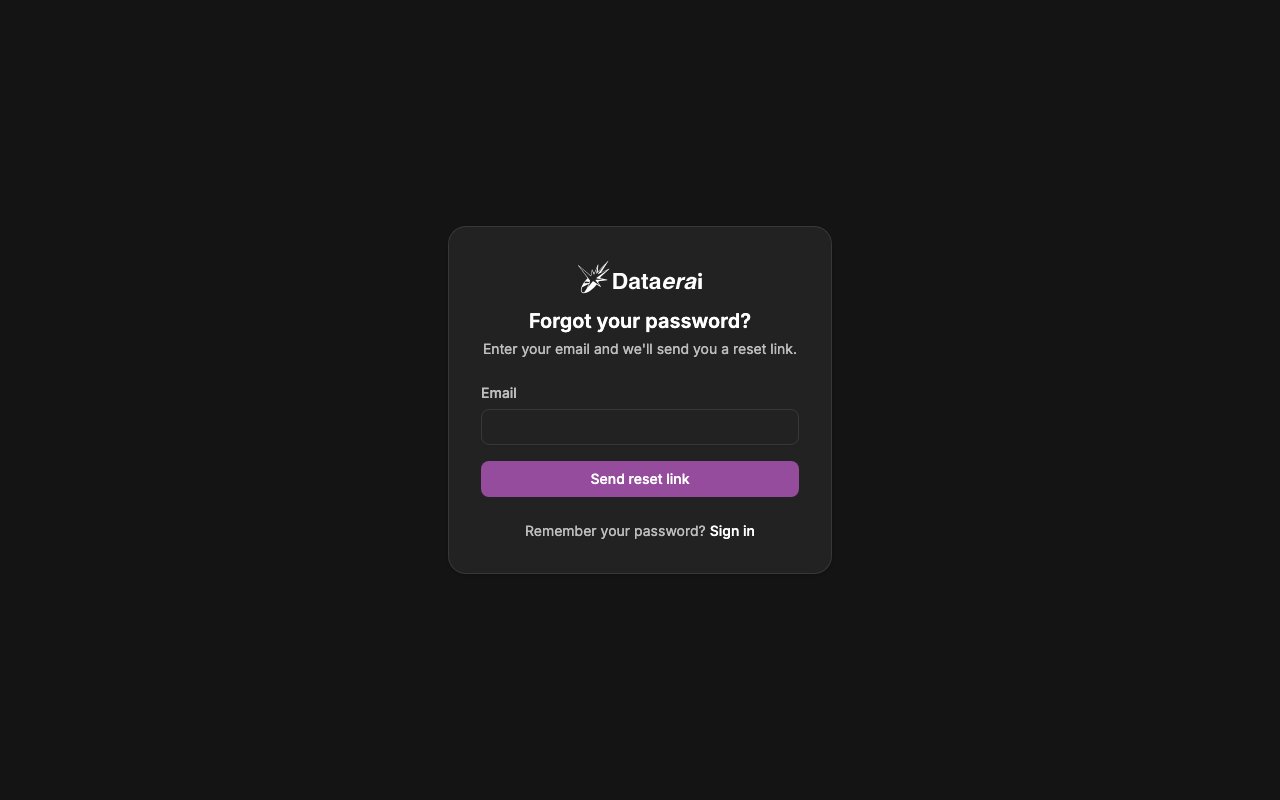
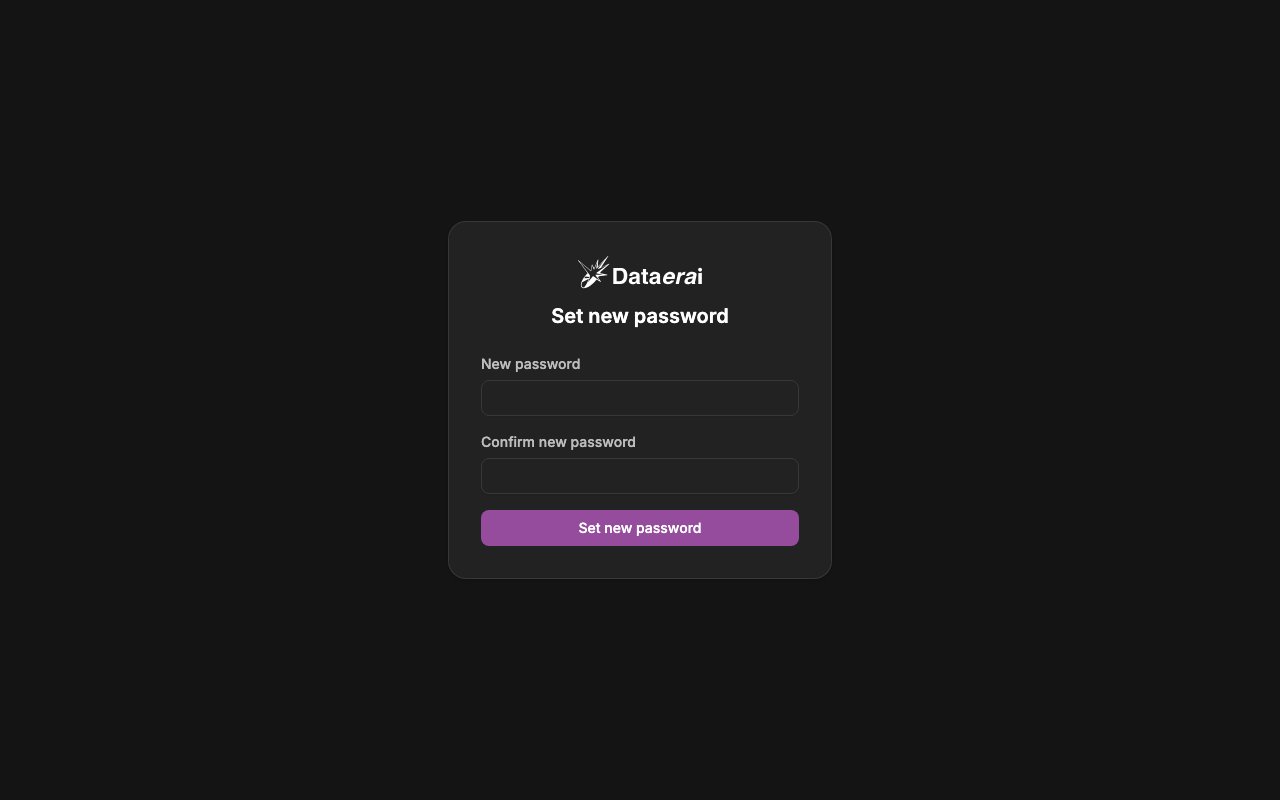 Password recovery is intentionally shown through the app. For privacy, the
request screen always confirms that instructions were sent if an account exists
for that address.
## Sign out
Signing out clears your session.
**In the app**
1. Open the **user account menu** in the top-right.
2. Choose **Sign out**. If uploads are in progress, an *Uploads in progress*
dialog offers **Stay signed in** or **Sign out anyway** first. You are then
returned to `/login`.
Sign out from the user account menu in the app.
## Next steps
* [Your profile](/tutorials/08-your-profile/08-your-profile) — your name, avatar,
public visibility, and email change (once you are signed in).
* [Passwords & appearance](/tutorials/09-passwords-and-theme/09-passwords-and-theme)
— change your password while signed in, switch the Auto/Light/Dark theme, and
sign out.
* [Permissions, people & teams](/tutorials/07-collaboration/collaboration) —
the org/admin **Settings** modal (Buckets, Allocations, Organizations, Groups,
Users) lives there, not in your personal account.
* [Getting started](/tutorials/01-getting-started/getting-started)
Password recovery is intentionally shown through the app. For privacy, the
request screen always confirms that instructions were sent if an account exists
for that address.
## Sign out
Signing out clears your session.
**In the app**
1. Open the **user account menu** in the top-right.
2. Choose **Sign out**. If uploads are in progress, an *Uploads in progress*
dialog offers **Stay signed in** or **Sign out anyway** first. You are then
returned to `/login`.
Sign out from the user account menu in the app.
## Next steps
* [Your profile](/tutorials/08-your-profile/08-your-profile) — your name, avatar,
public visibility, and email change (once you are signed in).
* [Passwords & appearance](/tutorials/09-passwords-and-theme/09-passwords-and-theme)
— change your password while signed in, switch the Auto/Light/Dark theme, and
sign out.
* [Permissions, people & teams](/tutorials/07-collaboration/collaboration) —
the org/admin **Settings** modal (Buckets, Allocations, Organizations, Groups,
Users) lives there, not in your personal account.
* [Getting started](/tutorials/01-getting-started/getting-started)