Each member of an organization has one of two roles:
Role
Can do
Member
Belong to the organization and work in the projects they’re given access to.
Admin
Everything a member can, plus manage the organization’s members and roles.
As an admin you can invite people, change a member’s role, and remove members. Role here governs the organization itself; access to specific data is always controlled separately through permissions.
1
Open Settings → Organizations
Open the user account menu, choose Settings, then open the Organizations section and select your organization.
The Settings sections — open Organizations.
2
Manage members, roles, and join rules
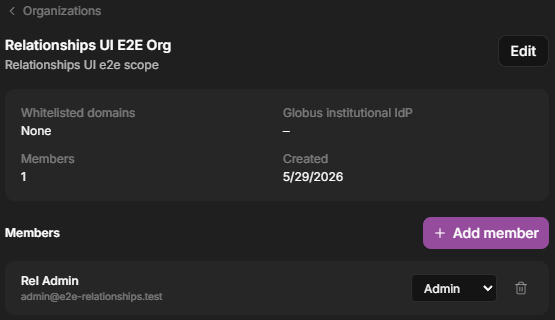
The organization detail shows its whitelisted domains, Globus IdP, member count, and each member with a role dropdown — plus Add member.
An organization in Settings — whitelisted domains, Globus IdP, and each member with their role.
People become members of an organization in three ways:
Invitation — an admin adds them directly.
Email domain — anyone who signs up with a whitelisted email domain (for example university.edu) is auto-joined.
Globus institutional IdP — users signing in through your institution’s Globus identity provider are auto-joined.
Email-domain and Globus-IdP auto-join are configured by a system administrator when the organization is set up. Org admins manage day-to-day membership; the auto-join rules are set at the system level.
Use groups to grant access to many people at once. Instead of sharing with individuals one by one, share with a group and manage its membership in one place — handy for a lab, a course, or a working team.
Repositories and allocations decide where your organization’s data lives and how much space each project or person has. See Storage: repositories & allocations for what admins can review and set as defaults.