Add data to Dataerai from your browser: drag and drop files or folders, review extracted metadata, and upload as separate assets or a single bundle.
Uploading in the browser is the fastest way to add data to a project. For very large datasets or bulk and automated transfers, use the desktop app and CLI instead.
Inside a project or collection, start an upload — or simply drag files or folders onto the page. The upload panel opens with your current collection shown as the Destination.
1
Click Upload
From a project or collection’s toolbar, click Upload.
The project toolbar — Upload, New collection, and New asset.
2
Add files in the upload panel
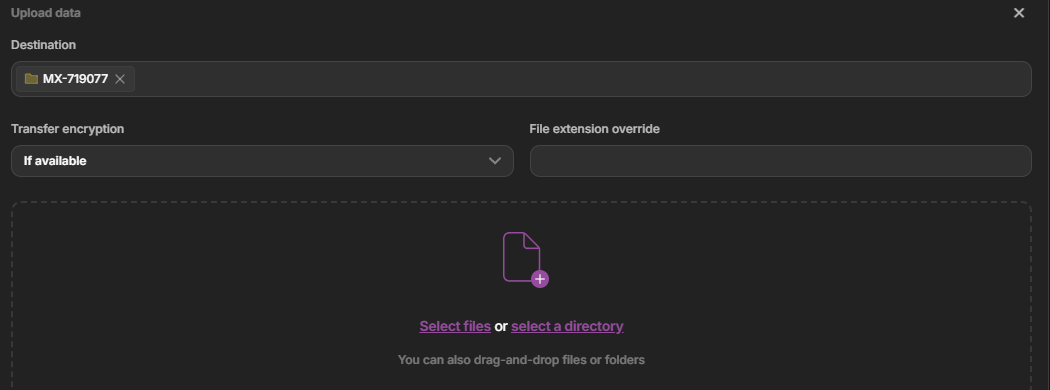
The panel opens with your collection as the Destination. Pick files or a directory, or drag them onto the panel.
The upload panel — destination, transfer encryption, file and directory pickers, and drag-and-drop.
When you add more than one file, you choose how they’re stored:
Separate assets (default) — each file becomes its own asset.
Upload as bundle — all the files become a single asset with multiple files. Enable Upload as bundle and give the asset a title.
Enable 'Upload as bundle' to store multiple files as one asset instead of separate assets.
In bundle mode, the extracted metadata preview attaches the metadata from the first file only. Upload separate assets if each file needs its own extracted metadata.
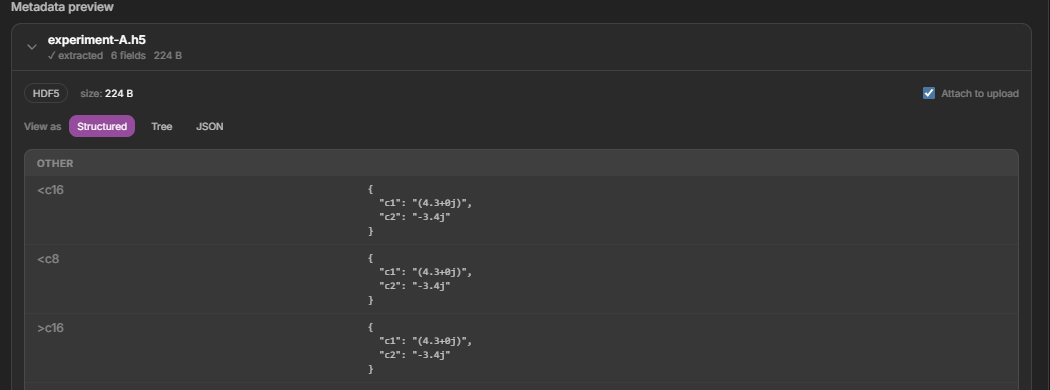
If Dataerai recognizes a file’s format, it shows a metadata preview with fields read from the file. Expand each file’s card to see the extracted fields in Structured, Tree, or JSON views, edit the values inline, and use the Attach to upload toggle to choose whether the metadata is saved with the asset. See Automatic metadata extraction.
A recognized file's metadata preview — extracted fields, the HDF5 type, Structured / Tree / JSON views, and an Attach toggle.
Add any tags to apply to the upload, then click Upload. Progress is shown live for each file, and content is integrity-checked as it transfers. Browser uploads resume automatically — if a transfer is interrupted, it continues from where it stopped instead of starting over. The browser has no manual pause control; for pause and resume, use the desktop app or CLI. You can cancel an in-progress upload from the Transfer tracker.
Add tags, then click Upload to start the transfer.