

Supported identities
Connecting ORCID, Google, GitHub, or Globus uses a one-time redirect to that
provider. A provider your administrator hasn’t enabled on this deployment shows
greyed-out under Connect an identity — you can see it, but it can’t be
connected until an administrator enables it.
Linking ORCID or GitHub also fills the matching field on your
profile — your ORCID iD and
GitHub username — and marks it verified. A verified field is locked on
your profile; to change it, unlink the provider here.
Link an identity
1
Open the pane
Open Settings → Identities & Credentials.
2
Connect a provider
Under Connect an identity, choose ORCID, Globus, Google, or GitHub. You’ll
be redirected to sign in there, then returned to Dataerai with the identity
linked and marked verified.
3
Add a Scopus Author ID (optional)
With a verified ORCID linked, enter your Scopus Author ID. Dataerai checks
that the Scopus record lists the same ORCID and marks it verified on a match.
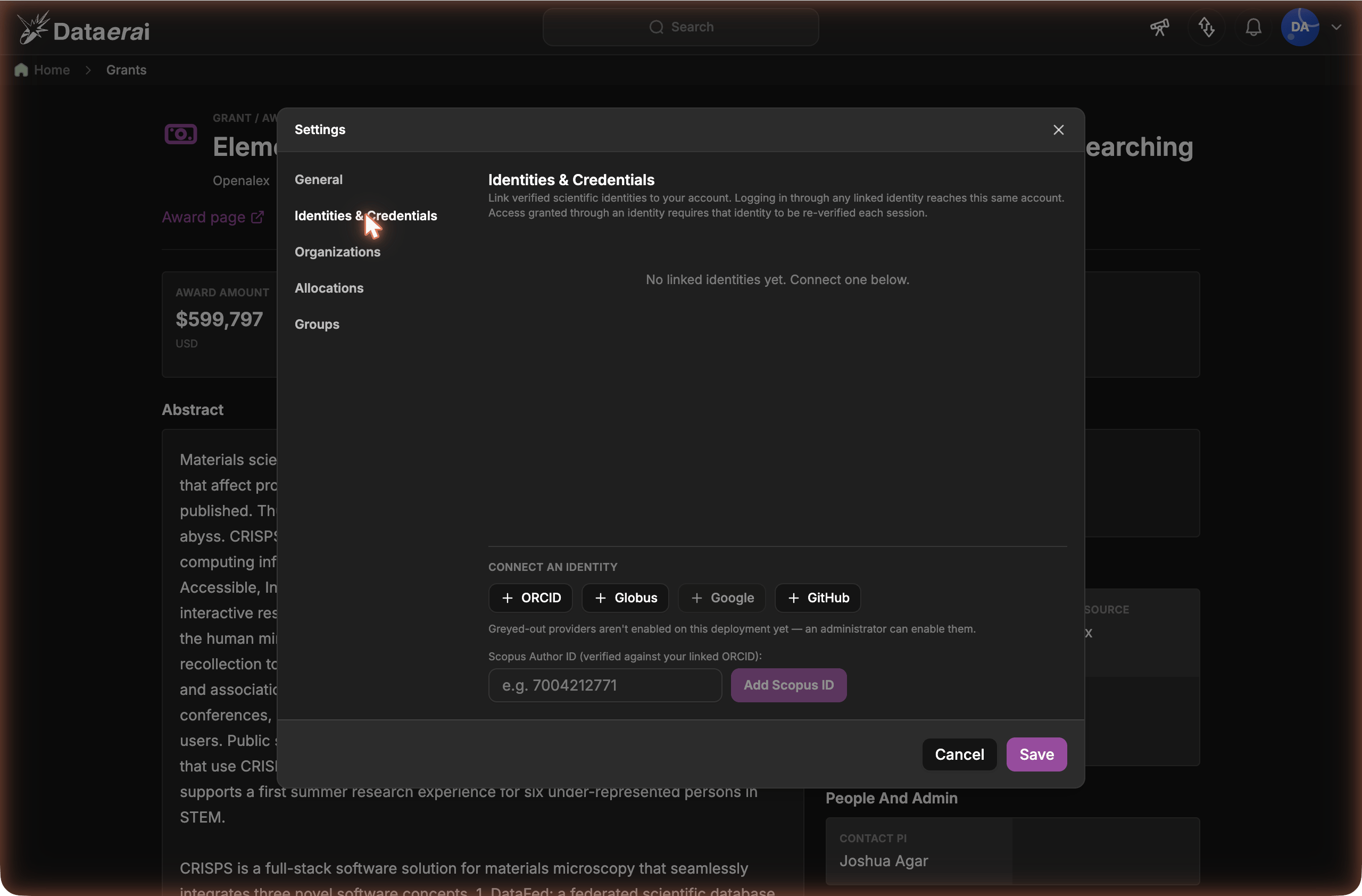
Link verified identities (ORCID, Globus, Google, GitHub) and claim a Scopus Author ID.
Unified sign-in
Once linked, you can sign in through any of your linked identities and reach the same account. You don’t need to remember which one you used last time.Verification freshness & access
Each identity shows when it was last verified. Access that you hold because of an identity — for example, membership of an institution you joined through Globus single sign-on — requires that identity to be re-verified in your current session. If you sign in this session by a route that doesn’t re-verify such an identity (for example, with email and password), Dataerai shows a one-time warning banner listing the identities that aren’t verified this session, and any files you can only reach through them stay hidden until you re-verify.1
Spot the warning
A banner at the top names the identities that need re-verifying this session.
2
Re-verify
Click Re-verify in the banner (or in the pane). You’re redirected to that
provider; on return, the access it grants is restored and the banner clears.
A “stale” badge in the pane means a linked identity grants access but hasn’t been
verified this session. Verified identities you don’t rely on for access never
trigger a warning.
If a provider you linked is later removed from this deployment, its stale
identity shows Unavailable instead of Re-verify — there’s nothing to
re-verify against until your administrator re-enables that provider. (Scopus is
always re-verifiable, since it’s checked against your ORCID rather than a login.)