

- A badge for unread notifications.
- New notifications as they arrive.
- A panel where you can review and clear items.
Open the panel
Open Notifications from the top of the app. Items are split into New (unread) and Earlier, and opening the panel clears the unread badge.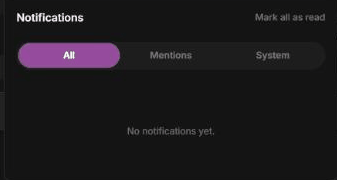
The Notifications panel — All / Mentions / System tabs and Mark all as read.
What you’ll be notified about
- Mentions — someone @mentioned you in a comment. The notification links straight to that comment.
- Allocation thresholds — one of your storage allocations has crossed a usage threshold, so you have time to act before you run out of space.
- Watched-item updates — an asset, collection, or project you’re watching has changed. You’ll see updates such as new or removed items, a new file version, or a metadata change. The notification links to the item.
Watch an item
To follow an item, star it — click the star icon on an asset, collection, or project. From then on you’re notified when it changes. Watching isn’t inherited: starring a collection doesn’t automatically watch the assets inside it. To stop watching, remove the star.Clearing notifications
Click a notification to mark it read (and to jump to whatever it points at), or use Mark all as read to clear them in one go. Use Load more to page back through older items.Next steps
Notes, comments & discussion
How @mentions are created.
Storage: repositories & allocations
What allocation-threshold alerts are warning you about.