

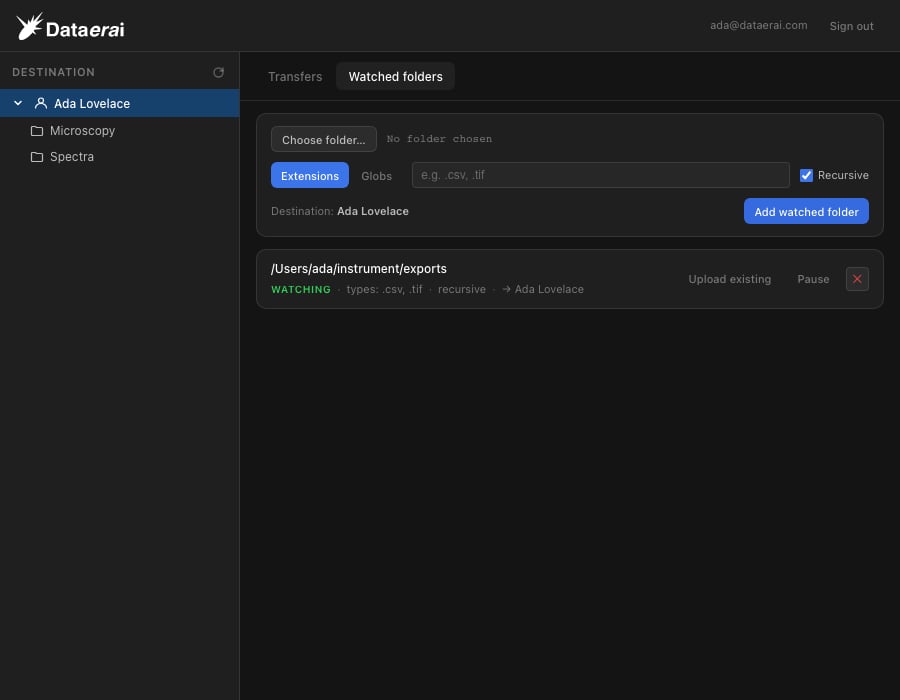
A watched folder uploading matching files to a collection.
Add a watched folder
1
Open the Watched folders tab
In the desktop app, switch from Transfers to Watched folders.
2
Choose the folder
Click Choose folder… and pick the folder on your computer to monitor.
3
Set the file types
Choose Extensions and list the extensions to match — for example
.csv, .tif — or switch to Globs for path-aware patterns like
**/*.csv. Leave Recursive on to include subfolders, or turn it off to
watch only the top level.4
Pick the destination
Select the collection to upload into from the sidebar. It shows as the
Destination in the add form. Then click Add watched folder.
What gets uploaded
By default, a watched folder uploads only files that are added or changed after you add the watch — pointing it at a folder full of existing files does not trigger a surprise bulk upload. Each file is uploaded as a new asset to the destination collection, keeping its path relative to the watched folder.- Existing files — to upload files that were already in the folder, click Upload existing on that folder. Only files not already uploaded are sent.
- No duplicates — a file that already uploaded is not sent again, even after you restart the app. Editing a file uploads the new version.
- In-progress writes — a file still being written or copied isn’t uploaded until it finishes, so you never get a truncated asset.
Match by extension or glob
Extensions
A comma-separated list of extensions, such as
.csv, .tif, .json. The
simplest option for “upload these file types”.Globs
Path-aware patterns, such as
**/*.csv (any depth) or data/*.tif (a
specific subfolder). Use these when the location matters, not just the type.* or
** glob.
Manage watched folders
Each folder in the list has actions:- Pause / Resume — stop or restart automatic uploading. A paused folder shows as paused and uploads nothing until you resume it.
- Upload existing — upload matching files already in the folder (see above).
- Remove (✕) — stop watching the folder and remove it from the list.
A folder can only be watched once. You can’t add a folder that’s already
watched, or one that’s inside (or contains) another watched folder.