

Notes
Each asset has a shared Public note — a free-form Markdown document that renders as formatted prose. Use it for the things a future reader (including you) will want to know: how the data was produced, what the columns mean, known issues, and links to related work. The Public note is part of the asset itself rather than a conversation.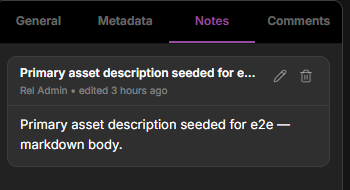
The Notes tab — a Markdown note rendered as prose, with edit and delete controls and a last-edited timestamp.
- Public is the asset’s shared Markdown note.
- Private is your personal note on the sample. Only you can read and edit it.
- Shared contains notes you wrote for selected people or groups, plus notes others shared with you. You can edit and delete notes you authored. Notes shared with you are read-only.
Comments
The Comments tab is a threaded discussion. Anyone with access can post a comment and reply to others, so questions and decisions stay attached to the asset instead of scattering across email or chat. Mention a teammate with @ to pull them in — they get a notification pointing back to the exact comment.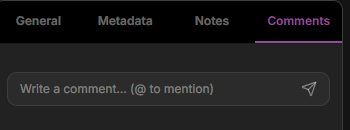
The Comments tab — a composer with @-mention support sits above the threaded discussion.
Notes vs. comments: put settled, reference information in the Note; use Comments for back-and-forth. The note is documentation; comments are a conversation.
README
Collections and projects have a README — a Markdown document that introduces the whole group of data: what it contains, how it’s organized, and how to use it. Open a collection and switch from the Data tab to the Readme tab to read or edit it. It’s the natural place for an at-a-glance overview that individual asset notes can’t give a collaborator landing on a group of data.Next steps
Assets & content
The asset that notes and comments attach to.
Notifications
How @mentions reach the people you tag.
Collections
Where a README introduces a group of data.
Provenance & relationships
Capture how your data came to be.