

What a DID looks like
A DID is a short, self-describing string:did:dataerai:beta:asset:… — so a DID from a test
environment is visibly and cryptographically distinct from a production one.
Two identifiers, two jobs
Where you see it
Open any asset and find the DID row in the General tab of the record sidebar. Hover over the row to reveal a copy button — to drop the DID into a citation or an API call — and a View DID document button. View DID document opens the identity’sdid:web document in a modal: for a
published DID it shows the live document with its
keys, status, and a Verified badge, plus an Open did.json link to the
canonical web document; for a private one you (and anyone it’s shared with) get a
preview of the same document, marked “Preview · not published yet.” You
can copy the document’s JSON straight from the modal.
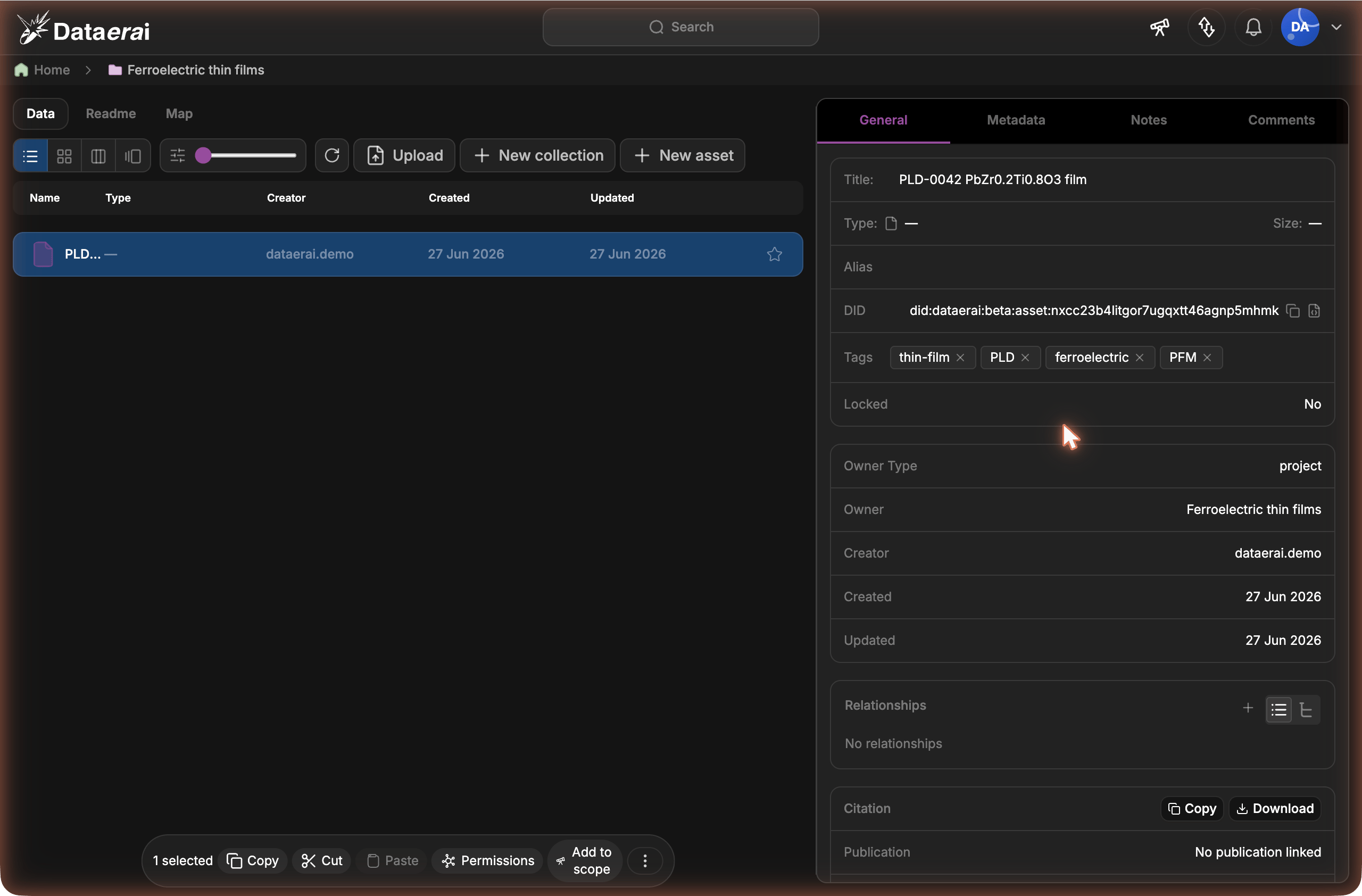
Every asset gets a DID, shown on its General tab with copy and View DID document controls.
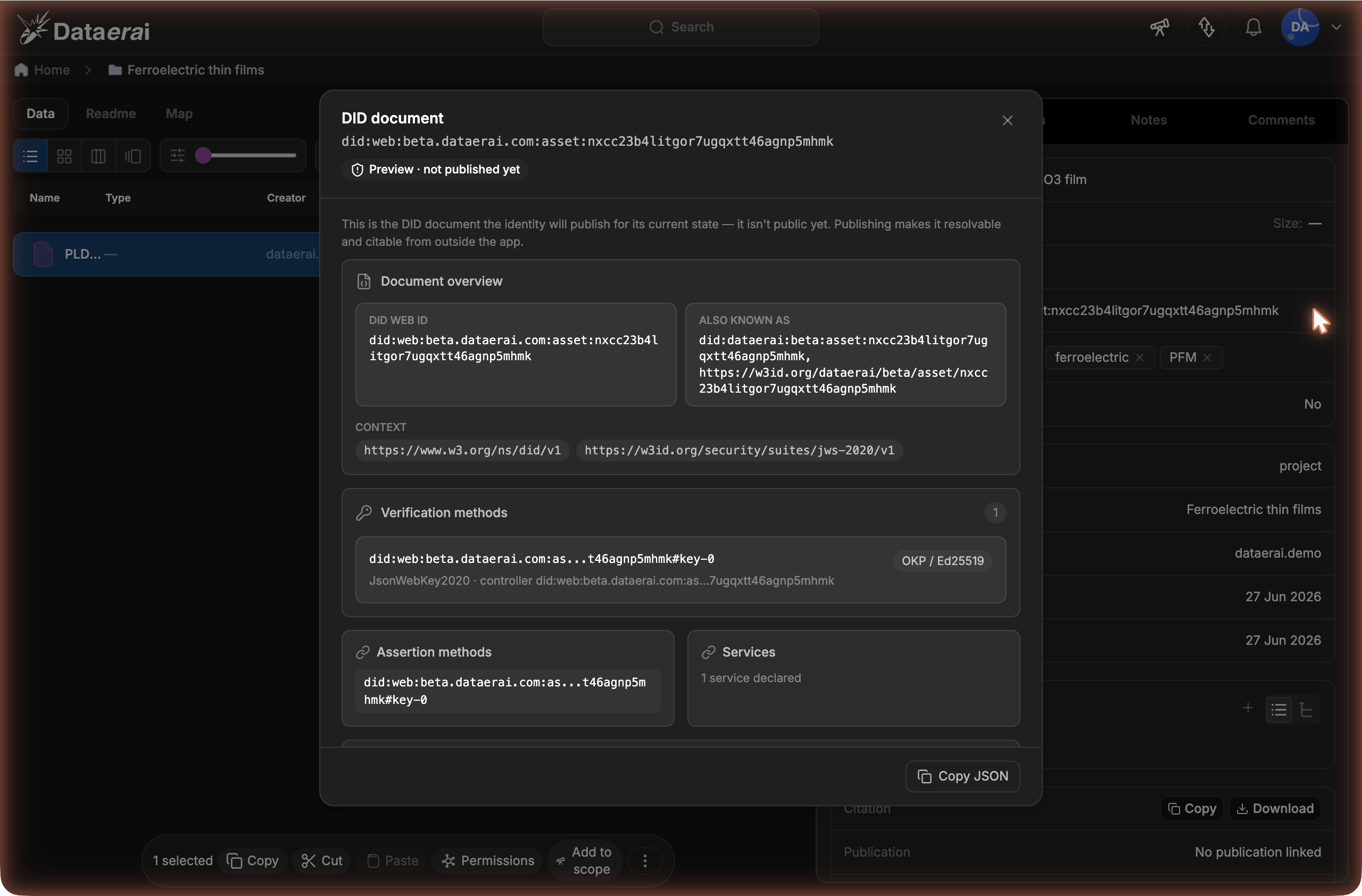
The View DID document modal shows the document a record will publish — here as a preview, before publishing.
What makes it verifiable
Every DID is signed with an Ed25519 key — Dataerai is the trust root — and each identity event is recorded in a tamper-evident transparency log, in the style of Certificate Transparency. There is no blockchain. That combination means anyone can confirm, offline and without logging in:- the record was signed by Dataerai (the signature checks out against the published keys), and
- the record genuinely appears in the log at the position it claims (an inclusion proof against a signed snapshot of the log).
A DID is private by default — a new record has no public surface until you
publish it. Verification still works the moment a
record exists; publishing is what makes the DID citable to the outside world.
DIDs are durable
A DID doesn’t disappear when a record does. Deleting a record tombstones its DID — it still resolves, now marked as tombstoned — so existing citations don’t break. When two person records are merged, the merged-away DID is superseded and points to the surviving one. See Publish & cite for the detail.Next steps
Resolve & verify
Resolve a DID and check its signature and inclusion proof.
Publish & cite
Make a DID public, get its
did:web document, and cite it.