

How relationships work
A relationship is a directed link from one asset to another, with a type that describes the connection. Types are free-form so they can match your domain — common examples include:analysis_of— this asset is an analysis of anotherprepared_from— this sample was prepared from anothercreated_sample— this measurement created or used a sample
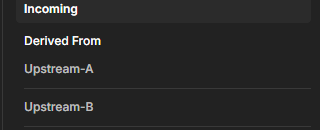
Incoming edges — what this asset was Derived From (its upstream sources).
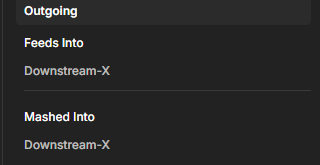
Outgoing edges — what this asset Feeds Into and was Mashed Into (its downstream results).
View and add relationships in the app
Open an asset and look at the Relationships section in the General tab of its detail panel. Relationships are grouped by direction — Incoming (what this asset was derived from) and Outgoing (what it feeds into) — and then by type within each direction. Use the view toggle in the section header to switch between two layouts:- List view shows each direction and type as a flat, scannable list of related assets.
- Tree view shows the same relationships as an expandable tree you can collapse and open by direction and type.
- Target asset ID (UUID) — the asset you’re linking to. Paste its UUID (this is a direct ID entry, not a name search).
- Type — a free-form verb describing the connection, for example
analysis_of. - An optional analysis mode from the dropdown (see below).
Record how an analysis was done
A relationship can also note the analysis mode — how the analysis affected the sample. The dropdown options are non-destructive, altering, destructive, in-situ, ex-situ, invasive, and non-invasive, plus a blank “no analysis mode” choice. Capturing this is valuable for reproducibility and for understanding whether a sample survived a measurement. When you create a relationship through the SDK or REST API, you can also attach a free-text note, a timestamp, and arbitrary qualifiers to record when and how the connection was made. The web form captures the target, type, and analysis mode; the note, time, and qualifier fields are available programmatically.Create relationships from code
Use the Python SDK when your notebook or analysis pipeline creates a new asset and should link it back to its source data:Why it matters
Provenance makes your data trustworthy and reproducible: anyone who finds a result can trace it back to the raw data and the steps in between. It also complements attribution, which links data to the grants and publications behind it.Next steps
Assets & content
The asset these relationships connect.
Attribution
Link data to grants, publications, and contributors.