Follow your transfers in the Transfer tracker: live progress, status filtering, and history for browser, desktop, and CLI uploads and downloads.
Every upload and download in Dataerai is a transfer. The Transfer tracker gives you one place to watch transfers in flight and review what’s already finished — whether they came from the browser, the desktop app, or the CLI.
Open the Transfer tracker from the top of the app. It lists your transfers newest-first, grouped by day, and updates live as transfers progress — no refresh needed.
1
Open the tracker from the top bar
Click the Transfer tracker icon in the top navigation bar.
The Transfer tracker icon sits in the top bar, next to the user account menu.
2
Watch your transfers
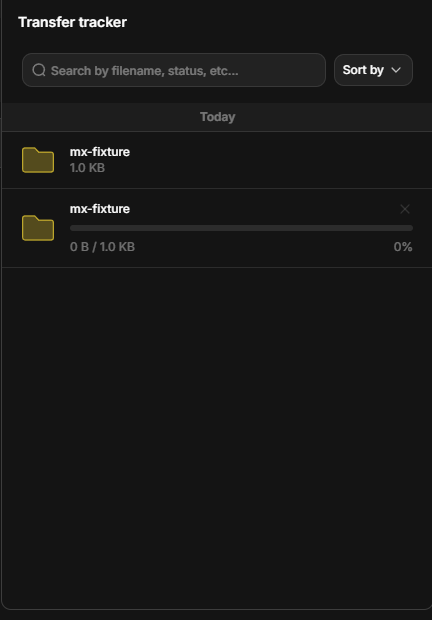
The panel lists transfers newest-first, grouped by day, with search and sort.
The Transfer tracker — search, sort, and a live, day-grouped history of uploads and downloads.
Both uploads and downloads appear in the tracker. Downloading an asset’s content or a whole collection (assembled into a zip) shows up as a transfer row with live progress, right alongside your uploads.Each transfer is in one of three states:
Status
Meaning
In process
Queued or actively transferring.
Completed
All bytes transferred and verified.
Failed
The transfer errored or its credentials expired before finishing.
A transfer in progress shows a live byte-count and percentage; the × abort control stops it.
Browser uploads resume automatically and are integrity-checked as they go — an interrupted upload continues rather than starting over. The browser has no manual pause control; you can cancel an in-progress transfer with the × button. For pause, resume, and the highest throughput on large or bulk transfers, use the desktop app and CLI.
Filter by status (In process / Completed / Failed), project, or repository.
Sort by date or other fields.
Active storage migrations also appear in the tracker. A migration is Dataerai copying or moving an asset’s content between repositories or allocations — for example, when an admin changes where a project’s data is stored. The row shows the source and destination and its progress, so you can see your data is being relocated without any action on your part.